Hybrid workers with a small home desk
If you split your week between locations, focus on equipment that works with your laptop and fits the space available for document work and calls.


Start with the part of your working day that needs improvement: a monitor adds screen space for documents, a hub or dock connects peripherals at a desk, and a headset or webcam addresses a specific call-audio or camera problem. Before choosing display or docking equipment, check what your exact laptop and its ports support; a USB-C connector alone does not establish that video output, charging and every dock function will work.
The useful addition depends on whether your existing laptop setup limits desk work, repeated connections or calls.
If you split your week between locations, focus on equipment that works with your laptop and fits the space available for document work and calls.
If you regularly attach a display and peripherals when you get home, decide whether occasional port expansion is enough or a fixed desk connection would be more useful.
Work out whether the recurring issue is camera position, what others hear from your microphone, or how well you can hear them. Those problems call for different equipment.
Identify the task that is difficult on your current laptop, then check the connection and setup requirements before adding another device.
| Priority | What to check | Your needs |
|---|---|---|
| Laptop compatibility | Check the exact laptop model for video output, supported external displays and charging requirements. Match its port and cable capabilities to the proposed monitor, hub or dock; Microsoft Support notes that USB-C and USB4 functions depend on PC support. | I want the display and desk connections I buy to work with my existing laptop, rather than relying on the shape of its USB-C socket. |
| Screen space | Check whether one monitor can connect directly or needs an adapter. For further independent displays, check the laptop’s display limit and the required resolution and refresh rate; Microsoft Support and Apple Support describe limits that depend on the computer. | Documents and meeting windows compete for room on my laptop screen. A separate display matters more to me than extra desk ports. |
| Desk connections | List the peripherals you reconnect and compare them with the hub’s or dock’s ports. For a dock that also powers the laptop, check its power output, required power supply and stated host compatibility. | At a fixed desk, I repeatedly connect several devices and want a simpler routine. If I only need an occasional extra port, a compact hub may be enough. |
| Calls | Separate camera-angle and image concerns from microphone and listening concerns. Check the connection type and the meeting app’s camera and microphone permissions; Microsoft Support identifies app access as a possible cause of device problems. | When people struggle to hear me, I would consider a headset first. If camera placement is the problem, I would look at a webcam instead. |
| Workstation fit | Check the screen position and whether a raised laptop would also need a separate keyboard and pointing device. Where display screen equipment rules apply to an employee, the Health and Safety Executive calls for an individual workstation assessment. | My home workspace needs to be comfortable for the work I do and, if space is shared, practical to put away. |
A connector may fit even when the laptop, cable or device cannot provide the expected video or charging function. Microsoft Support advises checking PC support for USB4 devices and docks.
Compare the exact laptop specification with the dock’s host requirements, including its video mode, charging needs and specified cable.
A dock does not necessarily change the computer’s external-display limit. Microsoft Support notes that a display splitter can duplicate a signal rather than create independent screens; Apple Support says Mac display capacity varies by model, resolution and refresh rate.
Confirm the laptop’s supported number of external displays under the conditions you intend to use before choosing multi-display hardware.
Webcam image features and headset microphone features address different parts of a call. Logitech’s Brio 500 listing describes light correction, while Jabra’s Evolve2 55 listing describes noise-cancelling microphones; neither feature identifies which issue affects your meetings.
Determine whether the problem is what others see, what they hear from you, or what you hear. Choose equipment for that specific issue.
An employee’s equipment needs cannot be determined from a general shopping list. The Health and Safety Executive says that, where an applicable display screen equipment assessment identifies action the employer needs to take, workers cannot be charged for that action.
Check your employer’s homeworking arrangements and request an individual workstation assessment where relevant before making a personal purchase on the assumption of reimbursement.
These examples illustrate different equipment categories; the stated features apply to the named models, not every product from each brand.
The SD4843P EQ is a desk-dock example for connecting a compatible Windows laptop to peripherals and displays.
The 565 USB-C Hub is a compact port-expansion example for a laptop used in more than one location.
The Brio 500 is a webcam example when camera framing or room lighting is the main call concern.
The Evolve2 55 is a headset example for frequent calls where listening and microphone use are priorities.
These options address call audio, desk connections, camera placement and extra screen space alongside an existing laptop. Choose by the task and connection you need, rather than treating the products as interchangeable.
 No image available
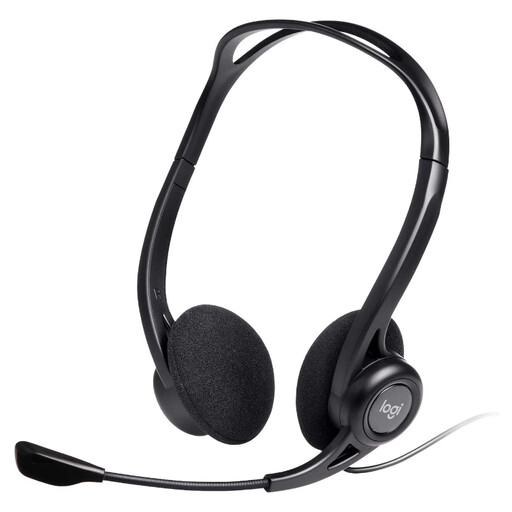
A headset option when microphone use is the priority for desk calls. Its name specifies an in-line remote and noise-cancelling microphone; check that its connection suits your laptop rather than assuming every USB socket is interchangeable.
 No image available
A desk-dock option if you regularly connect displays and other devices. The product name states 100W Power Delivery pass-through; check your laptop’s video and charging support, the conditions for its stated display output, and whether the required power adapter is included.
 No image available
A larger separate screen for a home desk where documents need more room. Its name also specifies built-in speakers; before choosing it, match the laptop’s video output and an appropriate cable to the monitor’s available input.
 No image available
A separate-camera option if laptop-screen placement gives you an unsuitable call angle. The product name says 2K, but the supplied detailed resolution information differs; confirm the exact output resolution before relying on that label.
 No image available
A portable second-screen option for a laptop setup that moves between locations. The product name specifies USB Type-C; check that your exact laptop can send video through the intended port before choosing it.
Not if your laptop can connect to the monitor through a compatible video output, cable or adapter and you do not need the dock’s other connections. Consider a dock when you also reconnect several peripherals or want a repeatable desk connection; check the laptop’s port and display specifications first.
No. USB-C describes the connector, not every video, charging, USB4 or Thunderbolt capability. Microsoft Support advises checking PC support for the functions required by an attached dock, so compare your exact laptop, the dock’s compatibility statement and the required cable.
Only if the laptop and connection support the intended display arrangement. Microsoft Support notes that a computer may be limited to one external monitor and that a splitter can duplicate an image; Apple Support says Mac limits depend on the model, resolution and refresh rate. Check those conditions before choosing a multi-display dock.
Choose according to the problem: a headset addresses microphone and listening needs, while a webcam addresses camera position or image concerns. Consider both only if both sides of your calls need attention; camera features will not resolve a separate listening problem.
Check which camera and microphone the app has selected, then check the connection and device permissions. Microsoft Support identifies microphone and camera app access settings as possible causes; for a wireless headset, check its pairing as well.