Who needs a desk connection?
The useful setup depends on what stays connected at each desk and what you carry with the laptop.
Hybrid workers using two desks
If you move the same laptop between home and office, list the monitor, charger, network cable and accessories at each location. The Health and Safety Executive’s guidance on display screen equipment addresses workers who routinely use it in both settings; it does not mean that every worker needs a dock.
Students and mobile workers
If you usually connect one external display and a few USB devices, a travel-sized connection kit may be easier to move than a fixed-desk dock. Check its display mode, charging capability and ports against the laptop you actually use.
Multi-display and managed-desk users
More than one display, wired networking or workplace-managed features call for closer checks. The laptop’s display limit, the dock’s supported configuration and any required software all matter; a row of video sockets does not establish how many screens will work together.
What should you check before choosing?
Start with the exact laptop model and the connections required at each desk, then compare hubs, powered docks and direct display connections.
| Priority | What to check | Your needs |
|---|
| Display compatibility |
Check the laptop port’s video protocol, its external-display limit, and the required resolution and refresh rate. Match the laptop-to-dock and dock-to-monitor connections. |
I need the screen setup at each desk to work with this laptop, not merely to fit the dock’s sockets. Apple Support notes that a Mac adapter must use a supported display protocol; check the specifications for your exact model. |
| Charging and desk ports |
Compare power delivered to the laptop with its charging requirement. Count USB devices and check for Ethernet if you use a wired network. Dell UK lists different delivered power for Dell and non-Dell systems on its WD25TB4, illustrating why the host matters. |
I want to reconnect my charger, network and regular accessories without swapping several cables. If charging is essential, the dock’s headline power figure alone is not enough. |
| Portability or fixed setup |
For one display and limited USB expansion, compare a compact hub or travel dock with a powered dock. If you need only a screen, check whether a compatible direct cable or adapter covers it. |
At a temporary desk, I would rather carry only the connections I use. At a permanent desk, leaving more devices plugged into a dock may be more useful. |
| Extra displays and software |
Check simultaneous display modes for the exact laptop and dock. For a DisplayLink device, confirm operating-system support and permission to install its software; distinguish that route from native USB-C or Thunderbolt video. |
I need to know whether extra screens will work on my laptop, especially if workplace software rules limit what I can install. Synaptics describes DisplayLink Manager as software for its macOS display devices. |
Relevant brands and technologies
These examples show why specifications must be checked by model; a brand name alone does not establish compatibility.
Lenovo
Lenovo UK lists travel docks as well as Thunderbolt docking options for more connected desks.
- Its slim travel-dock listing specifies one 4K-at-60Hz display and 65W charging, giving single-screen buyers a concrete configuration to compare.
- Lenovo says its ThinkPad Universal Thunderbolt 4 Dock depends on supported host protocols. Check compatibility with the exact laptop rather than assuming that any USB-C connection provides every function.
Dell
Dell UK’s WD25TB4 is an example of a powered Thunderbolt dock whose charging specification varies with the host system.
- Dell lists laptop power delivery of 130W for Dell systems and 96W for non-Dell systems on this model.
- Those figures belong to the WD25TB4; check the specification for any other Dell dock and the laptop it will charge.
DisplayLink by Synaptics
DisplayLink is a USB graphics technology used in some docks and adapters, rather than a single dock model.
- Synaptics provides DisplayLink Manager to enable compatible DisplayLink devices on macOS.
- Confirm the device, macOS version and software permissions before choosing this route; it is not the same as native display output from the laptop.
Joybuy options for different desk setups
These USB-C adapters, hubs and docks cover different combinations of displays, networking and accessories. Match each option to your laptop and both desks before treating its connections as usable.
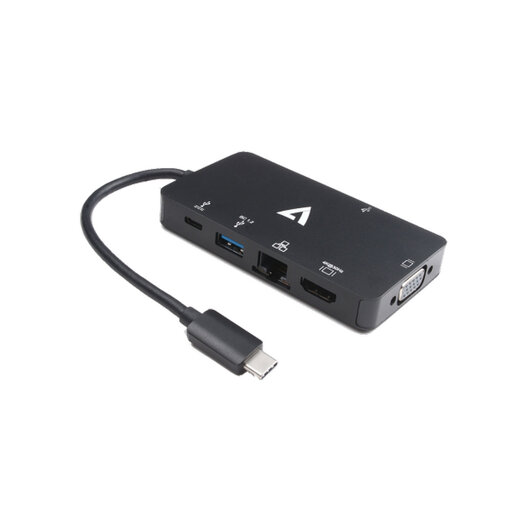 Image unavailable
V7 V7UC-U3CRJ45HDVG-BLK USB-C adapter
For a single-display desk that also needs wired networking and USB peripherals. The listed connections include 4K HDMI, VGA, Gigabit Ethernet, dual USB 3.0 ports and 100W Power Delivery; the stated display setup uses one screen. Check your laptop’s USB-C video support and the power actually delivered to it.
View on Joybuy
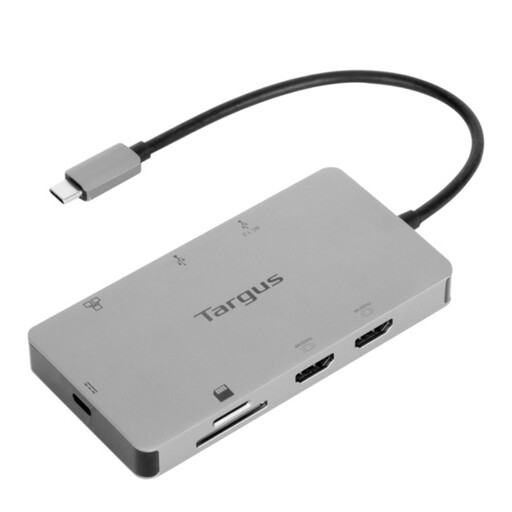 Image unavailable
Targus USB-C Universal Dual HDMI 4K docking station
For a desk where two HDMI display connections and laptop charging are priorities. The product is listed with 100W Power Delivery pass-through and requires an external 100W+ adapter; confirm the box contents, your laptop’s two-display support and the charging power it can receive.
View on Joybuy
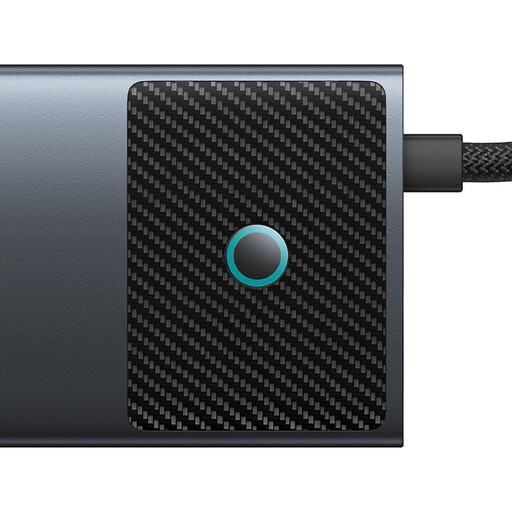 Image unavailable
Baseus Metal Gleam Series II 10-in-1 USB-C hub, Cosmic Black
For a desk needing HDMI connections, wired networking, USB devices and card slots. The title lists two HDMI outputs with separate maxima of 4K at 120Hz and 4K at 60Hz, plus RJ45, SD/TF and USB-C PD input. Check the laptop’s DisplayPort Alt Mode support, the modes available when both HDMI outputs are used and power delivered to the laptop.
View on Joybuy
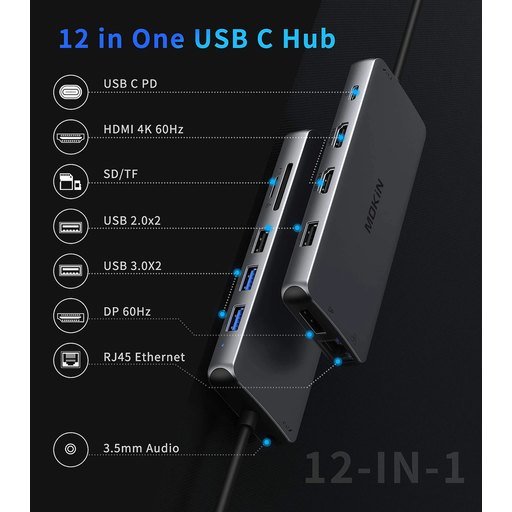 Image unavailable
USB-C hub with 2 HDMI, DisplayPort, RJ45 and PD
For a desk where several video connectors, wired networking and USB connections are needed. The title also lists two USB 3.0 ports, two USB 2.0 ports, SD/TF slots and audio. Before relying on multiple screens or charging, check host-port compatibility, simultaneous display modes and laptop-delivered PD power.
View on Joybuy
 Image unavailable
MOVESPEED DK5A1 10-in-1 USB-C docking station
For a one-screen setup using USB devices, SD/TF cards and audio. The title specifies 4K-at-60Hz HDMI, USB-C and USB-A data ports, and a 3.5mm audio connection. If your desk also needs Ethernet or laptop charging through the hub, check those requirements separately; confirm that your laptop’s USB-C port supports the required video output.
View on Joybuy
Common questions
What laptop specifications should I check before buying a dock?
Check the exact model’s USB-C or Thunderbolt protocol, video support, external-display limit, supported resolution and refresh rate, and charging requirement. Then match those specifications to the dock and monitor connections. A USB-C-shaped port alone does not establish Thunderbolt or multi-display support.
When is a compact USB-C hub enough?
A compact hub can cover a portable setup with one display and a small number of accessories if its ports and charging arrangement meet your needs. Lenovo UK lists a slim travel dock with one 4K-at-60Hz display and 65W charging as one example; confirm compatibility with your own laptop and monitor.
When should I consider a powered or Thunderbolt dock?
Consider a powered dock when charging, Ethernet and several permanently connected devices matter at a fixed desk. Choose a Thunderbolt model only when the laptop supports it and the dock’s documented display and charging configuration fits your setup; the Thunderbolt connector or dock name alone does not settle those details.
Can a DisplayLink dock help a Mac use more displays?
It can be a route to additional displays, but it uses software rather than adding native display outputs to the Mac. Synaptics provides DisplayLink Manager for macOS; check the particular device, current operating-system support and permission to install the software before buying.
Does a dock replace the need to check both workstations?
No. A dock organises connections, but the displays, cables, power and accessories at home and in the office still need to suit the laptop and the work being done. For workers who routinely use display screen equipment in both places, the Health and Safety Executive says the workstation assessment should cover both settings.


