What should you check before buying?
Work out what the current desk setup makes difficult, then check the laptop and workplace requirements that affect the accessory you are considering.
| Priority |
What to check |
Your needs |
| Screen and input position |
Check whether a riser leaves room for a separate keyboard and mouse, or whether an external display will be your main screen. The HSE recommends separate input devices when elevating a laptop screen for prolonged use. |
I work at my laptop for long desk sessions and need to position the screen without relying on its built-in keyboard and trackpad. |
| Display connection |
Check the exact laptop model’s supported external-display count and video output. Match the monitor connection, resolution and intended refresh rate to the laptop and cable; Apple Support advises checking display support for the particular Mac. |
More room for documents or calls matters to me, but the monitor must work with the laptop I use. |
| Dock compatibility |
Check the host port’s video, data and charging capabilities; the dock’s operating-system support; and its stated configuration for your displays and peripherals. Kensington cautions that USB-C identifies a connector, not a guaranteed set of functions. |
I want to reconnect my regular desk devices through one host connection rather than attach them individually each time. |
| Charging |
Compare the laptop’s charging requirement with the dock’s stated host output and any adapter it requires. Dell, for example, specifies different Power Delivery outputs for Dell and non-Dell systems on its WD25TB4; that figure does not establish compatibility with every laptop. |
One connection would be useful only if the proposed dock also meets my laptop’s charging needs. |
| Calls and privacy |
Check whether the existing camera and audio meet your needs, then confirm the accessory’s laptop, operating-system and meeting-platform compatibility. If you want a physical camera control, check for a shutter. |
Frequent calls make camera, microphone or privacy controls important at my desk; an extra device is less useful if the built-in setup already works for me. |
| Workplace assessment |
Ask how your employer assesses regular display-screen-equipment work at home and in the office before purchasing work equipment. HSE guidance for Great Britain says the rules can apply to routine hybrid workers; the Health and Safety Executive for Northern Ireland also addresses qualifying home and hybrid workers. |
Before buying equipment for regular work use, I want to know what my employer’s workstation assessment says I need. |
Brand references for docks and call equipment
These examples illustrate model-specific compatibility questions; a brand name alone cannot establish that an accessory will work with your laptop.
Dell
Dell’s dock specifications can help you compare charging requirements across different host laptops.
- Dell UK lists 130W Power Delivery for Dell systems and 96W for non-Dell systems on the Pro Dock WD25TB4.
- Check the particular laptop and intended display configuration; those charging figures do not guarantee every host setup.
CalDigit
CalDigit’s TS4 is a Thunderbolt dock to consider when several desk peripherals need connections.
- The TS4 offers a dock-based route for connecting peripherals at a fixed workstation.
- CalDigit states that full TS4 functionality depends on the host computer’s capabilities; check the intended display and peripheral arrangement against your laptop.
Kensington
Kensington’s dock guidance is useful when comparing what different USB-C and Thunderbolt hosts can actually do.
- Its guidance distinguishes the USB-C connector from optional video, speed and charging capabilities.
- Kensington says some base-chip MacBooks and USB-C Alt Mode laptops support only one external display through its SD5760T, despite the dock having two HDMI outputs.
Logitech
Logitech’s webcams are a separate consideration for call-heavy work, not a solution to laptop-and-dock display compatibility.
- Logitech lists the Brio 505 as certified for Microsoft Teams, Google Meet and Zoom.
- Check the work laptop and any software-dependent features before choosing a webcam for a managed workplace setup.
Joybuy options for a laptop desk
These Joybuy options cover a USB-C dock, two monitors and devices for work calls. Choose by the desk task you need to address, then check compatibility with your laptop and workplace setup.
 No image available
Targus USB-C Universal Dual HDMI 4K dock with 100W Power Delivery pass-through
Consider this dock if you repeatedly reconnect a laptop to desk displays and peripherals. Its listing describes dual HDMI outputs, USB-A ports and Gigabit Ethernet, with up to 100W Power Delivery pass-through. Check your laptop’s USB-C video support, display limits and charging requirement; the listing calls for an external 100W+ adapter, so confirm whether one is included.
View on Joybuy
 No image available
Samsung S40GD LS22D400GAUXXU 22-inch Full HD monitor
This is a separate screen option for a laptop desk where you want to adjust the main display’s position. The listing specifies an IPS panel, HDMI and DisplayPort inputs, and height, tilt, swivel and pivot adjustments. Check your laptop’s video output and the cable needed to connect it.
View on Joybuy
 No image available
AOC Q32V4 31.5-inch 2K monitor
Consider this larger screen if you want more display area at a fixed laptop desk. The listing describes a 31.5-inch QHD IPS display with HDMI and DisplayPort inputs, plus VESA 100 × 100 mounting compatibility. Confirm that your laptop supports the intended resolution and connection, and check whether the included stand or a planned mount meets your positioning needs.
View on Joybuy
 No image available
Targus 2K webcam with autofocus
This external webcam is relevant if the laptop’s built-in camera does not meet your call needs. The listing describes autofocus, a built-in microphone and a physical privacy slider. Confirm its connection and compatibility with your work laptop; also verify the resolution before buying, because the product name says 2K while its technical details say Full HD 1080p.
View on Joybuy
 No image available
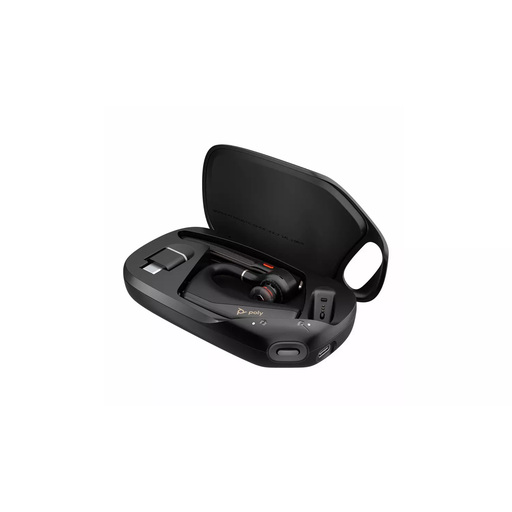
HP Poly Voyager Legend 50-M UC Bluetooth headset, black
A separate headset is worth considering if the laptop’s built-in audio does not suit your work calls. This listing describes Bluetooth connectivity, call controls and microphone noise-reduction features. Check pairing and compatibility with your work laptop and employer’s meeting software before choosing it.
View on Joybuy
Questions about hybrid-work accessories
Should I choose a laptop stand or an external monitor?
Choose a stand with a separate keyboard and mouse if the laptop screen gives you enough space but needs repositioning for prolonged desk work. Consider an external monitor when you also need more screen area, after checking your laptop’s video output. The HSE identifies both an elevated laptop screen with separate input devices and a separate display as workstation options.
Will any USB-C dock run two monitors and charge my laptop?
No: Kensington cautions that USB-C describes the connector, while video, speed and Power Delivery depend on the devices. Check your exact laptop’s display limit and host port, then compare its charging requirement with the dock’s stated output and its supported display configuration.
Why might a multi-monitor dock give my Mac only one external display?
The result depends on the exact Mac model and chip as well as the dock. Apple Support advises checking the Mac’s display-support specification; Kensington, for example, specifies a single-external-display limit for certain base-chip MacBooks using its SD5760T.
Can a DisplayLink dock require software on a Mac?
Yes. DisplayLink describes its Manager app as a way to enable DisplayLink technology on macOS. Before choosing a DisplayLink-based dock for work, check the dock’s current macOS support and whether your employer permits the required software installation.
Should I ask my employer before buying workstation equipment?
Yes, if the equipment is for regular work use, ask about the employer’s display-screen-equipment assessment process before assuming you need to buy it personally. HSE guidance says the rules can apply to routine home and hybrid workers in Great Britain, and its assessment guidance addresses qualifying daily users; the Health and Safety Executive for Northern Ireland also addresses qualifying home and hybrid workers.


