Hybrid workers using a laptop screen
If you move between home and another workplace, a separate display may give documents and calls more room. A dock may make reconnection simpler, but the laptop must support the intended display arrangement.


Choose the addition that addresses the task causing trouble: an external monitor for cramped multi-window work, a dock for repeated desk connections, or call equipment when meetings are the main difficulty. Before connecting anything to a work-issued laptop, check its display and power capabilities and your employer’s peripheral rules; for sustained screen work, consider the whole workstation rather than assuming one accessory will resolve every issue.
If you move between home and another workplace, a separate display may give documents and calls more room. A dock may make reconnection simpler, but the laptop must support the intended display arrangement.
Choose according to the recurring problem: camera position and privacy point towards webcam checks, while hearing others or managing household noise points towards audio equipment. Check the meeting platform and permitted connections before buying.
Peripheral rules can affect docks, cameras and wireless input devices even when their connectors appear to fit. The National Cyber Security Centre identifies USB and Thunderbolt peripherals as potential routes to a device and its data, so check organisational requirements before connecting personal equipment.
Start with the desk task, then confirm that the laptop and workplace rules allow the connection you have in mind.
| Priority | What to check | Your needs |
|---|---|---|
| Screen space | Check the laptop’s supported number of independent displays, its video output and the monitor’s input. Microsoft Support notes that a laptop able to use one external monitor may not support more than one. | I want documents, messages and meeting windows visible without continually rearranging them on a laptop screen. |
| Desk connections | Match the dock to the exact laptop model, required display outputs and charging needs. Confirm that its ports and any required power adapter suit the intended setup. | When I return to my home desk, I want to reconnect the displays, network and peripherals I actually use. |
| Video calls | Check camera placement, the meeting platform and any software needed for particular features. For audio equipment, check the microphone and whether the intended wired or wireless connection is permitted. | My calls are the sticking point, so I would rather address framing, sound or camera privacy than add another screen. |
| Work-device rules | Ask which USB, Thunderbolt, Bluetooth and camera peripherals your organisation permits, and whether software installation or a managed dock is required. | I use a work-issued laptop and need equipment I am allowed to connect, not just equipment with a matching plug. |
| Workstation position | Consider the screen, keyboard and mouse together. For regular home screen work, use the applicable employer display-screen-equipment assessment process to identify what the individual workstation needs. | If I raise my laptop screen or change monitor position, I still need a workable way to type and use a pointer. |
A matching connector does not establish how many independent monitors the laptop can drive. Microsoft Support also notes that a display splitter duplicates a signal rather than creating two independent display signals.
Check the exact laptop model, graphics capability, video ports and intended monitor configuration against the manufacturer’s documentation before choosing a dock or adapter.
A dock, webcam or wireless device can be unsuitable for a managed laptop even if it connects physically. The National Cyber Security Centre identifies peripheral interfaces as potential routes to the device and its data.
Check your organisation’s approved-peripheral and software rules before buying equipment for a work-issued computer.
Raising a laptop changes the position of its built-in keyboard and trackpad as well as its screen. Health and Safety Executive guidance treats home display-screen work as a workstation issue, not simply a choice of screen size.
Consider screen placement and separate input devices together through the employer’s assessment process where it applies.
Some camera controls depend on additional software or a supported computer. Logitech states that Brio 505 auto-framing requires Logi Tune and is unavailable on ChromeOS and computers with ARM processors.
Check the operating system, processor and permission to install the required software before choosing a webcam for that feature.
These model-specific examples illustrate different desk tasks; brand inclusion does not establish suitability for every work laptop.
Dell’s UltraSharp U2724DE combines an external display with Thunderbolt connectivity for a monitor-led desk arrangement.
The Surface Thunderbolt 4 Dock is a model to consider where the work device is a compatible Surface and a dock is permitted.
The Brio 505 is a business webcam to consider when meeting-platform compatibility and a physical privacy shutter matter.
These options cover extra screen space, desk connections, call audio and separate input devices. Choose by the task you need to address, then check the exact laptop and workplace requirements.
 No image available
A portable external-screen option for laptop work. Confirm that your laptop supports the display’s required USB-C video connection and that the screen arrangement suits your desk.
 No image available
A dock option for reconnecting displays and peripherals at one desk. The stated dual HDMI and 100W pass-through features still need to be checked against the laptop’s independent-display and charging capabilities; confirm the power adapter required for your setup.
 No image available
A desk-monitor option when laptop-screen space is the constraint. Confirm the exact screen size and that your laptop can drive the intended external display before choosing its position in the workstation.
 No image available
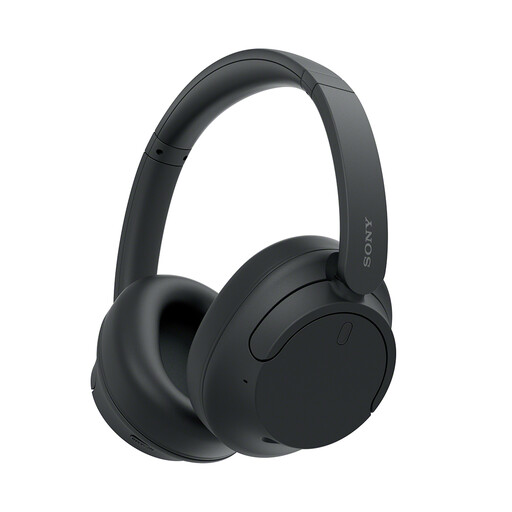
A call-audio option where listening and microphone use matter more than camera position. Check the connection permitted on your work laptop and the call features required by your meeting platform.
 No image available
Separate input devices are worth considering when a laptop is raised or used with a desk monitor. Check the keyboard layout and which wireless connection, if any, your work device permits.
No. Microsoft Support advises checking how many monitors the laptop’s display adapter supports; a splitter can duplicate a signal without creating two independent displays. Check the exact laptop, dock, ports and cables for your intended arrangement.
Yes, if you use a managed work laptop. The National Cyber Security Centre identifies USB and Thunderbolt peripherals as potential routes to a device and its data; your organisation can tell you which docks, cameras and wireless devices it permits.
No. A physical shutter gives you a way to block the camera when closed, but it does not establish that the webcam, its software or its use in meetings is approved. Check those requirements separately.
It can. The Health and Safety Executive says the Display Screen Equipment Regulations can apply to permanent home workers and people who routinely divide their time between home and a workplace; the Health and Safety Executive for Northern Ireland also includes home workers in its display-screen guidance. Use your employer’s assessment process to consider the whole workstation, rather than assuming a monitor or stand alone is the answer.