Who needs which setup?
How often you move the laptop, and what stays on your home desk, should shape the equipment you choose.
Regular home-and-office laptop workers
If the laptop travels but the home equipment stays put, focus on a setup you can reconnect without rebuilding it each time. The Office for National Statistics reported that 28% of working adults in Great Britain hybrid worked between January and March 2025; that figure describes working arrangements, not demand for equipment.
Document-heavy workers with a fixed home desk
If limited laptop screen space interrupts work with documents, spreadsheets or reference material, check external-display support before adding a complex dock. Microsoft notes that a display adapter may not support more than one external monitor, while Apple says supported display counts depend on the Mac model.
Frequent movers who make video calls
A headset and other compact peripherals can travel with the laptop when calls are the main concern. If you also need a portable monitor or hub, check the laptop’s video output, charging capability and available ports before choosing one.
What should you check before buying?
Identify whether you need more screen space, quicker desk reconnection or a better-equipped call setup. Then check the complete arrangement against the exact laptop you carry.
| Priority | What to check | Your needs |
|---|
| Screen space |
Check your laptop’s supported external-display count, resolution and refresh rate. Match its output and cable to the monitor input; Microsoft and Apple both describe limits that depend on the computer or display arrangement. |
I spend long sessions moving between documents, spreadsheets and meeting content. A monitor matters more to me than extra desk ports if screen space is the main constraint. |
| Desk reconnection |
List the monitor, USB and network connections you want to leave at home. Check whether one hub or dock supports that combination through your laptop’s host connection. |
I carry the laptop between locations but want to reconnect my home equipment without handling several separate cables. |
| Ports and charging |
Confirm the laptop’s video mode, data capability and charging requirements, then compare them with the exact hub or dock. Kensington cautions that a USB-C connector alone does not guarantee video, speed or power delivery. |
A single connection appeals to me, but I need to know it will provide the particular display, peripheral and charging functions I use. |
| Call equipment |
Decide whether you need a separate microphone, headset or webcam. Check its connection type and whether the laptop has a compatible port available. |
Calls are the awkward part of my current setup; adding desk displays or Ethernet would not address that need. |
| Desk input |
Check whether the keyboard and mouse use Bluetooth, a USB receiver or cables. Allow for an occupied port, an adapter or device charging where applicable. |
I want separate input devices at home while keeping the laptop itself ready to carry away. |
| Portability |
Consider which accessories must travel and which can stay on the desk. A stand or cable organiser does not add video output, charging or ports. |
I move often enough that a smaller kit may be more useful than leaving every connection in a fixed-desk dock. |
Brand references for specific equipment
These references help distinguish product types and compatibility questions; they do not indicate that every model from a brand has the same capabilities.
Dell
Dell’s Pro Thunderbolt 4 Smart Dock SD25TB4 is an example to examine for a fixed desk that needs a powered dock.
- Dell UK specifies power delivery of 130W for Dell systems and 96W for non-Dell systems on the SD25TB4.
- Those figures describe this dock, not every Dell laptop; check the host laptop’s charging and display support.
Kensington
Kensington’s docking range is relevant when comparing connection standards for a laptop desk setup.
- Kensington’s guidance distinguishes the USB-C connector from its optional video, speed and power-delivery capabilities.
- The connection standard alone cannot establish whether a particular dock works with a particular laptop.
Anker
Anker’s 565 USB-C Hub is a reference point for checking a compact hub against a laptop’s display capabilities.
- Anker directs buyers to the laptop manual to identify whether it supports DisplayPort 1.4 or 1.2 when assessing this hub.
- Check the exact model’s port functions and the laptop connection rather than choosing by port count alone.
Logitech
Logitech’s home-working collection groups a webcam, USB headset, keyboard and mouse as separate parts of a desk setup.
- The collection illustrates how call equipment and input devices can be chosen independently of a dock.
- Check the connections and functions of each particular peripheral; a grouped collection does not establish comparative performance.
Joybuy options for a hybrid workspace
These options cover a carryable USB-C adapter, portable and desk monitors, a wired call headset, and keyboard-and-mouse input. Choose by the task you need to address, then check the relevant laptop connection.
 No image available
V7 V7UC-U3CRJ45HDVG-BLK USB-C adapter
Consider this adapter if a laptop that travels between locations needs additional connections at a desk. Its listed connections include 4K HDMI, VGA, Gigabit Ethernet and two USB 3.0 ports, alongside 100W Power Delivery. Check the laptop’s video output and charging requirements before relying on those functions.
View on Joybuy
 No image available
ASUS ZenScreen MB166C 15.6-inch USB-C monitor
This portable monitor is an option when extra screen space needs to travel with the laptop. The listed display is 15.6 inches, Full HD and IPS, with a USB Type-C connection. Check that the laptop’s USB-C port meets the monitor’s video and power requirements.
View on Joybuy
 No image available
AOC Q32V4 31.5-inch IPS monitor
This is a desk-monitor option for work that needs more display area at home rather than a screen to carry. The product name identifies a 31.5-inch IPS monitor with built-in speakers. Check your laptop’s supported display configuration and the cable needed for the monitor input.
View on Joybuy
 No image available
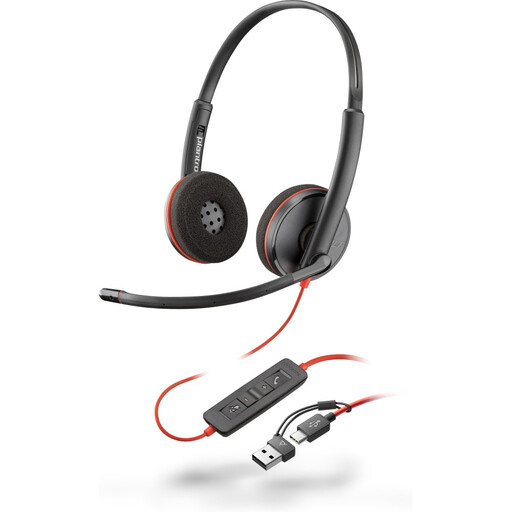
Poly Blackwire 3220 stereo USB-C headset with USB-C/A adapter
This wired headset addresses the audio-and-microphone part of a call setup without requiring a desk dock. The product name includes a USB-C/A adapter. Check for an available compatible port; the headset does not provide a webcam or extra screen space.
View on Joybuy
 No image available
Philips 3000 Series SPT6318B/05 wireless keyboard and mouse, UK English
This keyboard-and-mouse set provides separate input devices for a home desk while the laptop remains the computer you carry. The listed variant has a UK English keyboard layout and uses a USB-A receiver. Check that the laptop has a free USB-A port or a suitable adapter.
View on Joybuy
Common questions
Will any USB-C laptop port run a monitor and charge through a dock?
No. USB-C describes the connector, not guaranteed video output or power delivery. Kensington notes that these capabilities are optional, so check the exact laptop port and the dock’s host-connection requirements before choosing a single-cable setup.
How can I check whether my laptop supports two external monitors?
Start with the exact laptop model’s display specification, including the intended monitor count, resolutions and refresh rates. Microsoft warns that a display adapter may not support more than one external monitor; Apple says Mac support depends on the model and display configuration.
Does a DisplayLink dock need software on a Mac?
Yes, if the dock specifically uses DisplayLink technology. DisplayLink says its Manager application is required on macOS and needs Screen Recording permission for correct operation; confirm the chosen product and supported macOS version before planning the setup.
What should I check on a mains-powered monitor or dock?
Check the exact model, supplied power equipment and whether the plug and power supply are intended for where you will use them. The Office for Product Safety and Standards’ electrical-equipment guidance addresses goods supplied in or into Great Britain; do not assume its scope describes every Northern Ireland requirement.
What should I do with old workspace electronics?
Use an appropriate electrical-waste collection or retailer take-back route where available rather than putting an old monitor, dock, headset or webcam in ordinary household waste. UK government guidance on waste electrical and electronic equipment describes recovery, reuse and recycling as aims of the regulations.


