Who needs which setup?
How often you work at the same desk—and what you carry between locations—matters more than assembling the same set of peripherals for every hybrid-work day.
Regular home-desk workers
If you spend extended periods reading, writing or working across documents at home, plan the screen, keyboard, mouse and available desk space together. The Health and Safety Executive treats these as parts of the wider display-screen workstation, rather than treating a monitor as the whole arrangement.
Laptop-first commuters and hot-deskers
If you regularly change work locations, a portable screen or compact adapter may address the need for a second display or extra connections without making a desk dock part of your daily bag. Check the laptop connection and the equipment you would need to pack each time.
Frequent callers using managed laptops
If framing, privacy or speech pickup is the problem, choose the peripheral that addresses that specific call need. Before buying for an employer-managed laptop, confirm that its connection and your meeting platform are permitted; Microsoft documents that organisations can restrict USB device types, including cameras.
What should you check before buying?
Decide whether the equipment will stay on a home desk or move with the laptop. Then check connections, power and workplace restrictions against the exact devices you intend to use.
| Priority | What to check | Your needs |
|---|
| Home desk arrangement |
Check screen placement and available desk depth. Consider the keyboard, mouse and laptop position as one arrangement; the Health and Safety Executive’s display-screen guidance covers the wider workstation. |
I work on documents at home regularly and want a setup I can return to without rearranging the laptop and input devices each time. |
| Display connection |
Check the exact laptop’s video-output capability, the monitor or dock’s required connection and the specified cable. For a USB-C portable display, ASUS advises checking that the laptop’s USB-C port supports display output. |
A second screen matters to me, but it needs to work through the connection available on my laptop. |
| Charging and dock ports |
Compare the laptop’s charging requirement with the dock’s power provided for that host type. Check the supported display configuration and the ports needed for your peripherals; Dell’s WD25 and SD25TB4 specifications, for example, give different power figures for Dell and non-Dell systems. |
I want to connect my desk equipment without assuming that one cable can also replace the laptop charger. |
| Equipment that travels |
Check the portable screen’s connection and power arrangement. For an adapter, list the display, USB and network connections you will actually use away from the main desk. |
My second screen or essential ports need to move between locations, so packing and setting up the equipment matter as much as the home-desk arrangement. |
| Video calls |
Identify whether the issue is camera framing, privacy, speech pickup or surrounding noise. Check meeting-platform compatibility, the required connection and any employer device controls; Microsoft documents USB restrictions on managed devices. |
For frequent calls, I would rather address the part of my current call setup that causes difficulty than replace every peripheral. |
Brands to consider by product type
These brand references help identify specifications to compare; they do not indicate that every model in a range has the same features or appears among the Joybuy options below.
Dell
Dell’s UK dock listings are useful when comparing a desk connection with the charging needs of a particular laptop.
- Dell specifies up to 100 W for Dell systems and 96 W for non-Dell systems on the WD25 USB-C dock. Its SD25TB4 Thunderbolt 4 dock is specified at up to 130 W and 96 W respectively.
- Those figures apply to the named docks and host categories; check the laptop’s port, display support and required charging input separately.
Logitech
Logitech has model-specific webcams and headsets aimed at business calls.
- Logitech lists the Brio 505 as a 1080p webcam with a privacy shutter and certification for Microsoft Teams, Google Meet and Zoom.
- Logitech describes the Zone Vibe Pro for Business with voice isolation and adaptive hybrid noise cancellation. Treat these as manufacturer descriptions, and check the exact device, meeting software and employer controls.
ASUS
The ZenScreen range is relevant when a second display needs to move with a laptop.
- ASUS lists portable ZenScreen models intended for changing work locations.
- For USB-C display use, ASUS advises checking that the laptop’s USB-C port supports display output. Confirm the requirements of the individual monitor and cable.
Lenovo
ThinkVision includes both desktop and portable monitor options, so the model matters more than the range name alone.
- Lenovo specifies the ThinkVision M15 portable monitor as a 15.6-inch FHD model with two USB-C ports and power pass-through.
- Those are M15 specifications, not features to assume for another ThinkVision display; check the intended model and laptop connection.
Joybuy options for screens, connections and calls
These options cover portable second screens, a USB-C adapter and headphones relevant to calls. A permanent home-desk arrangement also calls for checking the fixed display and input devices you intend to use.
 No image available
ASUS ZenScreen MB166CR FHD portable monitor
Consider this FHD portable screen when a second display needs to travel with your laptop. Check the exact laptop’s video output and the monitor’s required connection before ordering; a USB-C socket alone does not establish display compatibility.
View on Joybuy
 No image available
V7 V7UC-U3CRJ45HDVG-BLK USB-C adapter
For a desk or travel setup that needs additional connections, the product name specifies 4K HDMI, VGA, Gigabit Ethernet, dual USB 3.0 ports and 100 W Power Delivery. Check the laptop’s display support and charging requirement, and confirm the adapter’s supported display arrangement rather than assuming its outputs run separate screens simultaneously.
View on Joybuy
 No image available
UPERFECT 14-inch 60 Hz touchscreen portable monitor
This portable second-screen option has a touchscreen, a 180° adjustable stand and VESA compatibility stated in its name. Check the laptop’s video output, required cable and power arrangement before planning to use it with one connection.
View on Joybuy
 No image available
UPERFECT 16-inch 2560 × 1600 portable monitor
For a portable second screen, the product name specifies a 16-inch 2560 × 1600 QLED display, Mini HDMI and Type-C connections, and VESA compatibility. Confirm the exact refresh-rate configuration, laptop connection and power requirements for the setup you intend to carry.
View on Joybuy
 No image available
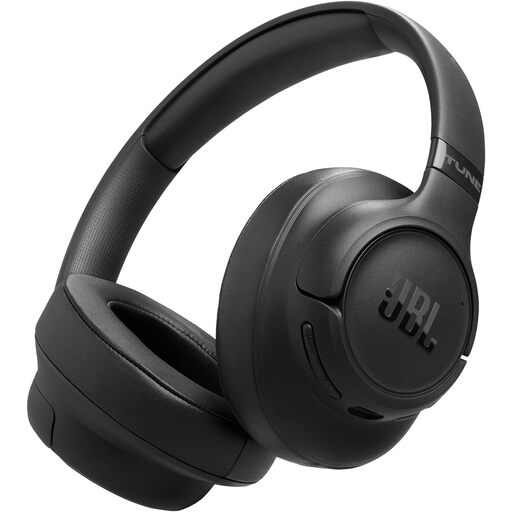
JBL Tune 780NC wireless over-ear headphones – black
For calls across work locations, check that the headphones’ microphone and connection work with your meeting platform and laptop. The product name specifies an over-ear wireless design and adaptive noise cancellation; confirm whether wireless peripherals are permitted on an employer-managed device.
View on Joybuy
Frequently asked questions
Does a USB-C port mean my laptop can run a monitor through a dock?
No. The connector alone does not confirm display output or the dock configuration your laptop supports. Check the exact laptop’s external-display specifications and the dock or monitor’s required connection and cable; ASUS specifically advises checking USB-C display-output support for portable monitors.
Should I choose a compact USB-C adapter or a desk dock?
Choose around where the connections are needed: a compact adapter suits a few ports that need to travel, while a desk dock is worth considering for a repeatable home connection to several peripherals. Before choosing a dock, compare its display modes and power provided with your exact laptop and desk equipment.
Can an employer-managed laptop block a USB webcam?
Yes, depending on the organisation’s settings. Microsoft documents Intune controls that can restrict USB device types, including cameras, so check your employer’s approved-device process before buying a webcam or other USB peripheral for work.
Is a larger monitor enough to improve a regular home workstation?
Not by itself. The Health and Safety Executive’s display-screen guidance considers the screen, input devices and immediate workspace together. Check where the monitor, keyboard, mouse and laptop will sit, and use your employer’s workstation-assessment process where applicable.


