What to check before buying
Start with the assessed workstation need, then check how the proposed equipment will connect to the employer-issued laptop. For workers choosing additional equipment for long-term home or hybrid work, each concern below represents a different primary need.
| Concern |
What to check |
Who this matters to |
| Screen position and space |
Check screen adjustment and glare at the desk, plus the laptop's supported external-display connection. |
If my screen position or available display space makes regular work difficult, I need a display arrangement that fits the desk. About 34% of consumers put this screen need first. |
| Keyboard and mouse position |
If raising the laptop, check space for a separate keyboard and mouse and confirm their connection method is approved. |
With my laptop screen raised, I need to place the keyboard and mouse independently rather than type at screen height. That is the primary concern for about 33% of consumers. |
| Connections at a fixed desk |
Match the exact laptop's video protocol, display limits and charging requirement to the proposed dock or USB-C monitor. |
Repeatedly connecting my displays and peripherals makes dependable laptop compatibility my priority; about 25% of consumers put those connections first. |
| Equipment for calls |
Check conferencing-software support and whether the employer permits the accessory and its connection method. |
If regular calls require a separate webcam or headset, I need one that works within my organisation's setup. About 8% of consumers prioritise that equipment. |
Joybuy products for an assessed workstation
These options cover external screens, a dock and separate input devices for a laptop workstation. Choose the equipment that addresses the assessment finding, and confirm connections and desk placement before ordering.
 Image unavailable
ASUS ProArt PA278CV IPS WQHD
Consider this external monitor if the assessed setup calls for a separate screen. Its name specifies IPS and WQHD; check the required screen position, laptop video connection and any charging requirement against the exact equipment.
View on Joybuy
 Image unavailable
iiyama ProLite XUB2792UHSU-B6 27-inch 4K UHD
This 27-inch, 16:9 monitor is an option when the assessed desk arrangement calls for an external display. Check its positioning at the desk and confirm that the employer laptop supports the intended video connection.
View on Joybuy
 Image unavailable
Targus USB-C Universal Dual HDMI 4K Dock, 100W PD Pass-Through
Consider this dock when a fixed desk calls for repeated display and peripheral connections. Its named features include dual HDMI 4K and 100W Power Delivery pass-through; verify the laptop's supported display configuration, charging needs, IT approval and any required adapter before choosing it.
View on Joybuy
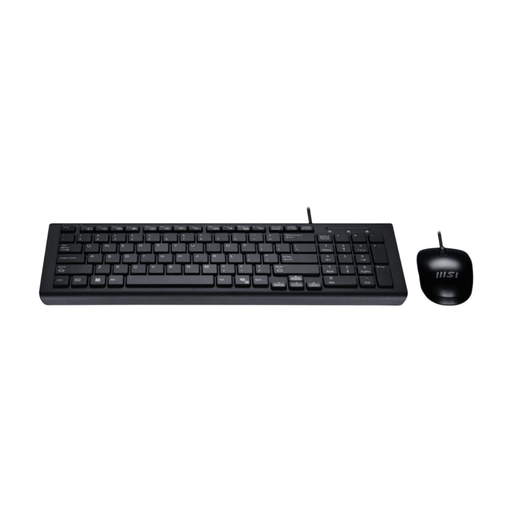 Image unavailable
MSI GK-701 Keyboard and Mouse Set, UK Layout
A separate keyboard and mouse may be needed when the laptop screen is raised. This set is named as a USB, UK-layout option with a CoPilot key; check available connections, employer approval and whether the mouse arrangement suits the user.
View on Joybuy
 Image unavailable
ASUS ZenScreen MB166CR FHD
Consider this FHD external screen if you need another display across hybrid-work locations. Confirm that the exact laptop supports the required video connection and that the screen can be positioned as the workstation assessment requires.
View on Joybuy
Frequently asked questions
When is a home or hybrid DSE workstation assessment required?
The Health and Safety Executive says employers must assess workstations when workers use display screen equipment daily as part of normal work, continuously for an hour or more. For someone working at home and in the office, the assessment should cover both arrangements.
Can my employer charge me for DSE equipment the assessment says I need?
No. The Health and Safety Executive says a worker cannot be charged for extra DSE equipment their workstation assessment shows they need. An optional personal upgrade is a separate question to raise through the organisation's equipment process.
Will any USB-C laptop work with a USB-C monitor or dock?
No. As Kensington explains, USB-C describes the connector, while video and charging functions depend on the device. Check the exact laptop model, supported video protocol, intended display configuration and charging support against the monitor or dock documentation.
What should I confirm with IT before choosing a dock?
Confirm the employer-issued laptop's model and operating system, the displays you intend to connect, charging requirements and any restrictions on drivers, firmware or peripherals. Lenovo documents dock functions that can be limited on some non-Lenovo systems, even where a connection is physically possible.
Where do I check the process for optional home-working equipment?
Check your organisation's home-working or hybrid-working equipment policy and ask your manager or HR team if the process is unclear. Acas advises checking workplace policies for home and hybrid working; keep that process distinct from equipment identified as necessary by a DSE assessment.


