What should you check before buying?
Identify the task you want to improve, then check the laptop and desk requirements before choosing an accessory.
| Priority | What to check | Your needs |
|---|
| Workstation position |
Consider screen height and position alongside keyboard and mouse placement. If you raise the laptop screen on a stand, consider how you will use separate input devices. |
I use the laptop at a desk for sustained work and need to position the screen and controls separately. The Health and Safety Executive says applicable workstation assessments should cover both home and workplace arrangements. |
| Display and dock connections |
Check the exact laptop’s video-output support, external-display count, resolution and refresh-rate limits. Match its ports to the dock, monitor and cables; a USB-C socket does not by itself establish video support. |
I want to reconnect my screen and peripherals without discovering that the laptop cannot drive the display arrangement I chose. Apple Support says supported display numbers depend on the Mac model and each display’s resolution and refresh rate. |
| Charging |
If the dock must charge the laptop, check USB-C Power Delivery support and the power available to the laptop after the dock’s own use. Confirm the required charger and what comes in the package. |
One connection would be useful, but I still need a charging arrangement that suits my laptop. Anker UK says its 555 hub accepts up to 100W pass-through input and reserves 15W for operation. |
| Calls |
Decide whether camera position, lighting or two-way audio is the problem. Check the accessory’s connection and conferencing-software compatibility. |
When I join calls from home, I would choose a webcam for a camera-specific issue or consider a headset when microphone and listening needs matter more. |
| Managed-device access |
Ask which USB and Bluetooth accessories, drivers and approval steps your employer permits. Check this even for an accessory described as driverless. |
I use an employer-managed laptop and need an accessory that IT will allow. Microsoft documents controls for peripheral access, while Apple Support says some Apple-silicon Mac laptops may require approval for new accessories. |
Relevant brand references
These product-line examples illustrate specifications and restrictions to compare; brand inclusion does not establish that a particular model suits your laptop.
Anker
Anker UK lists portable USB-C hubs with display connections and pass-through charging.
- Anker UK specifies two HDMI outputs for the Nano A210B and up to 100W pass-through input for the 555 A8383.
- Anker UK says the Nano A210B mirrors content across monitors on macOS rather than extending different content to each. Check the host laptop’s video and charging support for either hub.
Kensington
Kensington lists portable and desk-based docks with differing connection requirements.
- Kensington describes its UH1400P as a mobile dock for one external monitor.
- Kensington says the UH1400P requires host support for USB-C Power Delivery and DisplayPort Alt Mode; its requirements cannot be assumed for every laptop.
Logitech
Logitech lists webcams and headsets for calls, including the Brio 500 webcam.
- Logitech UK describes light correction and noise-reducing microphones on the Brio 500; those are manufacturer claims about that model.
- Check whether your actual difficulty calls for a separate camera or headset, and whether the chosen device is permitted on your work laptop.
Joybuy accessories for a home desk
These options cover several parts of a laptop-based home desk: an external monitor, a dock, separate input devices and call accessories. Choose by the task you need to address, then check compatibility with your laptop and work-device rules.
 No image available
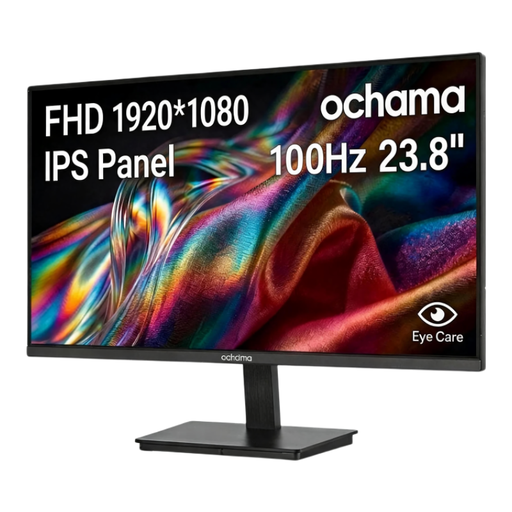
ochama Office Monitor 23.8-Inch, 1080P, 100Hz
A separate screen is worth considering when the laptop display limits your home-desk arrangement. The title lists 1080P and 100Hz; check the screen dimensions and that your laptop has a suitable display connection and cable.
View on Joybuy
 No image available
Targus USB-C Universal Dual HDMI 4K Dock, 100W Power Delivery Pass-Thru
Consider a dock if you repeatedly reconnect a laptop to displays and desk accessories. The title identifies dual HDMI and 100W Power Delivery pass-through; check the exact laptop’s display and charging support, whether it can run the displays as intended, and the required power adapter and package contents.
View on Joybuy
 No image available
Targus 2K Webcam with Auto Focus
A separate webcam is an option when camera positioning is the call-specific problem. Check its actual video output before choosing it: the 2K wording in the title differs from the 1080p at 30fps figure given in the detailed specifications. Also confirm the connection and your employer’s device policy.
View on Joybuy
 No image available
HP 680 CFT Dual-Mode Keyboard and Mouse Combo
Separate input devices let you position the keyboard and mouse independently of a raised laptop screen. Check the keyboard layout and whether your work laptop permits the connection method you intend to use.
View on Joybuy
 No image available
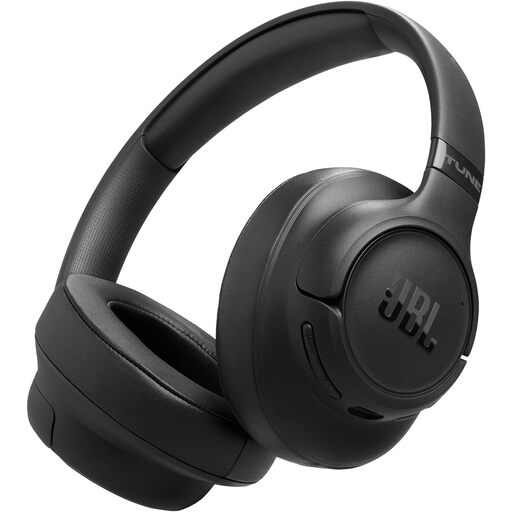
JBL Tune 780NC Wireless Over-Ear Noise-Cancelling Headphones, Black
Consider a headset when listening and microphone use matter more than changing the camera. Check that your laptop permits its connection method and that its call functions work with your conferencing setup; noise-cancelling wording alone does not establish how it will perform on your calls.
View on Joybuy
Common questions
Will any USB-C dock work with my laptop and monitor?
No: the connector alone does not establish video or charging support. Kensington explains that USB-C capabilities depend on the device’s implementation, so compare your exact laptop model’s video-output, display-count and Power Delivery specifications with the dock and monitor requirements.
Can a Mac run two different external displays through a dual-HDMI hub?
Check the exact Mac and hub rather than relying on the number of HDMI sockets. Apple Support says display support depends on the Mac model, resolution and refresh rate; Anker UK specifically says its Nano A210B mirrors content across monitors on macOS, while its Windows extended mode can show different content.
Can I use a dock or webcam with an employer-managed laptop?
Ask your IT team which peripherals and connection methods are allowed before buying. Microsoft documents controls for peripheral access on managed Windows devices, while Apple Support says some Apple-silicon Mac laptops require approval for new accessories.
Will a dock charge my laptop without its original charger?
Only if the laptop, dock and available power supply support a suitable charging arrangement. Check the power delivered to the laptop rather than the dock’s input figure alone: Anker UK says its 555 hub accepts up to 100W pass-through input and reserves 15W for operation.
Should I buy my own monitor or stand for sustained home working?
Start with the workstation assessment if display screen equipment rules apply to your work. The Health and Safety Executive says those rules can apply when workers routinely split time between home and the workplace, and that employers must assess workstations and reduce risks. The equipment to consider depends on the arrangement assessed.


