Laptop switchers
If you regularly move a laptop between desks, plan how its display, charging and peripherals will reconnect. A dock is worth considering when several separate connections slow that routine down.


Start with the part of your working day that causes the most friction: consider a monitor for sustained screen work, a webcam or headset for frequent calls, and a dock if reconnecting several desk devices is the recurring problem. Check the exact laptop model, ports and display support before buying; a USB-C connector alone does not establish that a planned setup will work.
If you regularly move a laptop between desks, plan how its display, charging and peripherals will reconnect. A dock is worth considering when several separate connections slow that routine down.
If documents, applications and calls compete for space on a laptop screen, an external display may address the immediate constraint. Check the display configuration supported by your particular laptop first.
If being seen or heard during meetings matters more than adding screen space, assess a separate webcam or headset against your calling platform and computer.
Identify the desk task you most want to improve, then check whether the proposed accessory can perform that task with your existing laptop.
| Concern | Buying checks | Who this matters to |
|---|---|---|
| Laptop compatibility | Check the exact laptop model, port functions and operating-system support. For external displays, confirm the laptop’s supported display configuration. | I need an accessory to do more than fit the socket: it must perform the required function on my laptop. About 31% of consumers put compatibility first. |
| Desk reconnection | List the devices you reconnect and check whether a dock supports each required connection, including laptop charging if needed. | Moving between workplaces means plugging several desk devices back in each time; about 25% of consumers primarily want to simplify that routine. |
| Screen workspace | Check the number of external displays your laptop supports and match the monitor input to the available cable or adapter. | When documents and calls compete for room on my laptop screen, usable display space comes first. Around 19% of consumers share that primary need. |
| Meeting audio and video | Check the exact webcam or headset version against your meeting platform, connection method and any required software. | For regular calls, I care more about my camera or audio setup than extra desk connections; roughly 13% of consumers prioritise meetings in this way. |
| Keyboard and mouse input | Check whether your intended devices use Bluetooth, a receiver or a cable, and whether the necessary port is available. | A simpler keyboard-and-mouse arrangement would address my desk problem without changing my display or call equipment. About 12% of consumers put everyday input first. |
Connector shape does not establish a laptop’s display or charging capabilities. Dell Support also notes functional limitations when some Dell docks are used with non-Dell laptops.
Check your exact laptop model and the dock’s compatibility information against every function you intend to use.
An unsuitable connection may leave you needing a different cable, adapter or dock.
A dock’s video sockets do not override the computer’s display limits. Apple Support says Mac display support varies by model and chip.
Establish the laptop’s supported external-display configuration before selecting monitors or a multi-display dock.
Connection options, included receivers and software-dependent functions can differ between versions of a meeting accessory.
Check the individual model and package contents against your computer and calling platform.
A suitable display or dock still needs matching connections to the laptop, monitor and any peripherals. Setup may also involve drivers or firmware.
Map the cables, adapters, power connection and receivers your desk will require, then check what comes with each product.
Relevant when comparing USB-C or Thunderbolt docks, particularly for a laptop from another manufacturer.
Relevant for buyers comparing hybrid docking lines across different laptop connections.
Relevant when considering a Thunderbolt-focused dock or hub for displays and other desk peripherals.
Relevant for standalone webcams and headsets used in hybrid meetings.
These products address distinct hybrid-desk tasks: adding a portable screen, changing keyboard-and-mouse input, setting up calls or connecting wired desk peripherals. Choose by the task and your device connections rather than treating them as interchangeable upgrades.
 No image available
Consider this additional screen when laptop display space is the constraint and you need to move your setup between locations. Before buying, check whether your laptop’s USB-C port supports the display connection and power arrangement this monitor requires; do not plan on an HDMI-only connection.
 No image available
Consider a separate keyboard and mouse if input at your laptop desk is the immediate issue. Check the connection method, receiver contents and device-switching behaviour against the computers you intend to use.
 No image available
Consider this meeting device when a separate camera with integrated audio suits your desk. Its product name specifies four microphones, dual speakers, fixed focus and an adjustable 98° field of view. Check support for your operating system and meeting platform, along with any software requirements.
 No image available
Consider this dock if reconnecting wired desk peripherals is your main inconvenience. Its product name lists 4K 60Hz HDMI, USB-C 10Gbps, USB-A 10Gbps/5Gbps, SD/TF 160MB/s and 3.5 mm audio. Confirm your laptop’s display compatibility and planned monitor configuration; if you need the dock to charge the laptop, check that function separately.
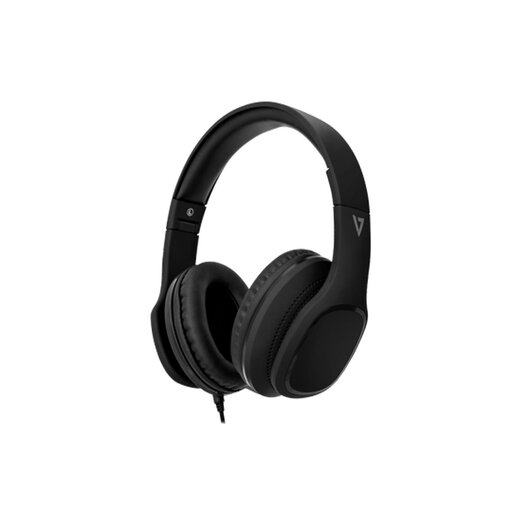 No image available
Consider this wired option for desk calls if you do not need wireless connectivity. Its product name specifies 40 mm drivers and an inline MEMS microphone. Check whether your device’s 3.5 mm connection accepts microphone input or needs an adapter.
No. Check the exact laptop’s port functions and display support against the dock, monitor, cables and adapters you plan to use. Dell Support notes that even standards-based dock connections can have functional limitations with non-Dell laptops.
No. Apple Support says external-display support depends on the Mac model and chip. Check your Mac’s supported configuration before choosing a multi-monitor arrangement; video sockets on a dock do not establish the Mac’s display limit.
A DisplayLink-based setup requires DisplayLink Manager and Screen Recording permission on macOS for its display function to work correctly, according to DisplayLink Support. Confirm that the dock you are considering actually uses DisplayLink before treating those steps as part of your setup.
Check an appropriate electrical-equipment collection or recycling route rather than assuming a powered accessory belongs in general waste. UK government guidance covers equipment that depends on electrical current or electromagnetic fields for its basic function; available collection options can be checked with the retailer or local authority.