Choose the peripheral that addresses the part of your hybrid-work routine causing trouble: a webcam or headset for calls, an external monitor for document work, or a dock if you repeatedly reconnect several desk devices. Before choosing a dock, check your work laptop’s permitted peripherals, operating system, video-capable port, display support and charging requirements; the shape of a USB-C socket alone does not establish what it can do.
Who is this setup for?
Hybrid workers on regular video calls
If calls are a recurring part of your home-working days, camera position and speech pickup are practical reasons to consider separate peripherals. The Health and Safety Executive reported that 25% of workers in Great Britain were hybrid workers in January 2026; that figure describes working arrangements, not demand for any particular device.
Laptop users with a fixed home desk
If you reconnect a display and other desk devices after office days, a dock may simplify that routine. Check the exact laptop’s ports, operating system and display support before choosing one.
Workers using employer-managed laptops
Your organisation’s controls may affect which USB, Thunderbolt or Bluetooth devices and companion software you can use. Check its peripheral policy before choosing a receiver, webcam or dock.
What should you choose first?
Start with the task that is difficult at your home desk, then check whether the proposed device works with your laptop and workplace rules.
| Priority | What to check | Your needs |
|---|
| Camera framing |
Check mounting position, field of view and lighting controls. Confirm whether framing features need software your work laptop permits. |
I want colleagues to see me clearly when my laptop sits below eye level or the room lighting changes. |
| Call audio |
Check the microphone connection, listening arrangement and workplace approval for any wireless receiver or software. Consider whether others could hear a speakerphone call. |
Being heard matters more to me than changing my camera, and I need a listening arrangement that suits a shared home. |
| Document space |
Check the laptop’s external-display output and the monitor’s inputs. Plan screen position as part of the workstation, not just the display size. |
I want to keep documents or chat visible beside a meeting instead of switching windows throughout the call. |
| Desk connections |
Check the exact host port and dock protocol, supported display configuration, operating system and charging requirement. Dell notes that not every USB-C port supports video output. |
Repeated cable swapping slows down my move between home and office, so one desk connection would be useful if my laptop supports it. |
| Typing and pointing |
Check keyboard layout, desk position and whether the connection method is permitted on a managed laptop. |
Much of my desk time is spent typing and using a pointer; changing those inputs matters more to me than adding call equipment. |
What can go wrong when buying?
-
Assuming any USB-C socket will run a dock and monitor
USB-C describes the connector, not every function available through it. Dell’s docking guidance says not every USB-C port supports video output, so a dock may not provide the display connection you expect.
Check the exact laptop model’s port capabilities against the dock’s host and display requirements, including charging if you expect the dock to power the laptop.
A mismatched setup may require a different dock, adapter or cable.
-
Reading a dock’s maximum display claim as a laptop guarantee
Display count depends on the host. Kensington says its SD5760T supports only one external display with M1/M2 base-chip MacBooks or USB-C Alt Mode laptops, despite its dual-display specification for supported configurations.
Compare your laptop model, operating system and intended monitors with the dock’s display compatibility information before choosing it.
-
Overlooking work-device controls
The National Cyber Security Centre identifies USB, Thunderbolt and Bluetooth peripherals as potential routes to a device and its data. An employer-managed laptop may therefore have controls affecting a proposed peripheral.
Ask IT about the connection, receiver, drivers and management software you intend to use.
-
Adding devices before identifying the problem
A monitor addresses screen space, while a webcam addresses framing; neither replaces a suitable audio arrangement for a call. A dock also does not determine comfortable screen positioning.
Identify whether calls, document space, input comfort or repeated connections are the immediate difficulty. For regular display-screen work, use your employer’s workstation assessment process where applicable.
Relevant brand references
Logitech
Logitech’s Brio webcam range provides reference points for individual desk calls.
- Logitech lists Full HD 1080p video and light correction for the Brio 500, with auto-framing available through companion software.
- Check whether the camera and any optional software work with your meeting platform and employer-managed laptop; the specifications do not establish call performance in your room.
Lenovo
Lenovo’s ThinkPad Universal USB-C Dock 40AY0090UK is an example of a fixed-desk connection option.
- Lenovo lists display, charging, Ethernet and USB connections for this model.
- Lenovo says the host laptop must support a compatible USB-C Alt Mode, DisplayLink or Thunderbolt route through its Type-C port; some ThinkPad-specific functions may not work on other laptops.
Kensington
Kensington’s SD5760T illustrates why a dock’s display specification must be read alongside its host requirements.
- Kensington lists Thunderbolt 4/3 and USB4 support and up to 96W Power Delivery for the SD5760T.
- Kensington specifies only one external display for M1/M2 base-chip MacBooks and USB-C Alt Mode laptops with this dock; check your exact configuration before planning two screens.
Joybuy options for a home desk
These options address different parts of a hybrid home-desk routine: video, document space, desk connections, typing and call audio. Choose by the task you need to improve, then check the relevant connection and workplace requirements.
 No image available
Targus 2K Webcam with Auto Focus
Consider a separate webcam when your laptop’s camera position makes individual calls awkward. The product name specifies autofocus, but its 2K wording conflicts with a 1080p technical specification; confirm the actual output resolution and work-device compatibility before choosing it.
View on Joybuy
 No image available
AOC Q32V4 31.5-inch 2K IPS monitor
An external monitor is worth considering when documents compete with a meeting for laptop-screen space. This Q32V4 variant is listed as a 31.5-inch IPS monitor with built-in speakers; check its connections and whether the stand or a suitable mount lets you position it comfortably at your desk.
View on Joybuy
 No image available
Targus USB-C Universal Dual HDMI 4K Docking Station with 100W Power Delivery Pass-Thru
A dock addresses repeated connection of desk devices when moving between home and office. This model is named for dual HDMI outputs and 100W Power Delivery pass-through, but achievable displays and charging depend on the host and power setup. Check your laptop’s video support, intended display configuration and whether the required external 100W+ adapter is in the package.
View on Joybuy
 No image available
HP 680 CFT Dual-Mode Keyboard and Mouse Combo
A separate keyboard and mouse address typing and pointing at a fixed desk rather than camera or audio problems. Check the keyboard layout and which of this combo’s connection methods your employer permits.
View on Joybuy
 No image available
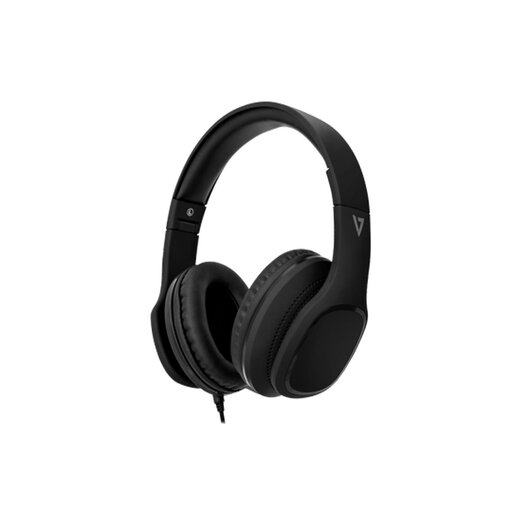
V7 HA701-3EP wired over-ear headphones with inline microphone
A personal listening device is relevant when calls take place near other people. This wired over-ear model is named with 40mm drivers, passive noise isolation and an inline MEMS microphone. Check that its audio connection supports microphone input on your work device; the named features do not establish speech clarity in your room.
View on Joybuy
Frequently asked questions
Will any USB-C port run an external monitor through a dock?
No. Dell’s docking guidance says not every USB-C port supports video output. Check the exact laptop port and the dock’s host requirements rather than relying on connector shape.
Will a dual-display dock give every laptop two external screens?
No. The supported configuration depends on the laptop and connection. Kensington says its SD5760T supports only one external display with M1/M2 base-chip MacBooks or USB-C Alt Mode laptops, so compare the dock’s display guidance with your exact host and monitors.
Can my employer restrict a webcam, headset or dock?
Yes. The National Cyber Security Centre identifies USB, Thunderbolt and Bluetooth peripherals as potential routes to a device and its data. Ask your IT team whether the proposed connection, receiver and any required software are permitted on your work laptop.
Does a hybrid home desk need a display-screen assessment?
It may. The Health and Safety Executive says Great Britain’s display-screen equipment regulations can apply to workers who routinely split time between home and workplace; the Health and Safety Executive for Northern Ireland says its regulations can also apply to hybrid workers. Use your employer’s assessment process to identify workstation needs rather than assuming an extra monitor or dock settles them.


