For sustained laptop work, start with the part of the desk setup that needs to change: raising the laptop screen calls for a separate keyboard and mouse, while an external monitor gives you a separate display if you have room and a compatible connection. Add a dock or hub when you need its connections and have checked your laptop’s video and charging capabilities. If you are an employee who uses display screen equipment (DSE) regularly, raise workstation concerns through your employer’s assessment process rather than assuming a purchase resolves them.
Who is this setup for?
The useful combination depends on whether your laptop stays at one desk, moves between workplaces or handles frequent calls.
Regular laptop-based home and hybrid workers
If you work at a desk for sustained periods, consider where the screen sits and whether you can position the keyboard and mouse independently. The Health and Safety Executive (HSE) advises using a separate keyboard and mouse when elevating a laptop screen.
Workers with one fixed laptop desk
A monitor or dock may make sense when you connect the same peripherals each day. Check the exact laptop ports, display output and charging requirements before choosing equipment labelled USB-C; Dell and Lenovo publish different capabilities for different models.
Hybrid workers with frequent calls
A separate headset or webcam is worth considering when your calls require a different audio or camera arrangement. Check the connection method and your employer’s conferencing and device rules before choosing one.
What should you choose first?
Start with screen and input-device placement, then check connections and call equipment against the way you use the desk. For employees, a relevant DSE assessment can also change what needs doing and who should arrange it.
| Priority |
What to check |
Your needs |
| Screen and input placement |
Decide whether to raise the laptop screen or use a separate display. If raising the laptop, allow room for a separate keyboard and mouse, as HSE advises for this arrangement. |
I spend long stretches at the laptop and need to position the screen without being tied to its built-in keyboard and trackpad. |
| Monitor and desk fit |
Check usable desk space, the laptop’s video output and the monitor connection. Consider how the screen, keyboard and mouse will fit together; a monitor does not address every workstation issue covered by an HSE DSE checklist. |
A separate screen would help me organise reading or writing at a fixed desk, provided the whole setup fits. |
| Dock and hub connections |
Match the laptop’s exact port capabilities to the required display output, peripheral connections and charging power. Dell and Lenovo specifications show that USB-C products differ by model; a USB-C socket alone is not a compatibility check. |
I regularly reconnect several devices and want to know whether one adapter or dock can handle my actual connections. |
| Employer assessment and equipment |
For employees in Great Britain who use DSE daily as part of normal work for continuous periods of an hour or more, HSE says employers must assess the workstation. Discuss identified issues and who will provide or pay for equipment; Acas advises discussing home-working costs. |
If work equipment or the wider workstation needs changing, I want to agree the next step with my employer before buying it myself. |
| Calls and meetings |
Check whether a separate headset or webcam addresses a specific call need. Confirm its connection method, conferencing compatibility and any employer-managed device requirements. |
Frequent calls may make separate audio or camera equipment useful, but it must work with my laptop and meeting setup. |
What can go wrong when buying?
-
Choosing a laptop stand without space for separate input devices
With the screen raised, the built-in keyboard and trackpad remain attached to the laptop. HSE advises pairing an elevated laptop with a separate keyboard and mouse.
Check the space for the stand, keyboard and mouse together. If they will not fit, reconsider the desk arrangement before choosing a stand.
-
Assuming every USB-C setup carries video and charging
Dell and Lenovo specifications describe different display, power-delivery and compatibility capabilities across their USB-C products. The connector name alone cannot establish what your laptop and chosen accessory will do together.
Identify your laptop model and port specification, then compare its video output and charging requirement with the exact monitor, dock, cable or adapter you plan to use.
A different cable, adapter or charging arrangement may be necessary if the intended connections do not match.
-
Treating accessories as the whole DSE solution
An HSE workstation checklist covers input devices and screens alongside furniture, software and the work environment. A new peripheral cannot, by itself, settle an issue elsewhere in that arrangement.
If your work calls for an employer DSE assessment, report the workstation concern and ask what changes or equipment the employer will arrange before self-purchasing.
-
Buying call equipment before checking work-device rules
A webcam or headset may need a connection or software arrangement that does not suit an employer-managed laptop.
Check the approved meeting platform, permitted USB or wireless connections and any IT-support requirements before selecting an accessory.
Relevant brand ranges
These ranges illustrate equipment categories and model-specific checks; a brand’s inclusion does not establish that a particular item suits your laptop or workstation.
Dell
Dell UK lists USB-C monitors and docking accessories relevant to a fixed laptop desk.
- One Dell UK monitor specification states DisplayPort Alt Mode and power delivery up to 65 W; a separate Dell docking listing states up to 90 W power pass-through.
- Those figures belong to different products. Check the exact model and your laptop’s video and charging requirements rather than treating either figure as a general USB-C capability.
Lenovo
Lenovo UK lists universal and laptop-specific docking options, including travel docks.
- The range gives laptop users different dock formats to compare against the connections needed at their desk.
- Lenovo cautions that some features of its USB-C Dual Display Travel Dock may be unavailable on certain Lenovo or non-Lenovo laptops. Check compatibility for the exact laptop and dock.
Logitech
Logitech UK lists keyboards, mice, headsets and webcams for desk work and calls.
- Its categories allow you to consider input devices separately from call equipment, according to the task each needs to serve.
- A product category alone does not establish compatibility with an employer’s laptop or conferencing platform, or what an individual DSE assessment requires.
Joybuy options for a laptop workstation
These options cover separate keyboards and mice, external monitors and a multiport adapter for a laptop desk. Choose the type of equipment from your workstation needs first, then check the exact connection and desk fit.
 No image available
HP 680 CFT Dual-Mode Keyboard and Mouse Combo
A separate keyboard and mouse let you place the input devices independently when using a raised laptop or external screen. Check which connection method your laptop and employer-managed device permit.
View on Joybuy
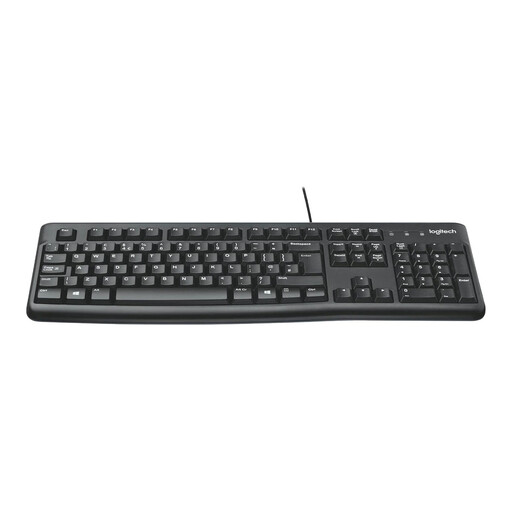 No image available
Logitech MK120 Wired Keyboard and Mouse Combo, Black
This wired set provides separate input devices for a raised laptop or external-display setup. Check that your laptop has the necessary USB connections and that the cables suit your desk layout.
View on Joybuy
 No image available
Samsung S40GD LS22D400GAUXXU 22-inch Full HD Monitor
A separate display is an option for sustained work at a fixed desk. Check its fit, your laptop’s video output and the cable required; consider where the keyboard and mouse will sit as well.
View on Joybuy
 No image available
AOC Q32V4 31.5-inch 2K Ultra HD IPS Monitor
This larger separate screen calls for a careful desk-space check. Confirm the laptop’s compatible video connection and cable, and check whether the intended stand or mounting arrangement suits your setup.
View on Joybuy
 No image available
V7 V7UC-U3CRJ45HDVG-BLK USB-C Adapter
For a laptop desk needing several connections, the stated options include 4K HDMI, VGA, Gigabit Ethernet, dual USB 3.0 ports and 100 W power-delivery pass-through. Check your laptop’s USB-C video support and charging requirement, whether the intended display arrangement fits, and any employer IT restrictions.
View on Joybuy
Common questions
Should I buy my own monitor or keyboard for home working?
Discuss the equipment needed and who will provide or pay for it with your employer before buying for work. Acas advises discussing home-working costs, while an applicable DSE assessment may identify workstation changes that go beyond the item you had planned to purchase.
When does a home-working DSE assessment matter in Great Britain?
HSE says employers must assess workstations for employees who use DSE daily as part of normal work for continuous periods of an hour or more; its home-working guidance says DSE regulations can apply to permanent or long-term home workers. Raise concerns about the whole workstation through your employer’s assessment process rather than choosing an accessory in isolation.
Will any USB-C dock work with a USB-C laptop?
No: a USB-C connector alone does not establish the video, charging and other features available from a particular laptop-and-dock combination. Compare the exact laptop port specification with the dock’s display outputs and power delivery, then check any employer IT requirements before buying.


