For a laptop you regularly connect to a monitor, Ethernet and USB peripherals, consider a powered USB-C or Thunderbolt dock if the laptop supports the required video connection and charging through that port. A compact hub suits a smaller group of connections; if only one connection is missing, a cable or individual adapter may be enough. Check the exact laptop port, monitor input and supported display configuration before choosing, because a USB-C connector alone does not establish those capabilities.
Who needs which setup?
The useful starting point is how many connections your laptop lacks and how often you reconnect them.
Hybrid workers with a regular plug-in desk
If you repeatedly connect a monitor, Ethernet, keyboard and mouse, a compatible powered dock can bring those desk connections together. Check that your laptop accepts the dock’s video connection and charging arrangement before relying on one host cable.
Laptop owners missing one connection
If your display and charger already connect as needed, identify the remaining gap. A suitable Ethernet adapter, video adapter or cable may address it without adding a full dock.
Multi-display or mixed-laptop households
When several laptops share the desk, check each model’s supported displays and host-port capabilities separately. For a DisplayLink-based product, also check operating-system support and software requirements.
What should you check before buying?
List the connections already available on the laptop and monitor, then check what the proposed accessory must add. Dell’s and Lenovo’s setup guidance makes the host port and exact laptop model central to dock compatibility.
| Priority | What to check | Your needs |
|---|
| Monitor connection |
Match the laptop’s video output to an input on the monitor. For video through USB-C, confirm DisplayPort Alt Mode or Thunderbolt support on the particular laptop port; check the intended resolution and refresh rate against the laptop and display documentation. |
I want my external monitor to run in the display mode I need, not just a cable that fits both ends. |
| Desk connections |
Count the display, USB and RJ45 connections used together. If choosing a one-cable desk setup, check the dock’s host connection and whether its power delivery meets the laptop’s documented charging needs. |
Reconnecting a monitor, keyboard, mouse, network cable and power separately would be inconvenient at my regular desk. |
| Wired network |
If Ethernet is the only absent connection, check for a suitable adapter. If choosing a hub or dock, confirm it has RJ45 and check its stated network specification against the equipment you use. |
My display already connects, but I still need an Ethernet socket at the desk. |
| Several displays |
Check the exact laptop’s supported external-display count and modes, then the dock’s host-specific configurations. Lenovo says actual video output depends on the host system; a DisplayLink option also calls for compatible software. |
I need to know whether my laptop can run the intended screens together, rather than judging by the number of sockets on a dock. |
| Portability and power |
Decide whether you need a compact hub to carry or a powered accessory for a fixed desk. Check whether the exact model requires an external power supply and what cable and power equipment come with it. |
I may prefer a small hub for a few connections, or a powered dock that stays at my desk. |
Connection mistakes to avoid
-
Assuming every USB-C port carries video
USB-C describes the connector, not every function available through it. Dell’s display guidance identifies DisplayPort over USB-C as a video route, while its dock setup guidance calls for a compatible host port.
Find the specifications for your exact laptop and the particular USB-C port you intend to use before buying a video adapter, hub or dock.
-
Reading a dock’s display maximum as a laptop guarantee
Lenovo says actual dock video output depends on the host system. Kensington also makes a stated maximum configuration for a named dock conditional on Display Stream Compression support across the connected equipment.
Compare your laptop’s supported display count, resolution and refresh rate with the accessory’s applicable configurations and each monitor’s input.
-
Buying a dock for a single missing port
A full dock adds connections you may not use if the laptop already connects to the display and peripherals. Dell and Apple also document direct display and individual-adapter routes.
Write down which connections are actually missing. If only Ethernet or one display connector is absent, check an adapter or appropriate cable before considering a dock.
-
Overlooking cables and power equipment
Kensington’s named dock models illustrate why package contents and host-power arrangements need checking model by model.
Inspect the exact product’s contents for the host cable, power supply and power cord, and check how it powers or charges your laptop.
Some arrangements require a separately sourced power supply or cable; Kensington specifies an alternative power source for USB-A hosts on one of its dock models.
Brands and their compatibility guidance
These brands provide examples of different connection approaches; their guidance does not establish compatibility with your particular laptop.
Dell
Dell documents portable multiport adapters alongside USB-C and Thunderbolt docks, making its setup guidance useful when comparing a small expansion accessory with a regular desk connection.
- Dell advises checking for USB-C DisplayPort Alt Mode when setting up its universal USB docks.
- Thunderbolt dock use requires a suitable Thunderbolt host; consult the guide for the exact dock and laptop rather than assuming that a fitting connector is sufficient.
Lenovo
Lenovo’s UK dock range includes USB-C, USB4 and Thunderbolt choices for desks needing combinations of display, network and peripheral connections.
- Lenovo’s dock guidance identifies industry-standard USB-C Alt Mode or Thunderbolt support as a host requirement for the relevant models.
- Lenovo says actual video output depends on the host system, and some additional dock features may differ on non-Lenovo laptops.
Kensington
Kensington offers USB-C, Thunderbolt and USB-A-capable dock models, including products intended for desks shared by different laptops.
- Its model documentation sets out configuration conditions that can be checked against the intended laptop and monitors.
- For named models, Kensington conditions a maximum display configuration on Display Stream Compression support or requires separate power for USB-A hosts; these conditions must not be assumed across its range.
Joybuy options for the desk
These options cover multiport USB-C connections and a direct HDMI display cable. Match any hub’s video and charging requirements to your exact laptop; the cable is for a setup with matching HDMI connections and does not add network or USB ports.
 No image available
V7 V7UC-U3CRJ45HDVG-BLK USB-C adapter
For a desk needing display, wired-network and USB connections together. The named connections include 4K HDMI, VGA, Gigabit Ethernet, two USB 3.0 ports and up to 100W Power Delivery; check your laptop’s video and charging support, and do not plan on simultaneous displays without confirming the required configuration.
View on Joybuy
 No image available
Baseus Metal Gleam Series II 10-in-1 USB-C hub, Cosmic Black
For a desk needing a choice of display and peripheral connections. The named ports include two HDMI outputs listed as 4K at 120Hz and 4K at 60Hz, RJ45, USB-A, USB-C data, SD/TF and USB-C Power Delivery; those display labels do not establish which modes or simultaneous-display arrangement your laptop can run. Check that its host port supports the required video output.
View on Joybuy
 No image available
USB-C hub with 2 HDMI, DP, RJ45, PD and SD/TF
For a workspace using several connector types: the product name also specifies two USB 3.0 ports, two USB 2.0 ports and audio. Before planning a multi-display setup or laptop charging through it, check the exact host requirements, supported display configuration and Power Delivery rating for your laptop.
View on Joybuy
 No image available
AJAZZ AKP01E 8-in-1 USB-C expansion hub
For a desk where display and card-reader connections are both useful. The product name identifies 4K display output and SD/TF slots; its stated limitation is that the SD and TF slots cannot be used simultaneously. Confirm the laptop port’s video capability and the required display mode before choosing it.
View on Joybuy
 No image available
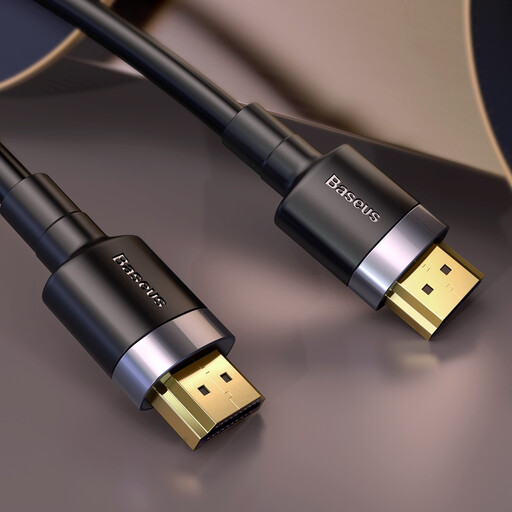
Baseus Cafule 3m 4K HDMI male-to-male cable, Black
For a direct display connection when both the laptop and monitor have suitable HDMI ports. This 3m cable does not add Ethernet, USB ports or charging; check the display mode supported by both devices.
View on Joybuy
Common questions
What should I check on my laptop before buying a dock or hub?
Check the exact model’s documentation for the functions of the port you will use, particularly DisplayPort Alt Mode or Thunderbolt for a relevant USB-C video connection. Also check supported external-display modes, USB-C charging requirements and any compatibility guidance for the accessory; the connector shape alone is not enough.
Will a USB-C-to-HDMI adapter work with any USB-C laptop?
No. For a conventional USB-C video adapter, the laptop port needs a compatible video capability such as DisplayPort Alt Mode or Thunderbolt. Match the adapter to the monitor input and check the laptop’s supported display mode.
Can a dock run more monitors than my laptop normally supports?
Extra sockets do not, by themselves, increase the laptop’s supported native display configuration: Lenovo says actual dock video output depends on the host system. A DisplayLink-based accessory uses a different USB graphics approach, so check support for your operating system and its software requirements before buying.
Does UK home-working guidance require a particular dock?
No particular dock follows from the cited guidance. The Health and Safety Executive says display screen equipment regulations can apply to permanent, long-term and hybrid home workers; that scope is separate from whether a specific dock, hub or adapter is compatible with your laptop.


