Home workers juggling several windows
An extended display can keep documents, spreadsheets and reference material visible alongside the laptop screen. Choose a desktop monitor rather than a travel-oriented screen if it will stay at a regular desk.


For one additional screen, start with a monitor connected directly to a compatible laptop video output. Consider a USB-C dock when a fixed desk also needs peripheral connections or charging, but check the laptop’s video modes, display limits and power requirements before buying. A separate keyboard and mouse can make it easier to position the laptop and monitor for sustained desk work.
An extended display can keep documents, spreadsheets and reference material visible alongside the laptop screen. Choose a desktop monitor rather than a travel-oriented screen if it will stay at a regular desk.
If the desk also needs a keyboard, mouse, network connection or laptop charging, a dock may help organise those connections. Its display and power functions still have to match the laptop and cable.
Check the exact laptop model’s supported display count and modes before choosing a multi-display dock. Apple Support says Mac external-display support depends on the device’s technical specifications; the dock’s advertised outputs alone do not establish what a laptop can run.
Choose when: One extra display meets the need and the laptop has a compatible video output.
Trade-off: A display cable does not add the peripheral, network or charging connections you may want at a fixed desk.
Choose when: The desk needs display output alongside other connections, and the laptop supports the dock’s required modes.
Trade-off: Video, display count and charging depend on the host port, cable and device specifications; a USB-C connector alone is not enough.
| Priority | What to check | Your needs |
|---|---|---|
| Visible workspace | Decide whether one external display is enough. Check screen size and resolution for the documents you use, then select an extended rather than mirrored desktop if you need separate space. | I want documents and applications visible together instead of constantly switching windows. |
| Display connection | Match the laptop’s video output to the monitor input and cable or adapter. For USB-C video, StarTech.com says the host, cable and connected device must support the required connection features. | A monitor is useful to me only if my laptop can drive it through the connection I plan to use. |
| Dock capabilities | Compare the intended display count, resolution and refresh rate with both laptop and dock specifications. Check charging requirements separately; a dock’s maximum display mode may have host-specific conditions. | If I connect several screens or desk accessories, I need the complete setup to work with my laptop—not just enough sockets on the dock. |
| Desk arrangement | Measure the available width and depth. Check stand adjustment or mounting compatibility, and plan where the keyboard and mouse will sit if the laptop is raised or moved aside. | For regular desk work, I want to position the screens without having to keep the laptop keyboard directly beneath them. |
StarTech.com says USB-C video features require compatibility across the laptop connection, cable and connected device. Matching plugs alone do not establish that a display will work.
Check the exact laptop port specification, cable and monitor or dock requirements before choosing a USB-C connection.
A dock’s stated modes can depend on particular laptop capabilities. StarTech.com, for example, specifies DP 1.4 Alt Mode, HBR3 and DSC on the host for stated dual- and triple-4K modes of its DK31C2DHSPDUE dock.
Compare the number of screens, resolution and refresh rate you intend to use against both the laptop and dock specifications for the same connection path.
Port direction matters: Dell UK specifies the P2425H’s USB-C connection as downstream data-only, with up to 15 W power delivery. LG UK separately lists USB-C power delivery rated at 65 W for the 27BA650-B.
For one-cable laptop use, confirm that the exact monitor accepts video from the laptop and that its charging arrangement meets the laptop’s requirements.
A larger panel alone does not determine where the laptop, display and input devices can sit during sustained work.
Measure the desk and decide whether you need stand adjustment, a compatible mount or a separate keyboard and mouse before settling on a screen.
A fixed-desk arrangement may also call for a stand or arm and a suitable cable or adapter.
Dell UK lists the Pro 24 Plus P2425H as a 23.8-inch Full HD IPS monitor with HDMI 1.4 and DisplayPort 1.2 inputs and height, tilt, swivel and pivot adjustment.
LG UK describes two different desk options here: the 27UP650-W is a 27-inch UHD 4K IPS monitor, while the 27BA650-B is a 27-inch Full HD IPS model with USB-C power delivery rated at 65 W.
BenQ lists the GW2790 as a 27-inch Full HD monitor with HDMI 1.4, DisplayPort 1.2 and 100 × 100 mm VESA mounting.
StarTech.com documents the host and cable requirements for its USB-C video accessories, including model-specific conditions for multi-display docks.
These options include external monitors for adding desk space and a USB-C dock for connecting displays and peripherals. Check your laptop’s supported video connections and display modes against the particular product you choose.
 No image available
Consider this WQHD IPS display when one additional screen would help keep work windows visible. Confirm that your laptop and intended cable support the display mode you need.
 No image available
This 27-inch, 3840 × 2160 IPS monitor is an option for a high-resolution external workspace. The Joybuy model information lists height, tilt and pivot adjustment; check that your laptop and selected cable or adapter can drive the intended display mode.
 No image available
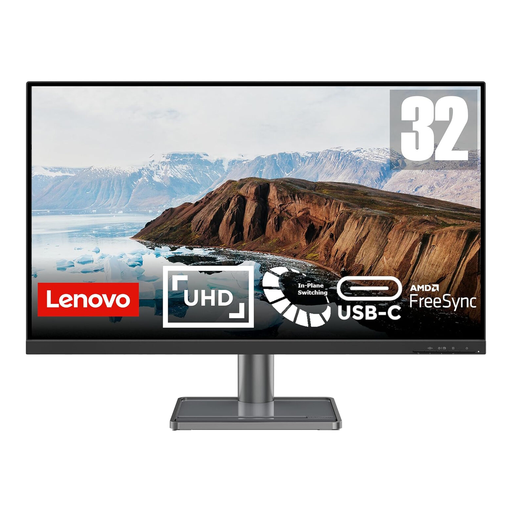
The 31.5-inch 4K display is a larger external-screen option for a laptop desk. Before planning a USB-C connection, confirm video compatibility and the monitor’s power arrangement against your laptop’s requirements.
 No image available
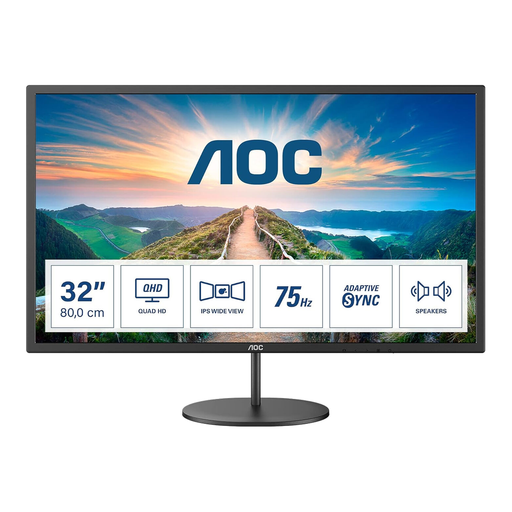
This 31.5-inch monitor is another larger-screen option for keeping applications in view. Check its exact resolution, your laptop’s supported output and how the screen will be positioned on your desk.
 No image available
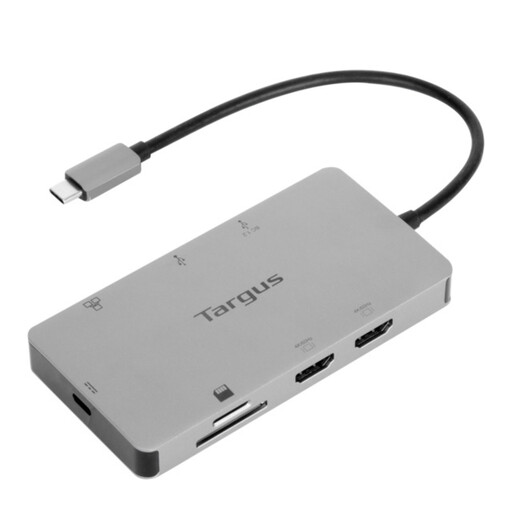
This dock is for a desk that needs display connections alongside other laptop connections, rather than an additional screen by itself. Its title specifies dual HDMI 4K and 100 W power delivery pass-through; confirm the laptop’s supported display modes and the required power-adapter arrangement before buying.
No. For USB-C video through DisplayPort Alt Mode, StarTech.com says the laptop connection, cable and connected device must support the required features. Check the exact port and accessory specifications rather than relying on the connector shape.
A dock’s output count does not establish your laptop’s supported display count. Check the laptop model and the resolution and refresh rate of each intended screen; StarTech.com’s stated multi-4K modes for its DK31C2DHSPDUE dock, for example, require specific DP Alt Mode, HBR3 and DSC host capabilities.
Choose an extended desktop rather than mirroring after connecting a supported display. Microsoft Support provides multi-monitor settings for Windows, while Apple Support describes extending the desktop across displays on supported Macs.
They can apply to some home-working arrangements. The UK Health and Safety Executive says the Display Screen Equipment Regulations can apply to workers based at home permanently or long term, or who routinely split work between home and a workplace; that does not prescribe a particular monitor or dock purchase.
Do not assume it will. DisplayLink Support says macOS requires Screen Recording permission for DisplayLink Manager to function properly. Confirm that the exact dock uses DisplayLink and check its stated compatibility with your Mac and macOS version.