
24/7 Customer Support

Free returns

Same-day & Next-day Delivery

Quality Guaranteed

Unlock Your Welcome Offers: FREE Delivery | Up to 80% OFF | Free 30-day JoyPlus trial
Download the APP
A USB-C hub can turn one laptop or tablet port into a practical workstation, but choosing the wrong model may leave you with an unusable display connection, slow file transfers or a hub that cannot charge your device as expected.
The most common buying mistakes are not always obvious from the product title. A listing may mention “4K”, “fast charging” or “multiport” without explaining the conditions required to achieve those figures. Before selecting a multiport USB-C hub, check the following potential traps.
A USB-C port does not automatically mean a hub can charge a laptop. Look for a dedicated USB-C Power Delivery (PD) input and check its maximum wattage. The hub may also consume some power, so a 100W PD input does not necessarily deliver the full 100W to the connected laptop.
Your laptop must support charging through USB-C, and the charger and cable must also be suitable for the required power level.
HDMI output normally requires the host device to support USB-C DisplayPort Alt Mode or a compatible docking protocol. A USB-C adapter cannot add video output to a device whose port only supports charging or standard data.
Similarly, advertised 4K performance may depend on the refresh rate, operating system, display and available bandwidth. Check whether the specification states 4K at 30Hz or 60Hz, rather than relying on “4K” alone.
A hub may combine USB 3.0 and USB 2.0 ports. USB 3.0 ports can support transfer rates of up to 5Gbps under suitable conditions, while USB 2.0 is limited to up to 480Mbps. Keyboards and mice generally work well on USB 2.0, but external SSDs, camera files and large backups are more suitable for USB 3.0.
For office work, presentations or home entertainment, an HDMI USB-C hub may be sufficient. If you use a monitor with DisplayPort, select a hub with a DP output. Some products offer HDMI, DisplayPort and VGA together, which can be useful when travelling between modern meeting rooms and older classroom or office projectors.
A single-display connection is often simpler. If you need two external screens, confirm whether the hub supports two independent displays and check the operating system limitations. Some specifications only support mirrored output or single-stream transport.
Photographers and content creators should look for a USB hub with SD and TF card reader. SD usually refers to full-size SD cards, while TF is commonly used for microSD cards. Check whether both slots can be used simultaneously if that matters to your workflow.
For general peripherals, count the number and type of ports. A USB 3.0 hub is more appropriate for storage devices than a USB 2.0-only model. Remember that all connected devices share the hub’s available bandwidth.
A USB-C hub with Ethernet can provide a wired connection for compatible laptops and tablets, which may be useful for home offices, hotels or workplaces with unreliable wireless coverage. Gigabit Ethernet is specified at up to 1,000Mbps, although actual performance depends on the network, cabling and device.
If you plan to connect several accessories while charging, choose a USB-C hub with Power Delivery. Use a certified USB-C charger, avoid exceeding the hub’s stated capacity and keep the unit ventilated during sustained high-power use.
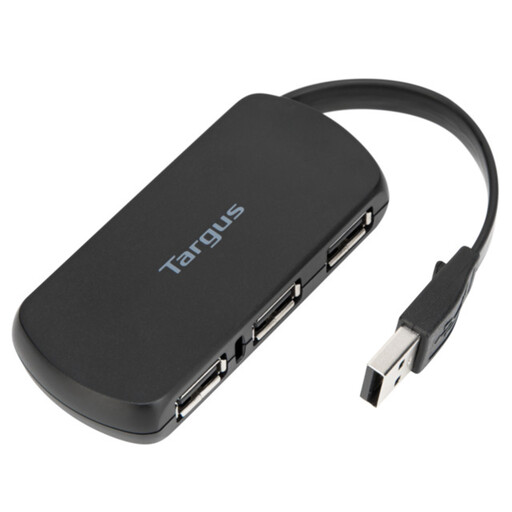
Why This Suits Their Persona: A straightforward choice for students or home users who need extra USB-A connections for a keyboard, mouse, flash drive or printer.
Its specifications clearly identify four USB 2.0 ports and bus-powered operation, reducing confusion about charging or high-speed data expectations.
Four USB 2.0 ports, plug-and-play operation and a compact attached cable; no external power adapter is required.
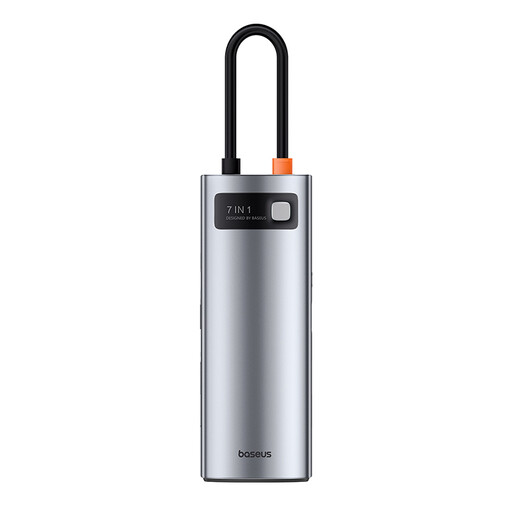
Why This Suits Their Persona: Suitable for a tidy laptop workstation where display output, storage access and charging need to share one USB-C connection.
The listed specifications distinguish 4K HDMI, USB 3.0, SD/TF access and a 100W PD input, so each major function is identified separately.
Seven-port layout, up to 4K at 60Hz via HDMI, three USB 3.0 ports and SD plus TF card slots.
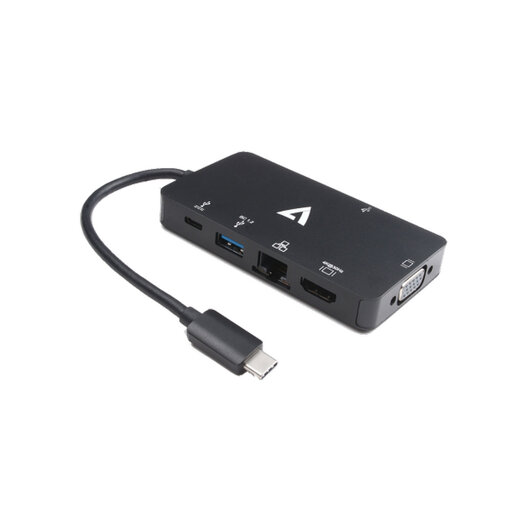
Why This Suits Their Persona: A practical match for business travellers, hybrid workers and presenters who may encounter HDMI, VGA or wired Ethernet at different UK venues.
Its specifications state the separate HDMI and VGA resolutions, single-display operating mode, Gigabit Ethernet and 100W PD input.
HDMI up to 4K at 30Hz, VGA up to 1920x1200 at 60Hz, two USB 3.0 ports and 10/100/1000Mbps Ethernet.
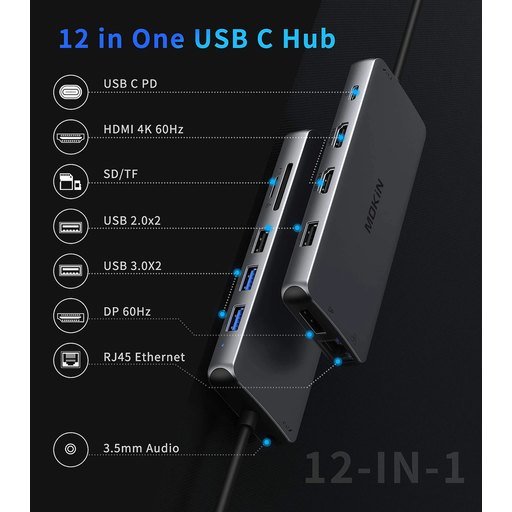
Why This Suits Their Persona: Designed around a broad range of connections for creators or desktop users who need card access, wired networking, audio and several peripherals.
The port list identifies USB 3.0 separately from USB 2.0 and includes SD/TF, RJ45, display and audio connections rather than using a vague multiport label.
Includes two HDMI outputs, DisplayPort, two USB 3.0 ports, two USB 2.0 ports, RJ45, PD, SD/TF and audio.
We have compiled a complete, real-time list of products that fully satisfy these strict selection criteria and UK safety regulations.
No. Basic USB data functions may work broadly, but video output and PD charging depend on the laptop’s USB-C capabilities. Check for USB-C DisplayPort Alt Mode, Thunderbolt compatibility or the relevant manufacturer specification.
They overlap, but a docking station generally offers a larger port selection and may require its own power supply. A compact USB-C adapter or hub is usually easier to carry, while a docking station may suit a permanent desk setup with several displays and peripherals.
A bus-powered hub draws power from the laptop. A PD-compatible hub can pass power from a USB-C charger to the host device, although the hub and connected accessories may use part of the available capacity. For lower running demand, disconnect unused peripherals and avoid leaving high-power devices connected unnecessarily.