Choose a compact USB-C hub for a desk that usually needs one external display and a few extra ports; consider a powered dock for a regular multi-display setup, or a KVM switch when two computers must share a monitor and peripherals. Before buying, check the laptop’s video output, supported number of displays and charging requirements, as well as the monitor connections and any employer rules for accessories. A USB-C connector alone does not establish what the laptop can do.
Who is this setup for?
Fixed-desk hybrid workers
If you reconnect the same work laptop to a home monitor and peripherals regularly, a consistent desk connection may matter more than portability. Check the laptop’s display support and charging requirements before choosing a one-cable arrangement.
People moving between work locations
If your laptop travels between home and office, a compact connection for one monitor and essential peripherals may be easier to take with you than a desktop dock. Check what each location already provides, including a suitable charger.
People with frequent video and voice calls
If meetings shape your working day, a suitable headset or webcam may take priority over extra display ports. On an employer-managed laptop, confirm which connection methods and accessories are permitted.
What matters when choosing?
Portable USB-C hub
Choose it when: You move between desks and usually connect one external monitor and a few peripherals.
Allow for: A mobile hub may offer fewer display connections than a desktop dock and may need a separate suitable charger. Kensington says its UH1400P requires host support for DisplayPort Alt Mode and Power Delivery.
Powered dock
Choose it when: A mostly fixed desk calls for regular monitor, peripheral and laptop-power connections through one desk setup.
Allow for: More desk space and potentially a separate power supply. Microsoft Support and Apple Support both point buyers back to the computer’s own display capabilities; extra dock outputs do not override those limits.
KVM switch
Choose it when: A work laptop and another computer must take turns using the same monitor, keyboard and mouse.
Allow for: Switching is not the same as laptop charging or port expansion; check those functions separately and confirm that a shared arrangement is permitted for the work device.
| Concern | What to check | Who this matters to |
|---|
| Desk connections and displays |
Match the laptop’s supported external-display count and video mode to the dock and monitor. If the dock will charge the laptop, check its Power Delivery output against the laptop’s requirements. |
If I reconnect a laptop to the same desk each day, I want the screens and charging arrangement to work without repeated cable changes. Around 31% of consumers put this fixed-desk need first. |
| Moving between desks |
Check whether one external screen is enough and whether the laptop’s USB-C port supports the hub’s required video and charging modes. |
When I carry my laptop between home and office, I want a compact setup rather than equipment that has to stay on one desk. Portability comes first for around 31% of consumers. |
| Calls and work-device rules |
Check the headset or webcam connection method and whether your employer permits any required Bluetooth pairing, USB receiver or software. |
If much of my day is spent in meetings, I need call equipment that I can use with my managed laptop. Around 23% of consumers primarily need this call-and-compatibility setup. |
| Sharing peripherals |
Match a KVM switch’s video and USB connections to both computers and the monitor; check charging separately. |
If my work and personal computers share one desk, I want to switch the monitor and input devices without repeatedly moving cables. This is the primary need for around 15% of consumers. |
Buying pitfalls to avoid
-
Assuming every USB-C port supports video and charging
USB-C describes the connector, not every capability behind it. A hub’s display output or charging pass-through depends on the laptop and the exact accessory; Kensington specifies both DisplayPort Alt Mode and Power Delivery host requirements for its UH1400P.
Check the laptop maker’s port specifications against the hub or dock’s host requirements before choosing cables and a charger.
-
Expecting more dock outputs to create more independent displays
A laptop may support fewer external screens than a dock has outputs. Microsoft Support also explains that a display splitter duplicates a signal rather than creating two independent extended screens.
Confirm the computer’s supported external-display count and the connection method needed for the arrangement you want.
-
Using a KVM switch as though it were a dock
A KVM can switch selected display and USB connections between computers, but that does not establish laptop charging, Ethernet or the port expansion needed at your desk.
List the functions each computer needs, then check the switch’s inputs, outputs and power features. Separate charging or adapters may still be needed.
-
Buying accessories before checking workplace rules
A physically compatible receiver, personal device or software installation may not be permitted on an employer-managed laptop. The Information Commissioner's Office advises organisations to assess the security of home-working systems.
Check your employer’s rules before buying an accessory that requires pairing, drivers, a receiver or access to work data.
Brands to consider
Dell
Dell’s USB-C and Thunderbolt dock ranges are relevant to a regular laptop desk, particularly when charging and display specifications need to be matched to a Dell system.
- Dell describes docks that carry video, audio and data through one connection.
- Charging figures vary by laptop: Dell lists up to 100W for Dell systems and 96W for non-Dell systems for its WD25 dock.
Kensington
Kensington offers both mobile USB-C docks and desktop-oriented models, giving buyers distinct starting points for a travelling laptop or a fixed desk.
- Kensington specifies up to two 4K displays at 60Hz and up to 100W Power Delivery for its SD4781P dock, subject to the host setup.
- Its UH1400P mobile dock requires a host that supports both DisplayPort Alt Mode and Power Delivery over USB-C.
Anker
Anker’s hub and dock range is relevant when choosing between compact port expansion and a more established desk connection.
- The range includes multi-port hubs and docks with differing stated display and charging features.
- Check the individual model’s host requirements and whether its intended setup requires drivers.
Logitech
Logitech’s keyboards, mice, webcams and headsets are relevant to input and communication needs rather than laptop charging or display expansion.
- Its headset range includes wired USB and wireless connection options for calls.
- For a managed work laptop, check approval for the chosen connection method, receiver and any required software.
Joybuy products for different setups
These products cover several parts of a hybrid-work desk: laptop connections, an external monitor and a headset for calls. Choose by the function your own setup needs, then check the laptop and workplace requirements that apply to it.
 No image available
Targus USB-C Universal Dual HDMI 4K Docking Station, 100W Power Delivery pass-through
Consider this for a desk planned around two HDMI-connected displays and laptop charging. The name specifies dual HDMI 4K connections and 100W Power Delivery pass-through; check the laptop’s display and charging support, and confirm whether a suitable external power adapter is included.
View on Joybuy
 No image available
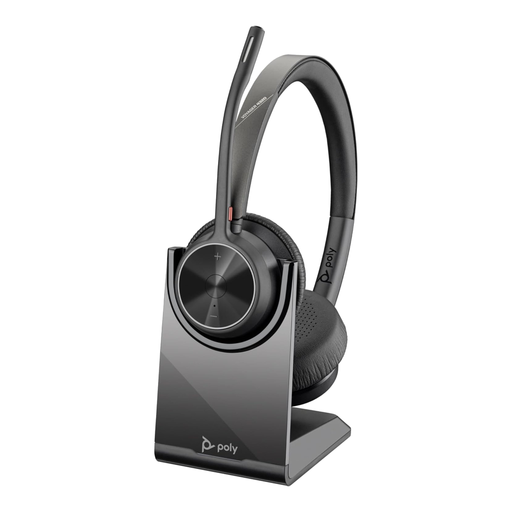
Poly Voyager 4320-M wireless headset, USB-A and Bluetooth, with charging stand
This is a call-focused option if you want a wireless headset between work locations. Its name identifies USB-A, Bluetooth and a charging stand; confirm that your managed laptop permits the intended connection method and allow for charging during use.
View on Joybuy
 No image available
Baseus Metal Gleam Series II 10-in-1 USB-C hub, Cosmic Black
This suits a laptop setup needing several connection types in one hub. Its name lists two HDMI outputs with separate stated maxima of 4K at 120Hz and 4K at 60Hz, alongside USB data ports, RJ45, SD/TF readers and a USB-C Power Delivery port. Check the laptop’s USB-C video support and the supported simultaneous HDMI arrangement before planning two displays.
View on Joybuy
 No image available
BenQ MA320UP 32-inch 4K USB-C monitor with adjustable stand
Consider this when a larger external screen is the main addition to a Mac-oriented desk. The name specifies a Nano Glossy IPS display, HDR, P3 and an adjustable stand; check the available desk space and your laptop’s display connection. For a non-Mac laptop, confirm the intended USB-C video and charging functions before buying.
View on Joybuy
 No image available
MOVESPEED DK5A1 10-in-1 USB-C docking station
This is an option for one external HDMI display and wired peripherals. Its name specifies 4K at 60Hz HDMI, USB-C and USB-A data ports, SD/TF readers and 3.5mm audio. Check that the laptop can send video through its USB-C port, and whether it will need separate charging.
View on Joybuy
Frequently asked questions
Will any USB-C laptop work with a hub’s monitor output?
No: the laptop’s port must support the video mode required by that hub. Kensington, for example, specifies DisplayPort Alt Mode over USB-C for video on its UH1400P mobile dock, as well as host Power Delivery support for charging pass-through. Check the laptop maker’s port specifications before buying.
Can a display splitter give me two independent extended screens?
No: Microsoft Support explains that a display splitter duplicates the same signal rather than creating two independent signals. For extended screens, check how many external displays the laptop supports and choose a compatible connection method.
How do I check whether my Mac supports the monitors I want?
Check the exact Mac model’s Display Support or Video Support specifications before choosing a multi-monitor dock. Apple Support advises matching the supported display count with the required ports, cables and adapters.
Can I connect my own dock or headset to a managed work laptop?
Check your employer’s accessory and security rules before connecting it. The Information Commissioner's Office advises organisations to assess home-working systems; whether a particular dock, Bluetooth pairing method, receiver or software installation is permitted depends on your workplace arrangement.


