
24/7 Customer Support

Free returns

Same-day & Next-day Delivery

Quality Guaranteed

Unlock Your Welcome Offers: FREE Delivery | Up to 80% OFF | Free 30-day JoyPlus trial
Download the APP
Modern laptops like the MacBook Pro or Dell XPS are powerful and portable, but their minimalist design often leaves professionals, creatives and remote workers short on essential ports. If you're trying to create an efficient multi-monitor workspace, you've likely discovered that a single USB-C port isn't enough. The solution is a USB C hub dual HDMI, but navigating the market is fraught with confusing technical jargon and misleading claims.
As a Joybuy Product Recommendation Officer, my role is to help you bypass the marketing jargon. Before you spend your money, let's look at the common pitfalls that can lead to a frustrating purchase and a cluttered desk.
Many hubs look similar, but subtle differences in their specifications can render them useless for your needs. Here are the three most common issues UK buyers face:
To ensure you get a device that performs as expected, focus on these three non-negotiable parameters.
Always verify the hub's capabilities for a dual monitor setup. The product description should clearly state the resolution and refresh rate for each port when used simultaneously. Look for phrases like "supports dual 4K@30Hz displays" or "one 4K@60Hz + one 1080p@60Hz". This confirms it's a true USB C adapter dual monitor with MST support. Also, ensure your laptop's USB-C port supports DisplayPort Alternate Mode (DP Alt Mode), which is required for video output.
To properly power your laptop and all connected peripherals, check the hub's PD input rating. A hub that supports 100W Power Delivery is a solid choice. After reserving power for its own functions, it can pass through approximately 85-90W, which is sufficient for most high-performance laptops. This prevents battery drain during intensive tasks like video rendering or compiling code.
A good hub is more than just video outputs. Consider what else you need for a complete workstation:
We've matched some options from our catalogue to different user needs, helping you find a hub that fits your workflow and avoids the common traps.
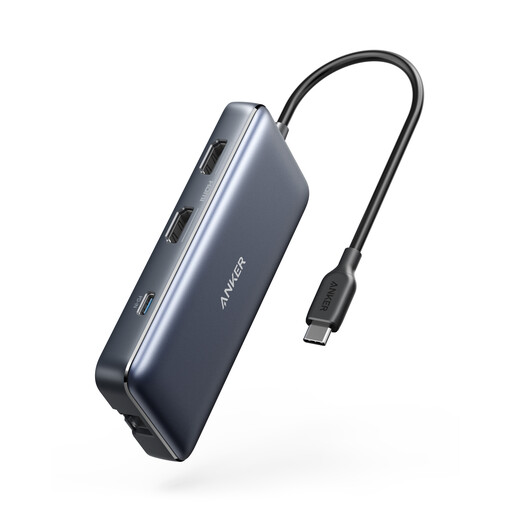
Why This Fits Their Persona: Perfect for a video editor or developer with a MacBook Pro USB C hub requirement. It provides the power and connectivity needed to run a demanding dual-display setup, transfer large media files and stay connected to a stable network.
It offers true dual HDMI extended display functionality (4K@30Hz) and supports up to 85W pass-through charging, avoiding the underpowered PD issue for high-performance laptops.
Provides a comprehensive 8-in-1 expansion from a single port, including dual HDMI, Gigabit Ethernet and both microSD/SD card readers for a complete creative workflow.
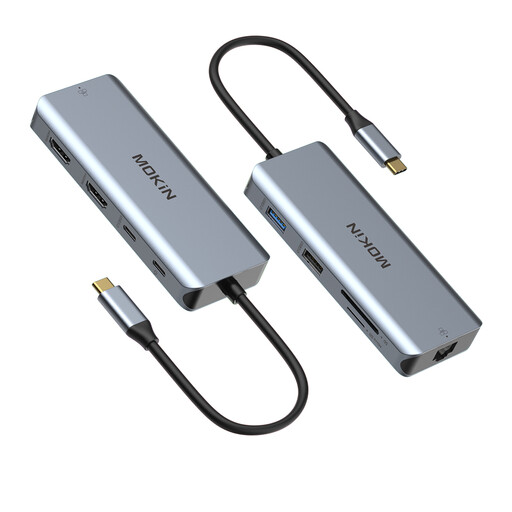
Why This Fits Their Persona: An all-in-one USB C docking station for professionals who need a reliable desktop setup at home or in the office. It turns a laptop into a workstation with dual monitors, wired internet and plenty of ports for peripherals.
This hub explicitly supports dual HDMI displays with MST and offers up to 100W PD charging, ensuring even powerful laptops stay fully charged while driving two screens.
A balanced 9-in-1 design that covers all core needs, including Gigabit Ethernet for stable video calls and a mix of USB 3.0 and 2.0 ports for speed and compatibility.
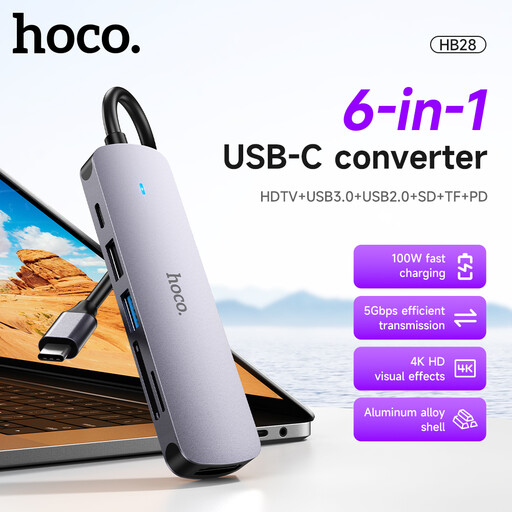
Why This Fits Their Persona: Ideal for students or professionals just starting to build a home office. It provides the most-needed ports (HDMI, USB and SD card) at an accessible price, expanding a laptop's functionality without a large investment.
This is a straightforward single-display hub. By not over-promising, it avoids the MST vs. SST confusion, providing reliable performance for what it is designed to do: add one external monitor and extra ports.
A compact and affordable 6-in-1 converter that adds an external 4K display, a fast USB 3.0 port and card readers, making it a highly practical upgrade for any USB-C laptop.
We have compiled a complete, real-time list of products that fully satisfy these strict selection criteria and UK safety regulations.
No, this is a critical point. The laptop's USB-C port must support DisplayPort Alternate Mode (DP Alt Mode) for video output and Multi-Stream Transport (MST) for extending the display across two independent monitors. Most modern high-end laptops (like Dell XPS, HP Spectre and MacBook Pro models with Pro/Max/Ultra chips) support this. However, standard Apple M1/M2/M3 MacBooks are limited to a single external display. Always check your laptop's technical specifications before purchasing a hub.
It is normal for a hub to become warm to the touch during operation, especially when driving multiple 4K displays and using high-wattage Power Delivery. The hub is actively processing a large amount of data and power. To manage this, look for hubs with aluminium casings, which are much more effective at dissipating heat than plastic ones. Always ensure the hub is used in a well-ventilated space and is not covered.
This is generally not a reliable approach. Many laptops only have one or two USB-C ports that are fully enabled for video output. Even if you have two capable ports, using separate adapters can sometimes lead to driver conflicts, screen flickering or instability. A single, integrated USB C docking station designed and tested for dual display output is a far more stable and dependable solution.