As laptops become slimmer and more streamlined, the number of available ports has noticeably decreased. If you've recently purchased a new MacBook, Dell XPS or a similar modern device, you've likely encountered the challenge: how do you connect your existing keyboard, mouse, external monitor or even a simple USB flash drive? The answer lies in a USB-C hub.
With so many options on the market, from simple dongles to feature-rich docking stations, choosing the right one can feel overwhelming. This guide is designed to help you understand the key features to look for and to present a selection of reliable options that cater to different needs, helping you reconnect your digital world with confidence.
How to Choose the Right USB-C Hub for Your Needs
Before you make a decision, it's helpful to consider exactly what you need to connect. Thinking about your daily workflow will ensure you select a hub that serves you well both now and in the future.
1. Identify Your Essential Ports
The primary function of a USB-C hub is to expand your connectivity. Take a moment to list the devices you use regularly.
- USB-A: Still the most common connector for peripherals like keyboards, mice, webcams and older external drives. A simple USB-C to USB adapter might be all you need, but most users benefit from having multiple USB-A ports.
- HDMI: If you plan to connect your laptop to an external monitor, TV or projector, you will need a USB-C hub with HDMI. Pay attention to the supported resolution and refresh rate (e.g., 4K@60Hz) to ensure a smooth visual experience.
- Ethernet (RJ45): For online gaming, streaming high-resolution video or in office environments where Wi-Fi can be unreliable, a USB-C ethernet adapter port provides a faster and more stable wired internet connection.
- Card Readers (SD/microSD): Photographers, videographers and drone operators will find built-in card readers invaluable for transferring files directly to their computer without needing a separate adapter.
2. Consider Power and Performance
Not all hubs are created equal when it comes to power and speed.
- Power Delivery (PD): This feature allows you to charge your laptop through the hub itself. Check the hub's PD wattage (e.g., 100W) and ensure it meets or exceeds your laptop's charger specifications. This is a key feature that separates a basic Type-C hub from a more capable USB-C docking station.
- Data Transfer Speed: Look for ports labelled USB 3.0, 3.1 or 3.2, which offer significantly faster data transfer speeds (typically 5Gbps or 10Gbps) compared to the older USB 2.0 standard (480Mbps). This is crucial for transferring large files from external hard drives or SSDs.
3. Ensure Device Compatibility
Finally, always confirm that the hub is compatible with your specific laptop, tablet and operating system. While most hubs are designed to be plug-and-play, some advanced features, like multi-monitor support, may depend on your device's capabilities (such as DisplayPort Alt Mode). This is particularly important for those seeking a reliable MacBook Pro adapter.
Recommended USB-C Hubs
Here are a few recommendations from our catalogue, selected to address a range of common user requirements, from basic connectivity to a full workstation setup.
Apple USB-C to USB Adapter
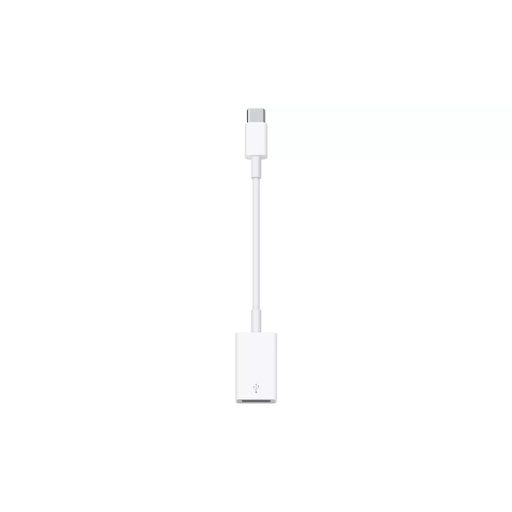
- Why It Stands Out: For those who value simplicity and seamless integration within the Apple ecosystem, this official adapter is the most direct solution. It does one job and does it well: connecting a standard USB-A device to a USB-C port.
- Pros:
- Plug-and-play functionality with no drivers needed.
- Supports high-speed data transfer for efficient syncing.
- Compact, durable and built to Apple's design standards.
- Who is it for: Apple users with an iPhone, iPad or Mac who need a straightforward and reliable way to connect a single legacy USB device, such as a flash drive, keyboard or camera.
HB26 4-in-1 Adapter - USB-C to USB3.0/ USB2.0*3
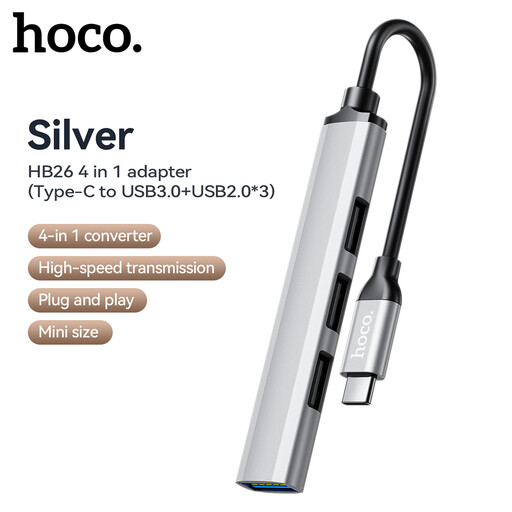
- Why It Stands Out: This multiport USB adapter offers a significant step up from a single-port dongle without adding unnecessary bulk. It expands one USB-C port into four USB-A ports, providing a practical solution for connecting multiple peripherals at once.
- Pros:
- Provides four additional USB-A ports.
- Includes one USB 3.0 port for high-speed data transfer.
- Slim and lightweight design makes it ideal for travel or a clean desk setup.
- Who is it for: Students, remote workers and general users who need to connect several standard USB devices like a mouse, keyboard and flash drive simultaneously.
Baseus Metal Gleam Series II 10-in-1 USB HUB
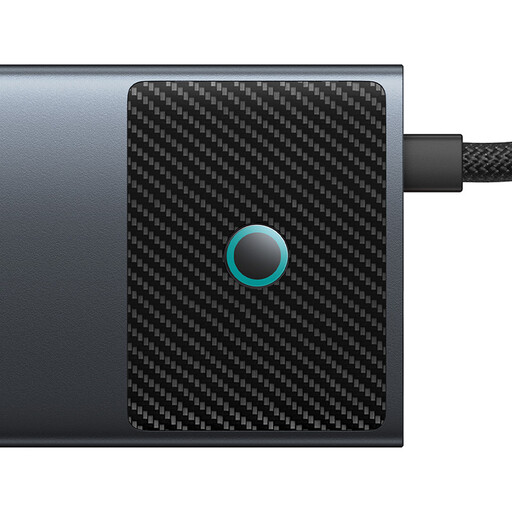
- Why It Stands Out: This is a comprehensive connectivity solution that effectively transforms your laptop into a powerful desktop workstation. With ten ports, it covers nearly every conceivable need, from dual high-resolution monitor support to high-speed data and networking.
- Pros:
- Extensive connectivity with 10 ports, including dual HDMI (4K@120Hz and 4K@60Hz).
- High-speed data transfer with 10Gbps USB-A and USB-C ports.
- Supports 100W Power Delivery to charge your laptop at full speed.
- Includes a 1000Mbps RJ45 Ethernet port and SD/TF card readers.
- Who is it for: Professionals, content creators and power users who require a full-featured USB-C docking station to run a multi-monitor setup, transfer large files quickly and connect a wide array of peripherals.
Looking for More Options?
The products highlighted here represent just a fraction of the solutions available. Your ideal setup might require a different combination of ports or a more specialised adapter. If you haven't found the perfect fit, there are many other models to consider.
Explore Our Full Range of USB to Type-C Adapters
Frequently Asked Questions
1. Can a USB-C hub slow down my internet or data transfer speeds? A quality hub is engineered to handle data traffic efficiently across its ports. However, performance can depend on the hub's internal chipset and the number of devices connected simultaneously. For the most stable internet, choosing a hub with a dedicated Gigabit Ethernet port is recommended. For data, using ports rated for USB 3.0 or higher will ensure faster transfer speeds.
2. Can I charge my laptop through any USB-C hub? No, not all hubs support this feature. To charge your laptop through a hub, you need one that explicitly supports Power Delivery (PD). You should also check the maximum power output (measured in watts) of the hub's PD port to ensure it is sufficient to charge your laptop effectively.
3. What is the difference between a USB-C hub and a docking station? The terms are often used interchangeably, but there's a general distinction. A USB-C hub is typically smaller, more portable, and bus-powered (drawing power from the laptop). A USB-C docking station is usually larger, designed for a stationary desk setup, often has its own power supply and tends to offer a greater number of ports and higher-power capabilities.


