Mouse-first small-desk users
If you mainly need a wired mouse, focus on an accessible USB-A port, where the hub can sit and whether its lead reaches your laptop. A larger port count is useful only if you have other devices to connect.


If a wired mouse is the only extra device you need, start with a compact hub that has an accessible USB-A data port and a lead that reaches your laptop without strain. Consider a larger dock when you also need charging, Ethernet, displays or several peripherals; check what your laptop port supports before relying on those additional functions.
If you mainly need a wired mouse, focus on an accessible USB-A port, where the hub can sit and whether its lead reaches your laptop. A larger port count is useful only if you have other devices to connect.
If the mouse shares your desk with other peripherals, a multi-port connection may be worthwhile. Check the ports you will use daily and, if you want laptop charging through the dock, its stated power requirements and what comes in the box.
If external monitors are part of the plan, choose around the laptop’s display capabilities as well as the mouse connection. Anker’s specifications for its Nano 8-in-1 model, for example, give operating-system-specific limits on dual-display use.
For a small desk, decide where the mouse cable and hub will sit before paying for charging or display connections you may not use.
| Concern | What to check | Who this matters to |
|---|---|---|
| Mouse access and desk space | Look for an accessible USB-A data port; check the hub’s placement and host-lead reach. | On a cramped desk, I want to plug in my mouse without stretching a lead across the work area. Around 45% of consumers would put straightforward mouse access first. |
| Charging and other peripherals | Check each port’s purpose, the stated laptop charging output and whether the required power equipment is included. | If I connect several everyday devices, I want one laptop connection to handle them alongside the mouse. Roughly 33% of consumers would make that one-cable setup their primary concern. |
| External displays | Compare the exact dock’s display modes with the laptop port’s capabilities and operating-system requirements. | When the mouse is part of a monitor setup, I need to know the screens will work in the intended mode. Around 22% of consumers would prioritise display expansion. |
A connector that fits does not establish that the laptop, cable and dock support the same display or other advanced functions. Microsoft Support notes that USB-C behaviour can depend on the hardware and software combination.
Check your laptop’s port specifications against the exact dock’s compatibility notes, particularly if you want monitors as well as a mouse.
Display, network and additional data ports take up room in a setup that may need only one USB-A data port. Belkin’s UK range, for instance, includes compact hubs as well as full docks intended for more extensive setups.
Identify the ports you will use now, then check whether a compact hub can sit where the mouse lead needs to reach.
A power-delivery port does not, by itself, tell you what the laptop will receive or whether a power supply is supplied. Anker states that the charger and cable are not included with its 565 11-in-1 hub.
Compare the model’s host charging output and power-input requirements with your laptop, and check the included accessories.
For a model supplied without them, you may need a compatible charger and cable separately.
Anker’s UK range includes compact USB-C hubs and larger multi-port models.
UGREEN offers multi-port desk docks for setups that need more than a mouse connection.
Belkin’s UK range spans pocket-sized hubs, multi-port hubs and docks for permanent desk setups.
These options range from a USB adapter for a mouse and network connection to multi-port USB-C models with display connections. Choose by your laptop’s host port, the room available on your desk and the extra functions you will actually use.
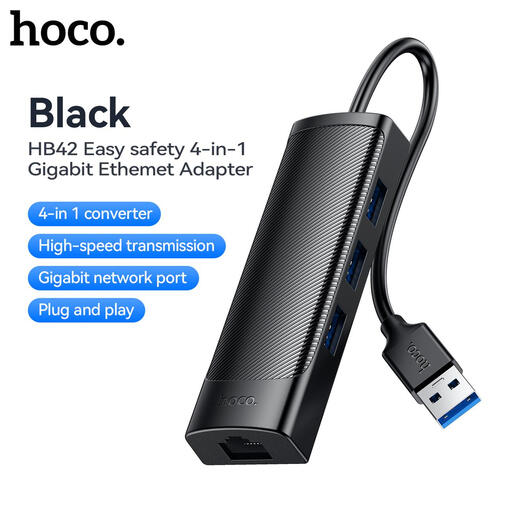 No image available
Consider this if you need a mouse connection alongside a network port. Its name specifies three USB 3.0 connections and an RJ45 LAN connection; check that its host connector fits your laptop and that the 0.2 m lead reaches your planned position.
 No image available
Consider this USB-C model if the mouse shares a desk with other USB devices or a display. The title specifies USB-A 10Gbps and 5Gbps connections, HDMI 4K at 60Hz, SD/TF readers and 3.5 mm audio; check laptop compatibility and cable reach for your setup.
 No image available
Consider this model when external displays are a genuine need alongside the mouse. Its name lists USB-A data connections, two HDMI outputs, RJ45, SD/TF and a USB-C power-delivery port; check your laptop’s display support and the hub’s reach before planning the desk layout.
 No image available
Consider this if you need mouse access plus another USB connection or a monitor output. The name lists two USB-A 3.0 ports, USB-C 3.0, SD/TF and HDMI 4K60Hz; check the laptop connection and whether the unit will fit where you intend to place it.
Usually not: a compact hub with an accessible USB-A data port is a sensible starting point if the mouse is your only extra device. Consider a larger dock if you also need charging, Ethernet, displays or several peripherals through one laptop connection.
Do not assume it will run both functions. Check the laptop’s USB-C, USB4 or Thunderbolt specifications and the exact dock’s display and operating-system requirements; Anker specifies a full-function USB-C, USB4 or Thunderbolt connection for its cited Nano 8-in-1 model.
Place it where its lead reaches the laptop without tension and its USB-A port lets the mouse cable run clear of your working area. Compare lead lengths model by model: Anker lists a 25 cm lead for its Nano 8-in-1 hub, but that does not describe other hubs.
Only if the laptop accepts compatible USB-C charging and the dock and its power equipment meet the required specifications. UGREEN states up to 85W laptop charging through a 100W power-delivery port on its Revodok Pro 2102; check your own laptop’s requirement and what the dock package includes.