What should you check first?
List what must travel with you and what can stay connected at each regular desk. Then check the laptop against the connections and display arrangement you intend to use.
| Priority |
What to check |
Your needs |
| Desk connections |
List the display, USB, network and other connections needed at each desk. Compare that list with the hub or dock ports and decide which devices can remain plugged in. |
I want to arrive at a regular desk and reconnect the devices I use without sorting through several adapters. |
| Laptop compatibility |
Check the exact laptop model and USB-C or Thunderbolt port for video output, supported displays and charging. Compare the intended hub or dock with the laptop and charger documentation. |
A connector that fits is not enough: I need the planned screens and charging arrangement to work with my laptop. |
| Screen and input position |
Consider whether a second display helps with the tasks you do at multiple locations. Check its connection, cabling and placement alongside any separate keyboard or mouse. |
For sustained work, I need to place the screen and input devices comfortably, not just fit more equipment on a temporary desk. |
| Carrying the kit |
Check actual device dimensions against a case or sleeve’s internal fit. Allow suitable space for the charger, cables, hub and any portable monitor. |
Everything I regularly carry needs a practical place in the bag, without relying on the laptop’s nominal screen size as a fit measurement. |
Joybuy product options
These options cover docks and hubs, portable monitors and a compact keyboard for a setup that moves between locations. Choose by the laptop connections, desk arrangement and equipment you actually need to carry.
 No image available
Targus USB-C Universal Dual HDMI 4K Docking Station, 100W Power Delivery pass-through
Consider this for a desk where you want to reconnect HDMI displays through a dock. The named variant has dual HDMI 4K connections and 100W Power Delivery pass-through; check the laptop’s video and charging support, the intended display configuration and the power adapter needed for your setup.
View on Joybuy
 No image available
UPERFECT 14-inch 60Hz touchscreen portable monitor
For tasks that call for a second screen at different desks, this 14-inch model lists a touchscreen, 100% sRGB, VESA support and a 180° adjustable stand. Check the laptop’s video output, the monitor’s power requirements and what you would need to carry with it.
View on Joybuy
 No image available
Baseus Metal Gleam Series II 10-in-1 USB-C hub, Cosmic Black
This hub is an option when you need to bring several desk connections together. Its named configuration includes HDMI outputs labelled 4K120Hz and 4K60Hz, USB data ports, RJ45, SD/TF and USB-C PD. Check whether the laptop supports the intended displays; the PD connection alone does not establish its charging output to your laptop.
View on Joybuy
 No image available
ASUS ZenScreen MB166C 15.6-inch Full HD portable USB monitor
A 15.6-inch IPS screen is another way to add display space at changing desks. This model is named with a USB Type-C connection, anti-glare surface, flicker-free feature and blue-light filter. Check the laptop’s USB-C video capability and the monitor’s power needs before planning the cabling.
View on Joybuy
 No image available
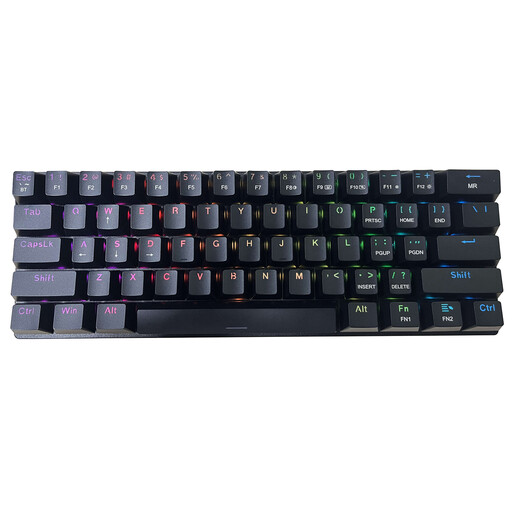
ET 60% tri-mode mechanical keyboard, 61-key US QWERTY layout
A separate compact keyboard may help when arranging input devices at a temporary desk. This variant is named with Bluetooth, 2.4GHz USB receiver and wired USB-C modes, plus clicky blue switches. Check whether the US layout and connection methods suit your work device, and confirm the bundle contents if you also need a mouse.
View on Joybuy
Frequently asked questions
Will any USB-C hub run a monitor and charge my laptop?
No: check the exact laptop port and hub documentation for video output, Power Delivery and the number of displays you intend to use. Anker’s UK dock guidance calls out each of these checks, and Lenovo notes that some dock features vary by laptop.
When is a portable monitor worth carrying?
Consider one when a second screen helps with tasks you do at multiple locations, such as comparing documents, and you have room for the screen and its connections. Check its placement as part of the whole desk arrangement rather than assuming another display will improve comfort on its own.
Can display-screen equipment guidance apply when I work at home and elsewhere?
Yes, it can. The UK Health and Safety Executive says the DSE Regulations can apply to workers who routinely split time between home and the workplace; its guidance identifies daily DSE use for continuous periods of an hour or more as within scope. Discuss the arrangements at your usual work locations with your employer where those conditions apply.
How do I choose a sleeve or bag for the whole kit?
Measure the laptop and any portable monitor, then check the bag’s internal dimensions and storage for the charger, cables and input devices. Lenovo’s UK sleeve descriptions distinguish fitted sleeves from a larger Urban Sleeve with accessory compartments, illustrating why screen size alone is not a complete fit check.


