Choose the accessory that addresses your main problem: call audio, camera position, sustained screen work or connecting a laptop at your desk. A stand works better for prolonged laptop use alongside a separate keyboard and mouse, while a hub or dock is worth considering only after you have checked the laptop’s video, port and charging requirements. A USB-C connector alone does not establish which of those functions will work.
Who is this for?
Frequent home video-call workers
If you regularly join calls from a home desk, check whether the difficulty is your microphone, speaker or camera position before replacing several devices. Microsoft Teams lets you select audio devices in its meeting settings, while Apple explains how to select an external camera on a Mac.
Laptop-first desk workers
For prolonged work on a laptop, screen position and space for a separate keyboard and mouse can matter more than another connection port. The Health and Safety Executive advises separating the input devices when raising a laptop screen.
Workers moving a laptop between desks
A hub or dock may simplify reconnecting displays and peripherals at home or at work. Check the exact laptop port and charging requirements first: Microsoft and Anker document how USB-C functions can depend on the connected hardware.
What should you check first?
Start with the task that is awkward today, then check the connection and physical setup needed to make the accessory useful.
| Priority | What to check | Your needs |
|---|
| Call audio |
Choose between private headset listening and an open-room speakerphone. Check the connection, operating-system support and microphone and speaker selection in your meeting app; Microsoft documents these controls for Teams. |
I take calls around other people, so a headset may suit the room better. If I work alone and prefer not to wear one, I can consider a speakerphone. |
| Camera position |
Check the webcam’s mount, field of view, connection and stated operating-system support. For a Mac, Apple advises checking how the camera is selected in the application you use. |
My laptop camera is awkwardly positioned for calls; I want to place an external camera where it frames me appropriately. |
| Screen setup |
Allow room for the screen, keyboard and mouse. The Health and Safety Executive advises separate input devices when a laptop is raised; an external monitor also needs a compatible video connection. |
I spend long periods working at a desk and want to raise the screen without having to type on an elevated laptop keyboard. |
| Desk connections |
Match the laptop’s video-capable port, required display count, cable and charging needs to the exact hub or dock. Anker documents a hub whose display output requires host DisplayPort Alt Mode; Microsoft notes that USB-C hardware combinations can have limited functions. |
I move my laptop between desks and want to reconnect a monitor and peripherals without assuming every USB-C port does the same job. |
Common buying mistakes
-
Assuming a USB-C plug guarantees every dock function
A connected hub may still lack the video function needed for your monitor. Anker documents a hub that requires DisplayPort Alt Mode from the laptop, and Microsoft notes that USB-C hardware combinations can have limited functionality.
Look up the exact laptop port specification, then compare it with the dock’s display, data, charging and cable requirements.
-
Choosing a webcam by resolution alone
Resolution does not settle where the camera will sit or whether your meeting app will select it. Apple notes that using an external camera with a third-party Mac app may require checking that app’s instructions.
Check the mount, framing options, room lighting and app settings as well as the webcam’s stated computer requirements.
-
Raising a laptop but keeping its built-in controls
Once the screen is elevated, its keyboard and trackpad rise with it. The Health and Safety Executive advises a separate keyboard and mouse for prolonged laptop use so the screen can be raised independently.
Make room for those input devices when planning a stand or riser, rather than considering the stand on its own.
-
Assuming Teams certification covers every app
Microsoft describes Teams-certified devices in terms of Teams integration and call controls; that does not establish how a device will work with every other application or computer.
Check the device’s connection and operating-system requirements, then confirm microphone and speaker selection in the apps you use.
Relevant brand references
These examples help identify model-level checks; a brand’s presence here does not determine whether a particular device fits your laptop or desk.
Logitech
Logitech offers webcams and headsets aimed at video calls and home working.
- Logitech specifies several resolution and frame-rate modes for its Brio 4K webcam, including 4K at 30 fps and 1080p at 60 fps.
- Check the exact webcam’s mounting and computer requirements, or a headset’s connection type; features vary between models.
Dell
Dell supplies docks and USB-C monitor options for laptop desk setups.
- Dell describes its USB-C and Thunderbolt docks as carrying display, audio and data connections through one connection.
- Check the particular laptop, dock and monitor specifications for the displays and charging arrangement you need.
Anker
Anker offers USB-C hubs and docks for adding desk connections.
- Its hub and dock range includes options for connecting monitors and peripherals.
- Anker documents that external display output on its 568 USB-C Hub depends on the laptop supporting DisplayPort Alt Mode; check the functions of the exact model’s ports.
Joybuy options for home calls and laptop desks
These options address laptop connections, an external screen, camera framing and speakerphone calls. Choose by the problem in your own setup, then check compatibility with your computer and workspace.
 No image available
Targus USB-C Universal Dual HDMI 4K Docking Station, 100W Power Delivery Pass-Thru
Consider this dock if your desk setup needs two HDMI display connections. Its title specifies 100W power-delivery pass-through; check the laptop’s video and charging requirements and confirm what power adapter the intended setup needs.
View on Joybuy
 No image available
V7 V7UC-U3CRJ45HDVG-BLK USB-C Adapter
For a laptop desk needing display, network and peripheral connections, the product name specifies 4K HDMI, VGA, Gigabit Ethernet, dual USB 3.0 ports and 100W power delivery. Check the laptop’s USB-C video capability, the intended display arrangement and delivered charging power before choosing it.
View on Joybuy
 No image available
ASUS ZenScreen MB249C IPS USB-C Monitor
An external screen is worth considering when a laptop-only display restricts your desk layout. This model’s name specifies IPS and USB-C; check your laptop’s video output, the monitor’s placement requirements and any charging capability you intend to use. Confirm its weight before planning a movable setup.
View on Joybuy
 No image available
EMEET All-in-One 4K USB Webcam with Sony Sensor
For calls where an external camera and built-in audio suit the desk, the product name specifies a four-microphone array, dual speakers, fixed focus and an adjustable 98° field of view. Check the seating distance, mounting position and camera selection in your meeting app.
View on Joybuy
 No image available
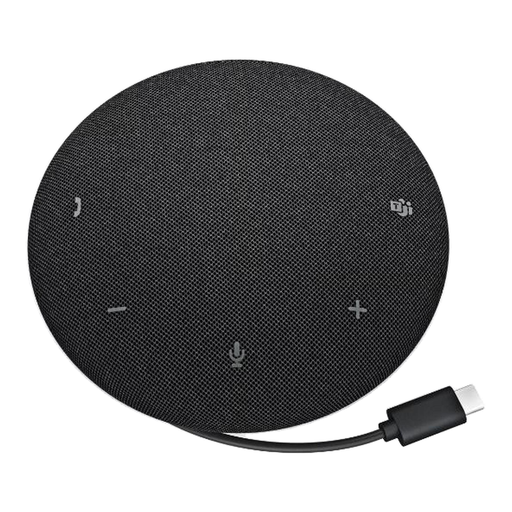
Dell Pro Wired Speakerphone SP325
A speakerphone may suit calls from a quiet desk when you prefer not to wear a headset. This is a wired model, so check its connection and cable reach against your computer and desk position; open-room audio will not offer private listening.
View on Joybuy
Frequently asked questions
Will any USB-C hub connect my laptop to a monitor?
No. Check the laptop’s video-output capability against the exact hub and cable requirements: Anker documents a hub that cannot drive an external display unless the laptop’s USB-C port supports DisplayPort Alt Mode.
How can I check whether a dock will charge my laptop sufficiently?
Compare the laptop’s charging requirement with the power the specific dock delivers to it, rather than the dock’s input rating alone. Anker states that its 568 USB-C Hub accepts up to 100W input but retains 15W for its own operation, leaving up to 85W for the laptop; other models and chargers need their own checks.
What should I check before buying a webcam for a Mac?
Check the camera’s stated macOS and connection requirements, its mounting position and whether your video-call app can select it. Apple says external cameras can connect by cable or wirelessly, while support in a third-party app may depend on that app’s instructions.
Is a laptop stand enough for prolonged desk work?
Consider a separate keyboard and mouse alongside the stand. The Health and Safety Executive advises separating them for prolonged laptop use so the screen can be elevated without raising the controls you type and point with.


