Build around the way you work rather than buying every accessory. An external monitor is worth considering when calls and documents need separate screen space; a dock becomes useful when you repeatedly connect several desk devices, provided your laptop supports its display and charging requirements. If the computer never needs to move, a desktop is another option, but either setup needs compatible connections and correctly selected meeting devices.
Who is this setup for?
Laptop-based hybrid workers
If you carry a laptop between locations, an external screen and input devices can stay at your home desk. A dock is worth considering when you regularly reconnect several accessories, but its connection must match your laptop.
Frequent video-call and screen-sharing workers
Calls involve more than choosing a camera: check which microphone, speaker and camera the meeting app selects, then make a test call. A second screen can separate meeting video from shared content where the computer and app support that arrangement.
Document and multi-window desk workers
If you need notes or spreadsheets visible beside a meeting, check whether your computer can run the screen arrangement you want before choosing a monitor. Zoom Support documents a dual-monitor mode that places meeting video and shared content on separate screens.
What should you check first?
Decide whether you need more screen space, a simpler way to reconnect desk devices, or different call equipment. Then check each addition against the computer and software you use.
| Priority | What to check | Your needs |
|---|
| Screen space |
Confirm the computer’s display output, the monitor’s input and the number of screens it supports. Check the operating system’s display settings and any meeting-app feature you plan to use. |
I want to keep notes or documents visible during a call, rather than switching between them and shared content. Zoom Support says its dual-monitor mode can separate meeting video and shared content when two screens are configured. |
| Dock compatibility |
Match the dock’s required Thunderbolt, USB-C DisplayPort Alt Mode or DisplayLink connection to the exact laptop. Check supported displays and any software requirements; a USB-C plug alone does not establish video support, as Dell UK Support explains. |
Several devices stay on my desk, and I would like fewer connections to make each time I bring my laptop back. |
| Charging |
Compare the monitor or dock’s stated power-delivery output with the laptop’s charging requirement. Confirm whether a separate power adapter is needed. |
I would like a desk connection that also charges my laptop, but I need to know whether it can supply enough power. LG’s UK listing for the 27U631A-B, for example, states up to 15W through USB-C; the rating depends on the exact monitor. |
| Call devices |
Check the webcam or headset connection and operating-system support. Select the intended camera, microphone and speaker in the meeting app, allow device access and make a test call; Microsoft Support documents these settings for Teams. |
For frequent calls, I want to know that colleagues will see and hear the devices I meant to use, especially when both built-in and external equipment are connected. |
| Desk input |
Check keyboard layout, mouse and keyboard connection options, and the ports left available after connecting other equipment. |
If I spend long periods editing documents at a separate screen, I may prefer a desk keyboard and mouse while keeping the laptop free to move. |
Common setup mistakes
-
Assuming every USB-C port can drive a monitor
The connector can fit even when the laptop port does not provide the video connection a monitor or dock requires. Dell UK Support notes that not all USB-C ports support video.
Look up your exact laptop model and confirm its port protocol and supported external-display arrangement before choosing the dock or cable.
-
Expecting any USB-C monitor to replace the laptop charger
Power delivery varies by model. LG lists up to 15W for its 27U631A-B monitor, so a USB-C video connection alone does not establish that a monitor meets a laptop’s charging needs.
Compare the stated power output with the laptop’s charging requirement before planning a single-cable setup.
You may still need to connect the laptop’s charger separately.
-
Treating a universal dock as identical on every laptop
Dell UK Support describes functional limitations for some of its commercial docks on non-Dell laptops. Lenovo also specifies host protocols for its USB-C and Thunderbolt docks.
Check the dock maker’s compatibility information for your laptop and intended display configuration, including any limits tied to the host or operating system.
-
Replacing call equipment before checking device settings
A meeting app or browser may be using a different microphone or speaker, or lack permission to access the one you connected. Microsoft Support documents device selection and access settings for Teams.
Select the intended camera and audio devices, confirm permissions and make a test call before relying on them for a meeting.
Relevant brand references
Dell
Dell’s UK dock guidance is useful when checking a fixed laptop-desk connection, particularly for a Dell laptop.
- Dell UK Support explains how a dock can connect monitors and desk peripherals through one laptop connection.
- Its guidance also notes that USB-C video support varies by laptop port and that some dock functions are limited on non-Dell hosts.
Lenovo
Lenovo’s dock specifications provide a reference for checking the host connection needed at a laptop desk.
- Lenovo’s UK ThinkPad Universal USB-C Dock listing sets out applicable USB-C Alt Mode, DisplayLink and Thunderbolt protocol requirements.
- Check functions for the exact dock and host; a universal connection does not establish that every feature works on every laptop.
Logitech
Logitech offers webcams, headsets and input devices relevant to calls and desk work.
- Logitech’s business range includes meeting peripherals that it describes as certified for leading conferencing platforms.
- Check certification and available functions for the exact product and the meeting platform you use.
LG
LG’s monitor specifications illustrate why display connections and laptop charging should be checked separately.
- LG’s UK 27U631A-B listing specifies USB-C display connectivity and up to 15W power delivery.
- That charging rating belongs to this model, not every LG USB-C monitor; compare the exact model with your laptop’s power needs.
Joybuy options for a laptop desk
These options cover a desk connection, an external screen, call peripherals and a keyboard-and-mouse set. Choose the parts that address your work pattern, then check their connections against your computer.
 No image available
Targus USB-C Universal Dual HDMI 4K Docking Station, 100W Power Delivery Pass-Thru
Consider a dock if you reconnect a laptop to multiple desk devices regularly. Check that your laptop supports the required display connection and intended two-screen arrangement, and confirm the adapter needed for power pass-through.
View on Joybuy
 No image available
ASUS ProArt PA24ACRV IPS QHD Monitor
An external screen is relevant when you want documents visible alongside a call or shared content. Confirm your laptop’s display output and, if you plan to use USB-C for charging, compare the monitor’s power-delivery rating with the laptop’s requirement.
View on Joybuy
 No image available
Targus 2K Webcam with Auto Focus
An external webcam is worth considering if your built-in camera does not suit your call setup. Confirm the delivered video resolution before buying: the product title says 2K, while its technical details state 1080p at 30fps. Check that your meeting app can select the camera.
View on Joybuy
 No image available
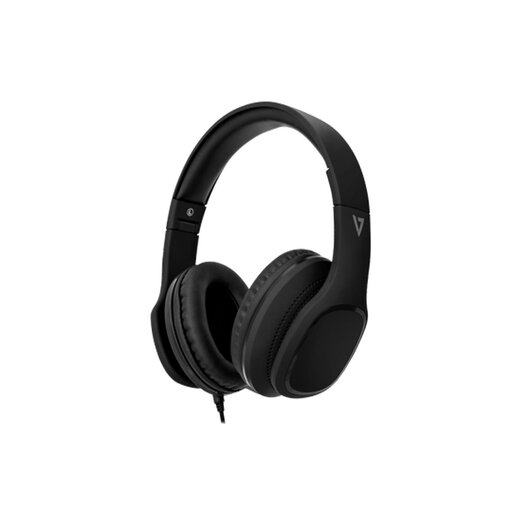
V7 HA701-3EP Wired Over-Ear Headphones, 40mm Drivers and Inline MEMS Mic
A wired headset may suit calls when you want headphones and a personal microphone together. Confirm that your computer’s audio connection accepts microphone input from the headset, then select and test it in your meeting app.
View on Joybuy
 No image available
HP 680 CFT Dual-Mode Keyboard and Mouse Set
A separate keyboard and mouse can be useful when your laptop sits beside an external screen for desk work. Confirm the keyboard layout and whether your computer has the connection needed for the set.
View on Joybuy
Frequently asked questions
Will any USB-C laptop port run a monitor through a dock?
No. Dell UK Support says not all USB-C ports support video. Check your laptop’s exact port specification against the dock’s requirement, such as DisplayPort Alt Mode or Thunderbolt; a DisplayLink dock has separate software and connection requirements.
Do I need a dock for one extra monitor?
Not necessarily. A direct connection can be enough if the laptop and monitor have compatible display connections. A dock becomes more relevant when you want to reconnect a monitor and several other desk devices through one main laptop connection, as described in Dell UK Support’s dock guidance.
Can a USB-C monitor charge my work laptop?
Only if its stated power delivery meets the laptop’s charging needs. Check both ratings rather than relying on the USB-C connector: LG’s UK listing for the 27U631A-B specifies up to 15W, a rating that should not be assumed for other monitors.
What should I test before using a new webcam or headset for calls?
Select the intended camera, microphone and speaker in your meeting app, confirm device permissions and make a test call where available. Microsoft Support documents these controls for Teams; some settings may also depend on organiser or workplace policies.


