Who is this setup for?
The useful additions depend on whether your laptop’s main limitation at home is its desk arrangement, screen space or call setup.
Hybrid workers using a laptop at a home desk
If you regularly move between home and another workplace, consider which parts of the desk setup need to stay at home and which need to travel. The Office for National Statistics reported that 28% of working adults in Great Britain hybrid worked between January and March 2025; that figure describes the working pattern, not demand for particular peripherals.
Multi-window and multi-screen desk workers
If you compare documents, use large spreadsheets or keep several applications open, check whether more display space would help before adding a dock. Any monitor or dock arrangement must match the laptop’s supported video outputs and connections.
Frequent remote-meeting workers
If calls occupy much of your working day, assess the position of your laptop camera and how you listen and speak in your usual room. Check a webcam or headset’s connector and compatibility with your work platform before choosing one.
What should you check first?
Identify the task your laptop setup makes difficult, then check the connections needed to address it. An extra screen, a connection hub and call equipment solve different problems.
| Priority |
What to check |
Your needs |
| Desk arrangement |
Check whether the screen and input devices can be positioned for your work. Consider a laptop stand and separate keyboard and mouse if their positions need to be adjusted independently. |
I use my laptop at a home desk for sustained tasks and want to arrange the screen and controls separately. |
| Display space |
Decide whether an external monitor should stay on the desk or travel with the laptop. Check its inputs against the laptop’s video output and the display mode you intend to use. |
Comparing documents or working across several windows is cramped on my laptop screen. |
| Desk connections |
List the monitors and wired devices you will connect. Match the laptop, cable and hub or dock for the required video mode, ports and charging output; a USB-C connector alone does not establish these capabilities. |
I want fewer connections to make each time I sit down, but only if the hub or dock runs my actual desk devices. |
| Calls and audio |
Check camera placement, headset or microphone connection, and compatibility with your operating system and work calling platform. |
My regular video meetings make camera position or call audio more important than adding another screen. |
| Charging |
Compare the laptop’s charging requirement with the charger, dock or monitor’s stated USB Power Delivery output. Check the required cable and whether a separate power adapter is needed. |
I would like to power the laptop at my home desk without relying on a connection that cannot meet its charging requirements. |
Relevant brand ranges
These brands illustrate different peripheral routes; a brand’s presence here does not mean every model has the same connections or suits your laptop.
Logitech
Logitech offers keyboard, mouse, webcam and headset combinations for a laptop desk with regular calls.
- Its work-from-home combination brings several types of desk and call peripheral together.
- Logitech describes a USB-A connection and noise-reducing microphone for its H390 headset; check the exact devices and your calling-platform requirements rather than treating that claim as a universal call result.
Dell
Dell’s USB-C dock range is relevant when a fixed laptop desk needs display outputs and wired connections.
- Dell UK lists two DisplayPort 1.4 outputs and one HDMI 2.1 output for its Pro Dock WD25.
- Dell UK states different WD25 power figures for Dell and non-Dell systems: 100W and 96W respectively. Check the laptop and dock combination you intend to use.
Anker
Anker’s USB-C hubs and docking stations provide a route for connecting desk peripherals through a laptop port.
- Anker UK specifies a single-monitor mode of 4K at 60Hz for its 565 hub with a DisplayPort 1.4 laptop.
- The same Anker specification gives 4K at 30Hz with a DisplayPort 1.2 laptop, so check the host laptop’s capability before choosing a display setup.
Lenovo
Lenovo’s docking-monitor range is relevant to a fixed desk where a display and peripheral connections may be combined.
- Lenovo UK lists Thunderbolt and USB-C connections rated at 100W, alongside Ethernet and USB connections, for the ThinkVision P27u-20.
- Those are specifications for the named monitor, not the whole range; check the chosen model’s ports and charging output against your laptop.
Joybuy desk and display options
These Joybuy options focus on adding display space to a laptop, with one dock for connecting monitors and wired desk devices. Choose between a fixed screen, a portable screen and a dock according to the task and your laptop’s connections.
 No image available
Targus USB-C Universal Dual HDMI 4K Docking Station with 100W Power Delivery pass-through
For a desk with two external displays and wired peripherals, this dock’s listing specifies two HDMI outputs, USB ports and Gigabit Ethernet. It states dual 4K output at 60Hz and up to 100W Power Delivery pass-through; confirm the laptop supports the required display and charging modes. The listing calls for an external 100W or higher adapter, so check whether one is included.
View on Joybuy
 No image available
AOC Q32V4 31.5-inch QHD IPS monitor
This fixed-desk monitor offers additional display space for multi-window laptop work. The listing specifies a 31.5-inch QHD IPS screen, HDMI 1.4 and DisplayPort 1.2 inputs, and VESA 100 × 100 mounting. Check that the laptop can output the display mode you want through a compatible connection.
View on Joybuy
 No image available
ASUS ZenScreen MB166C 15.6-inch portable Full HD monitor
This portable screen is an option when extra display space needs to travel with the laptop. Its listing specifies a 15.6-inch Full HD IPS display and describes USB-C carrying video and power through one cable. Confirm that the intended laptop’s USB-C port supports video output and can supply the required power.
View on Joybuy
 No image available
CRUA 32-inch 1500R curved QHD monitor
This fixed-desk display provides a 32-inch screen for work across several windows. The listing specifies 2560 × 1440 resolution, HDMI and DisplayPort inputs, and VESA 100 × 100 mounting. Its stated maximum 165Hz at 2K requires the supplied DisplayPort cable; check the laptop’s output and connection if that mode matters. Verify colour-gamut details separately if colour accuracy is important.
View on Joybuy
 No image available
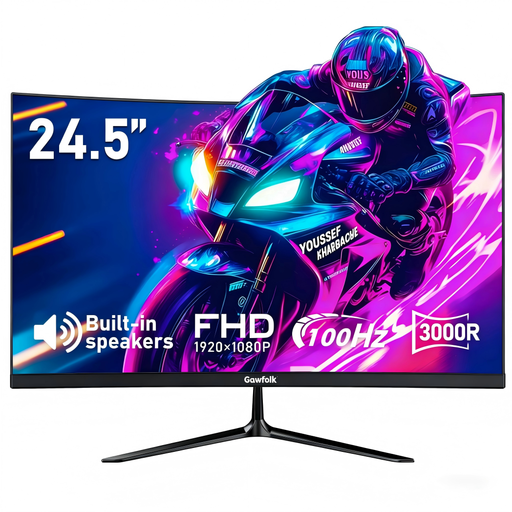
Gawfolk 24.5-inch 3000R curved Full HD monitor
This 24.5-inch external screen is an option for adding a display at a home desk. The listing specifies 1920 × 1080 resolution, HDMI and VGA inputs, built-in speakers and VESA mounting. Confirm the laptop has a compatible video output; check the exact response-time specification if it matters to your use.
View on Joybuy
Common questions
Should a home workstation be considered separately from an office workstation?
Yes, where a worker uses display screen equipment in both places, the Health and Safety Executive says the assessment should cover both situations. Consider the equipment and tasks at the home desk rather than assuming the office arrangement carries over unchanged.
Will a USB-C port run two monitors and charge a laptop through one cable?
Not necessarily. The USB Implementers Forum says a USB4 connection operates at the best mutual capability of the connected devices, while Anker UK specifies different display modes for its 565 hub depending on the laptop’s DisplayPort capability. Check the laptop, hub or dock, monitors, cable and charging specifications for the arrangement you intend to use.
When does a docking monitor make sense?
A docking monitor can suit a fixed desk if its display, peripheral ports and charging output meet the laptop’s requirements through a compatible connection. Lenovo UK lists these connections for its ThinkVision P27u-20, but check the specifications of the exact monitor and laptop before planning a one-cable setup.
What should I check before replacing a laptop’s USB-C charger?
Match the laptop’s charging requirement to the charger’s USB Power Delivery output and check the cable and any dock or hub in the connection path. A USB-C connector alone does not establish the power available; the USB Implementers Forum describes USB4 power as requiring a USB Power Delivery agreement between devices.


