What should you check first?
For a laptop moving between home and a workplace, identify the task that most often complicates setup, then check compatibility before adding equipment to your bag.
| Concern |
What to check |
Who this matters to |
| A second screen |
Confirm the laptop's video-output route and the monitor's required input. Check carrying size and stand adjustment. |
If I need documents and messages visible together at both locations, a screen I can carry is my priority. About 36% of consumers put a portable second screen first. |
| Desk reconnection |
List the peripherals you reconnect, then check the laptop's port and external-display support against the hub or dock. |
Repeatedly plugging in my desk equipment slows the start of work, so I want the connections I use in one compatible device. For about 29% of consumers, faster reconnection is the primary need. |
| Charging and cables |
Match the laptop maker's charging requirement to the charger; check the cable's stated power and data capabilities for its intended use. |
When I move between locations, I need a charging arrangement that meets my laptop's requirements rather than relying on the USB-C connector alone. Reliable power and cables come first for about 21% of consumers. |
| Carrying and positioning |
Consider the combined items you will carry and how the screen and input devices can be positioned at each regular desk. |
I will be packing this equipment often, so its carrying burden and position at changing desks matter more to me than adding another connection. About 14% of consumers prioritise carrying and workstation positioning. |
Portable setup accessories on Joybuy
These products cover several ways to work with the same laptop at different locations: reconnecting desk peripherals, carrying an input device or second screen, and taking a charger. Choose by the task you need to solve, then confirm compatibility with your laptop and workplace rules.
 Image unavailable
USB-C multiport adapter with 2 HDMI, DP and RJ45
Consider this for a desk where you repeatedly connect a display and other peripherals. The product name lists 2 HDMI, DP, 2 USB 3.0, 2 USB 2.0, RJ45, PD, SD/TF and audio connections. Check which video outputs and charging functions your laptop can actually use before planning the desk layout.
Joybuy
 Image unavailable
Lofree OE907 65% keyboard, US QWERTY
A compact keyboard is an option if you want a separate input device at changing desks. This variant is named as a 68-key keyboard with Bluetooth 5.1 and wired modes, Jellyfish switches and a white backlight. Check whether its US QWERTY layout suits you, whether wireless peripherals are permitted on your work device and whether a mouse is included in the bundle.
Joybuy
 Image unavailable
UPERFECT 14-inch 60 Hz touchscreen monitor
Consider this if a second display needs to move with your laptop. Its product name specifies a touchscreen, VESA support and a stand adjustable through 180°. Check the video connection your laptop can provide and whether your intended arrangement needs a separate power supply.
Joybuy
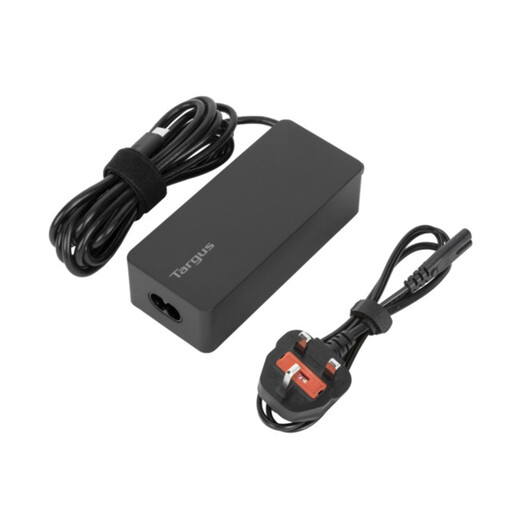 Image unavailable
Targus 65W USB Type-C Charger
This charger is relevant if carrying power between work locations is your main concern. Its stated rating is 65 W; compare your laptop maker's charging requirements and required output profile with the charger before choosing it.
Joybuy
 Image unavailable
ASUS ZenScreen MB166C 15.6-inch USB-C monitor
Another option when a second display needs to travel with the laptop, this model is named as a Full HD IPS portable monitor with a USB Type-C connection and anti-glare surface. Verify that your laptop's USB-C port supports the video connection this model requires, and check the carrying and positioning accessories you need.
Joybuy
Frequently asked questions
Will any USB-C laptop work with a portable monitor or dock?
No: the USB-C connector does not, by itself, confirm video output or the charging function an accessory needs. Compare the laptop and accessory specifications for the intended connection; for example, Lenovo specifies a USB-C laptop port supporting DP 1.2 Alt Mode and PD 2.0 for its ThinkVision M14.
Why might a USB-C charger or dock charge my laptop slowly?
The connected power arrangement may not meet the laptop's charging requirement. Microsoft documents Windows notifications for slow charging and insufficient charger power; check the laptop maker's recommended charger specification and the stated capability of the cable and dock you intend to use.
Can my employer restrict a dock or wireless peripheral I bought myself?
Yes, an organisation may control peripheral access on a managed device. The National Cyber Security Centre advises organisations to assess peripheral risks and restrict or disable access where it is not required, so confirm your employer's rules before purchasing for a work laptop.
Should I consider both my home and workplace desks when choosing accessories?
Yes, if you regularly use display screen equipment in both places, consider how the setup works at each desk. The Health and Safety Executive says assessments should cover home and office situations where both are used; the Health and Safety Executive for Northern Ireland also notes that its display screen equipment regulations can apply to routine split working.


