Who needs a different setup?
The useful addition depends on what changes when you move between desks, not simply on how often you work away from one location.
Workers switching between desks
If you repeatedly connect a display and several peripherals, a dock may simplify your regular desk arrangement. Check the laptop’s display and charging support before choosing one; a dock cannot override the computer’s limits.
Workers carrying a second screen
A portable monitor is worth considering when documents or spreadsheets benefit from a second workspace at both locations and you cannot leave a monitor at each desk. Its video connection, power needs and carrying burden matter as much as its screen size.
Workers on frequent video calls
If laptop-camera placement, lighting or background sound makes calls difficult, consider a separate webcam or a headset with a call microphone. Check the exact device in the meeting application you use; neither accessory adds screen space.
What should you check before buying?
Start with the task that your current laptop setup makes difficult, then check the connections and carrying demands of the proposed addition.
| Priority | What to check | Your needs |
|---|
| Desk screen space |
Decide whether you need a larger display, an extended desktop or merely a mirrored image. Check the laptop’s supported external-display count and the intended resolution and refresh rate; Apple says simultaneous display support depends on the Mac model. |
At my main desk, I want documents or applications visible together rather than constantly switching windows. |
| A screen that travels |
Check the portable monitor’s video input, power arrangement, stand and carrying size against your laptop. Lenovo specifies USB-C with DP 1.2 Alt Mode and PD 2.0 for its ThinkVision M14; a USB-C connector alone does not establish that compatibility. |
I need a second workspace at home and at work, and I am prepared to carry the display and its accessories. |
| Desk connections |
Match the dock’s host connection, display configuration and charging delivery to the exact laptop. Microsoft notes that USB-C hardware and software combinations can cause problems; also check whether the dock needs a separate power adapter. |
Several desk devices need connecting when I arrive, but I do not want to buy a dock that my laptop cannot use as planned. |
| Video calls |
Check camera placement and lighting, microphone pickup, connector type and the exact headset variant. Test the intended camera, microphone and speaker in your meeting application. |
Colleagues need to see and hear me adequately in the rooms where I actually take calls, including shared spaces. |
| Workstation arrangement |
Consider screen position and the equipment used at each desk. The UK Health and Safety Executive says an employer’s assessment should cover both home and office where a worker uses display screen equipment in both places. |
I use a workstation at two locations and need an arrangement that suits the work at each, rather than assuming the same laptop position works everywhere. |
| Equipment to carry |
Check that a bag fits the actual laptop and any display, charger and cables you take with you. Confirm an alternative charger and cable meet the laptop’s charging requirements. |
On travel days, I want to bring the equipment I use without overlooking its space or power needs. |
Relevant brand examples
These model lines illustrate different equipment routes; their stated features do not establish compatibility with every laptop or availability on Joybuy.
Lenovo ThinkVision
The ThinkVision M14 is Lenovo’s 14-inch mobile-monitor example for carrying an additional display.
- Lenovo specifies USB-C display extension or duplication for the M14 when the notebook supports DP 1.2 Alt Mode and PD 2.0.
- Check those requirements against the exact laptop; a USB-C-shaped port is not enough to establish compatibility.
Dell Pro Dock
The WD25TB4 illustrates a dock for a regular desk with display and peripheral connections.
- Dell lists Thunderbolt 4 and power delivery of up to 130 W for Dell systems or 96 W for non-Dell systems on the WD25TB4.
- Those dock specifications do not establish a particular laptop’s display limits or charging behaviour; check the host system too.
Logitech Brio
The Brio 500 is a separate-webcam example for a desk where laptop-camera positioning or lighting is a concern.
- Logitech lists auto light correction and noise-reducing microphones for this model.
- Check camera and microphone operation in your lighting and meeting application before relying on them for calls.
Jabra Evolve2
The Evolve2 55 is a headset example for workers who take calls across different locations or shared spaces.
- Jabra lists call and connectivity features for the Evolve2 55 range.
- Microsoft Teams optimisation depends on the variant, according to Jabra. Check the exact version, connector and permitted meeting software.
Joybuy options for this setup
These options cover desk connections, a portable second screen and accessories for video calls. Choose an addition for a task your laptop does not handle comfortably, and check compatibility with your own computer and meeting software.
 No image available
Targus USB-C Universal Dual HDMI 4K Docking Station, 100W PD Pass-Thru
Consider this for a desk where you want to connect two HDMI displays and other equipment through a dock. The product name specifies 100W power-delivery pass-through; check your laptop’s video and charging requirements, its supported display arrangement and the required external power-adapter setup.
View on Joybuy
 No image available
ASUS ZenScreen MB166C 15.6-inch Full HD IPS USB-C Monitor
This portable screen is an option when the second workspace needs to move between locations. Check that your laptop can send video through the intended USB-C connection and confirm how the monitor will receive power.
View on Joybuy
 No image available
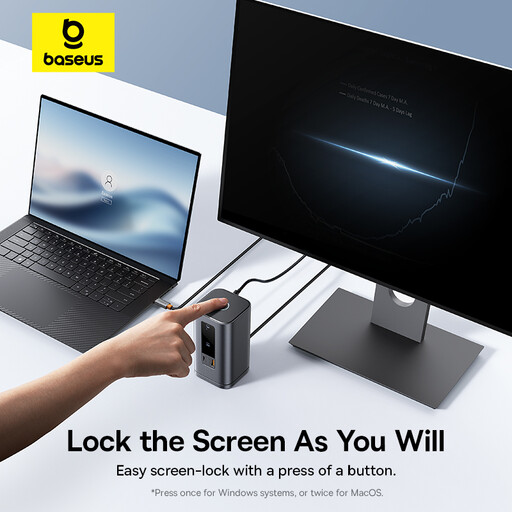
Baseus Wisdom Series 11-in-1 (WIN) Workstation, Space Gray
Consider this workstation dock if you regularly reconnect equipment at a desk. Before choosing a multi-display arrangement, confirm the exact connections and displays your laptop supports; also check the charging power that would reach your laptop.
View on Joybuy
 No image available
Targus 2K Webcam with Auto Focus
A separate webcam may help when the laptop camera is awkwardly positioned for calls. The 2K product name and the accompanying Full HD 1080p technical description differ, so confirm the actual video resolution and test camera and microphone operation in your meeting app.
View on Joybuy
 No image available
JBL Tune 780NC Wireless Noise-Cancelling Headphones, Black
These over-ear headphones are an option if you carry your call audio between locations. Noise-cancelling in the product name does not establish microphone performance in your workspace: check the microphone and connection with your intended device and meeting app.
View on Joybuy
Common questions
Must every UK hybrid worker use an external monitor?
No. The UK Health and Safety Executive says employers must assess workstations for workers who use display screen equipment daily for continuous periods of an hour or more, and an assessment should cover both home and office where both are used. The equipment needed follows the individual workstation assessment; there is no universal monitor requirement in that guidance.
Will any USB-C port run a portable monitor or dock?
No. Check the exact laptop’s video output, relevant DisplayPort Alt Mode or Thunderbolt/USB4 support, display limits and charging capabilities against the device you intend to connect. For example, Lenovo specifies USB-C with DP 1.2 Alt Mode and PD 2.0 for the ThinkVision M14.
Can a splitter give me two independent work screens?
A simple display splitter duplicates a signal rather than creating two independent desktops, according to Microsoft. If you need extended screens, check the laptop’s graphics support and the proposed dock or display connections.
What should I test after connecting a webcam or headset for Teams?
Select the intended camera, microphone and speaker in Teams, then make a test call where available. Microsoft says a test call lets you review their operation; also check camera and microphone permissions if a device does not work.
Can a Mac run more than one external display through a dock?
That depends on the exact Mac model and the displays’ resolution and refresh rate, according to Apple Support. Check your Mac’s supported simultaneous-display arrangement before choosing a dock for multiple screens.


