Hybrid workers with a small shared desk
If the workspace must be cleared after work, consider the screen’s footprint, stand and connection you will unplug each day. A portable screen and a fixed desk monitor solve different storage needs.


For one extra screen and few desk accessories, start with a monitor connected directly to your laptop. A USB-C hub monitor can reduce cables if the laptop supports its video connection and charging output; consider a dock when you also need several peripherals or more display connections. Before choosing, check the exact laptop model, supported external displays, video-capable ports, charging requirements and any workplace restrictions on drivers.
If the workspace must be cleared after work, consider the screen’s footprint, stand and connection you will unplug each day. A portable screen and a fixed desk monitor solve different storage needs.
A USB-C hub monitor or dock is worth considering when you regularly reconnect a display and peripherals. Check that your laptop supports the required video connection and that the accessory’s stated charging output meets your laptop’s requirements.
Check software and permission requirements before choosing a driver-dependent dock. DisplayLink documents a macOS Screen Recording permission requirement for its driver, while Microsoft describes Windows driver-policy restrictions that may affect installation.
Choose the connection route for your desk first, then check the laptop and display specifications together.
Consider it: You need one additional screen and do not regularly reconnect several desk accessories.
Trade-off: Charging and peripherals may still need separate connections.
Consider it: Your laptop supports the monitor’s USB-C video connection and you want a display with desk peripherals connected through its hub.
Trade-off: The USB-C connector alone does not establish video support, sufficient charging power or support for additional screens.
Consider it: Several accessories or wired networking stay at a fixed desk, or you need connections for more than one external screen.
Trade-off: The laptop’s display limits still apply, and some docks need software or permissions that a managed device may restrict.
| Priority | What to check | Your needs |
|---|---|---|
| Display compatibility | Identify the exact laptop’s video-capable ports and match them to the monitor input and cable or adapter. Check its supported external-display count at the resolution and refresh rate you intend to use; Apple says these limits depend on the Mac model and display settings. | I want an extra screen that my laptop can actually drive, with the windows extended rather than simply duplicated. |
| Desk and screen fit | Measure the available desk space and compare screen dimensions, resolution and stated stand adjustments. Check how the screen will be positioned or put away in a shared room. | A screen has to leave room to work at my desk—or be practical to pack away when someone else needs the space. |
| Charging and peripherals | Compare the hub monitor’s or dock’s stated USB-C power delivery with the laptop’s charging requirement. Count the USB and network connections you will actually use. | I would rather reconnect one cable, but only if it provides the display, charging and accessory connections my laptop needs. |
| Work-device restrictions | Check whether the connection uses native video output or needs a driver. For a DisplayLink setup on macOS, confirm that the required Screen Recording permission can be granted; check workplace installation rules before choosing a driver-dependent dock. | If my work laptop restricts software or permissions, I need a connection that the device is allowed to use. |
A matching connector does not establish that the laptop can send video to a USB-C monitor or meet its charging requirements.
Check the exact laptop model’s port specifications, charging requirement and supported display configuration against the monitor or dock documentation.
A dock’s sockets do not override the laptop’s external-display limit. Microsoft notes that a splitter duplicates a signal rather than creating two independent displays.
Confirm the laptop’s supported display count at your intended resolution and refresh rate, then check the dock’s documented configuration.
A driver-dependent display connection may require installation rights or system permissions. DisplayLink documents a macOS Screen Recording permission requirement, and Microsoft documents Windows driver-policy restrictions.
Ask your workplace IT team about the specific dock and required permissions before buying, or use a manufacturer-supported direct display connection where appropriate.
A screen can be awkward on a shared desk if its footprint, inputs or adjustment range do not suit the space. Which? identifies ports and ergonomic adjustments as relevant monitor-buying checks.
Measure the usable surface and list the connections you need before comparing display size, resolution and stand adjustments.
Dell’s Pro P range includes USB-C hub monitors for a fixed laptop desk.
BenQ’s GW2790QT is a USB-C monitor to consider when a fixed desk calls for a display with hub connections.
Apple’s model-specific display guidance matters when connecting a Mac laptop to one or more external screens.
DisplayLink is a display-connectivity technology used by some software-dependent docks and adapters.
These options include a dock for a desk with several connections and monitors for portable or fixed laptop workspaces. Check your laptop’s display output before choosing any of them.
 No image available
Consider this for a fixed desk with several connections to reconnect. The product name specifies dual HDMI 4K outputs and 100W power-delivery pass-through; check whether your laptop supports the intended number of independent screens, and confirm the dock’s power and workplace software requirements.
 No image available
Consider this portable screen if your work surface needs to be cleared regularly. Check that your laptop’s USB-C port supports the required DisplayPort Alt Mode video connection and can provide adequate power; the product information states that HDMI is not supported.
 No image available
Consider this for a fixed desk where display positioning and laptop connections matter. The product information describes an adjustable stand and USB-C power delivery; confirm the stated charging output and your laptop’s video compatibility before planning a one-cable setup.
 No image available
Consider the stated 31.5-inch screen for a dedicated desk with room for it. Check the monitor’s HDMI or DisplayPort input against your laptop’s video output, and measure the available space before choosing this larger display.
 No image available
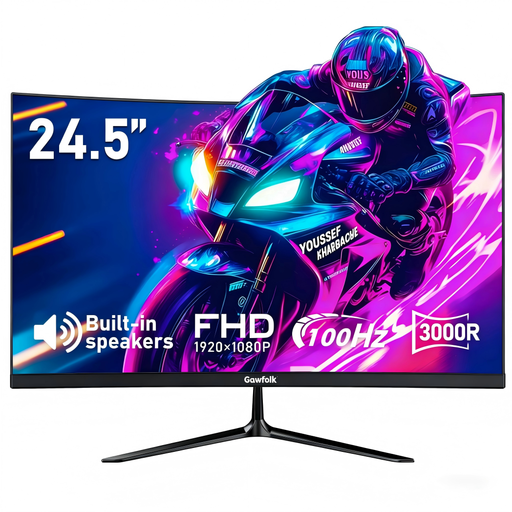
Consider this fixed screen where a 24.5-inch display fits the desk. Its product name states FHD resolution, 100Hz and HDMI connectivity; check your laptop’s video output and supported display settings before connecting it.
No: the connector shape alone does not establish video or charging compatibility. Check the exact laptop and monitor specifications; Apple Support notes that a Mac’s external-display capacity also depends on its model and each display’s resolution and refresh rate.
Not automatically. Check your laptop’s supported external-display count and the dock’s documented configuration. Microsoft Support notes that a splitter duplicates a video signal rather than creating two independent extended displays.
The cable, monitor input or laptop display settings may need checking first. For a driver-dependent dock, workplace installation rules also matter: Microsoft documents Windows driver-policy restrictions, and DisplayLink documents a macOS Screen Recording permission requirement for its driver.
The Health and Safety Executive says display-screen-equipment regulations can apply to workers who work at home permanently or long term. If that describes your working arrangement, discuss your home workstation and screen positioning with your employer.
Use an appropriate electrical-waste collection route rather than putting it in ordinary rubbish. GOV.UK identifies the Waste Electrical and Electronic Equipment Regulations 2013, as amended, as the UK framework for this equipment.