What to check before buying
Start with laptop compatibility, then decide how many daily connections and peripherals the desk needs. Which? highlights ports and ergonomic adjustments as useful monitor-selection considerations, while Apple Support notes that external-display support depends on the exact Mac model and display configuration.
| Priority |
What to check |
Your needs |
| Connection compatibility |
Check the laptop’s exact video-output port; match it to the monitor input; confirm supported external-display count, resolution and refresh limits. |
I want to avoid buying a monitor, adapter or dock that connects physically but cannot provide the intended display output. |
| One-cable desk connection |
Confirm USB-C display output or DisplayPort Alt Mode; compare the monitor or dock’s power-delivery rating with the laptop requirement; choose hub ports only when peripherals need them. |
I want fewer cable changes, but only where one connection can provide the video, data and charging functions my laptop needs. |
| Screen placement |
Check height, tilt, swivel and pivot adjustment; confirm arm or clamp compatibility with the desk; plan screen position and lighting to manage glare. |
I need a workstation arrangement that fits my desk and lets me position the screen more comfortably for regular work. |
Joybuy product options
These Joybuy options cover external monitors for a laptop home workspace and one docking-station option for desks that also need expanded peripheral connections.
 No image available
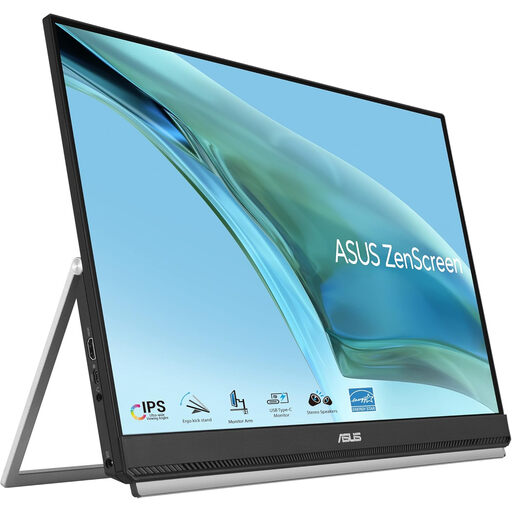
ASUS ZenScreen MB249C IPS USB-C
A 23.8-inch monitor for a flexible home desk where display connection and positioning options matter.
Stated features include a Full HD IPS panel, anti-glare coating, HDMI, USB-C with DisplayPort Alt Mode and up to 60W power delivery, plus kickstand, C-clamp arm and partition-hook options.
Confirm that the laptop supports DisplayPort Alt Mode and accepts the offered charging power; check desk thickness, rear clearance and clamp-arm installation requirements before using the C-clamp arrangement.
Joybuy
 No image available
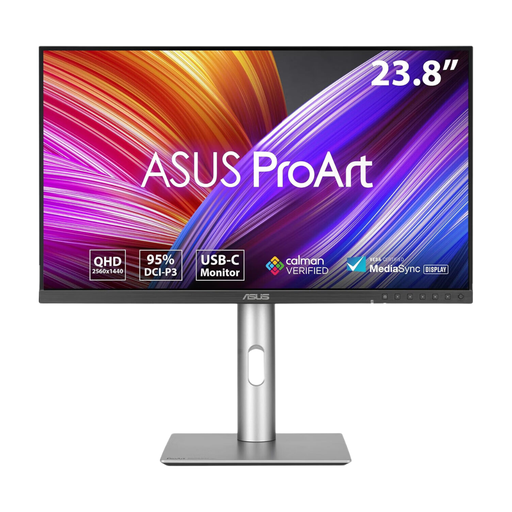
ASUS ProArt PA24ACRV IPS QHD
A 24-inch external monitor for laptop desk work where a USB-C connection, hub functions and adjustable screen position may be useful.
Stated features include a QHD IPS panel, USB hub, USB-C with up to 96W power delivery, HDMI, DisplayPort and height, swivel, tilt and pivot adjustment.
Verify USB-C video and charging support on the exact laptop, and compare its charging requirement with the stated 96W power delivery. Creator-focused colour features may not be relevant to routine office work.
Joybuy
 No image available
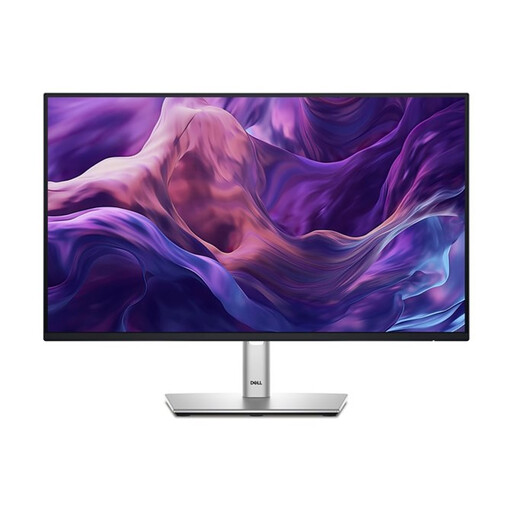
Dell P2425H 24-inch Full HD IPS Monitor
A conventional monitor option for document, browser and call work using standard display connections.
Stated features include a 24-inch 1920 × 1080 IPS panel, 100Hz refresh rate, HDMI, DisplayPort, VGA, USB-C, and height, tilt and swivel adjustment.
Check the monitor manual before selecting USB-C as the laptop connection route, and confirm that the laptop has a compatible HDMI, DisplayPort or adapter path for the intended display setup.
Joybuy
 No image available
ASUS ProArt PA278CV IPS WQHD
A 27-inch external-monitor route for a larger dedicated laptop-work display with adjustable positioning.
Stated features include a WQHD IPS panel, HDMI, DisplayPort, USB-C with power delivery, USB hub, VESA compatibility, and height, tilt, swivel and pivot adjustment.
Confirm USB-C video output and charging support on the laptop. Check the monitor’s power-delivery wattage against the laptop’s requirement before planning a one-cable setup.
Joybuy
 No image available
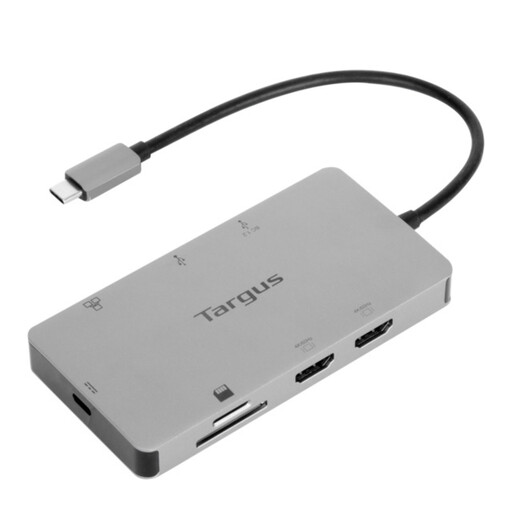
Targus USB-C Universal Dual HDMI 4K Docking Station
A docking option for a desk already using external displays and several peripherals.
Stated features include USB-C Alt Mode, dual HDMI 2.0 outputs, Gigabit Ethernet, USB-A ports, SD and MicroSD readers, and up to 100W power-delivery pass-through.
Verify the laptop’s USB-C Alt Mode support, display-count and resolution limits. The stated power is pass-through, so check whether a compatible 100W-plus power adapter is included and suitable for the laptop.
Joybuy
Frequently asked questions
What should I check on my laptop before buying a monitor?
Check the official specifications for the exact laptop model: available ports, whether USB-C supports video output, maximum external-display count, supported resolution and refresh rate, and charging requirements. A USB-C connector alone does not prove video output is available; Apple Support also notes that Mac display support depends on the model and the display configuration.
When is a USB-C monitor more suitable than an HDMI or DisplayPort monitor?
A USB-C monitor suits a desk where the verified laptop supports video over USB-C and a single connection for display, USB data and potentially charging is useful. Choose HDMI or DisplayPort when the laptop already has the matching output, one-cable docking is unnecessary, or the USB-C port’s video and charging capability is unclear.
Will a USB-C monitor charge every laptop?
No. Compare the monitor’s stated power-delivery output with the laptop manufacturer’s charging requirement, and confirm that the laptop accepts charging through that port. Dell states up to 100W for the P2726HE and LG states up to 60W for the 32UN880K-B, but these model-specific ratings do not establish compatibility with every laptop.
Do I need a dock as well as a monitor?
Use a separate dock when you need more connections than the monitor provides, such as wired Ethernet, several USB devices or multiple displays. A dock does not increase the laptop’s inherent external-display limit, so verify the exact supported display configuration first.
Does UK display-screen guidance apply when I work from home?
For workers who use display screen equipment daily for continuous periods of an hour or more, the Health and Safety Executive says the regulations apply to home workers as well as fixed-workstation and mobile workers. The workstation assessment should consider the whole setup, the work being done and individual requirements.


