What should you check first?
Decide whether one additional screen is enough before choosing how to connect it. Then check the laptop and desk against the arrangement you want to use.
Directly connected monitor
Choose it when: One extra screen is enough and your laptop has a confirmed video output for the monitor.
Bear in mind: A direct display connection does not by itself add laptop charging or peripheral ports.
USB-C hub monitor
Choose it when: You regularly use the same desk and your laptop supports the monitor’s USB-C video connection and stated charging output.
Bear in mind: The laptop, cable and monitor must support the particular video, data and power functions you intend to use.
Dock-based desk
Choose it when: You need two independently extended external displays or several desk peripherals, and the laptop supports the proposed arrangement.
Bear in mind: Display limits and managed-device controls may affect which dock technology you can use.
| Priority | What to check | Your needs |
|---|
| Screen arrangement |
Decide whether you need one added screen or two independent external displays. Check the laptop’s supported display count and outputs; Microsoft Support says a splitter duplicates a signal rather than extending it to two separate desktops. |
One extra screen may be enough for my documents, or I may need two separate desktops for work across several windows. |
| Screen positioning |
Check stand adjustment and space for the keyboard and mouse. The UK Health and Safety Executive advises placing the top of the screen around eye level, the screen about an arm’s length away, and the screen and keyboard centrally. |
I want to position the display comfortably without pushing my keyboard or mouse into an awkward spot. |
| Laptop compatibility |
Confirm the laptop’s video connection, the cable’s supported functions and any charging requirement against the exact monitor or dock. For a managed work device, check whether the connection or required driver is permitted. |
If I use one cable at my regular desk, it needs to provide the functions my laptop and work setup actually allow. |
| Desk and mounting |
Measure usable width and depth, then check the stand footprint. For an arm or clamp, confirm the display-side mount and the manufacturer’s desk-edge, load and installation requirements; VESA defines a display mounting interface, not desk suitability. |
My desk may also serve other purposes, so the screen needs to fit and be repositioned safely. |
Relevant monitor brands
These model examples illustrate different connection and positioning choices; check the specifications of the particular model you are considering.
Dell
Dell’s P2425H and P2425E illustrate the difference between a conventional office monitor and a USB-C hub monitor.
- Dell UK lists the P2425H as a 23.8-inch Full HD IPS model with height, tilt, swivel and pivot adjustment, plus HDMI and DisplayPort connections.
- Dell UK lists up to 90W Power Delivery for the P2425E USB-C hub model; whether its video connection and charging suit a particular laptop still needs checking.
LG
LG’s 32UN880K-B is an example of a larger display supplied with an integrated C-clamp stand.
- LG UK lists a 31.5-inch 3840 × 2160 IPS display, stand adjustments and USB-C with 60W Power Delivery for this model.
- Check the desk against the clamp instructions and the laptop against the stated USB-C connection and charging output.
BenQ
BenQ’s GW2490P is a conventional home-office display option rather than a stated one-cable docking route.
- BenQ UK lists a 23.8-inch Full HD IPS display with a 120Hz refresh rate, HDMI and DisplayPort for the GW2490P.
- Its advertised eye-comfort features do not replace checking screen position and lighting in your workspace.
Joybuy options for the workspace
These options include external monitors, a docking station and a dual-monitor stand. Choose the screen arrangement and check laptop and desk compatibility before comparing the individual products.
 No image available
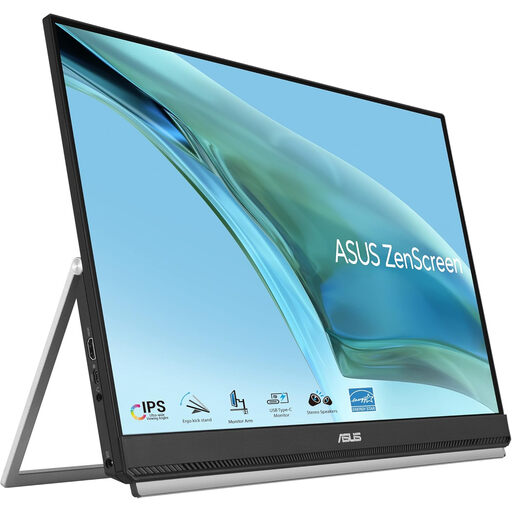
ASUS ZenScreen MB249C IPS USB-C monitor
Consider this external screen if you want document space beyond your laptop display. Before planning a USB-C connection, confirm that your laptop and cable support the required video mode and that any intended charging output meets the laptop’s needs; check the mounting instructions against your desk if you plan to use a clamp.
View on Joybuy
 No image available
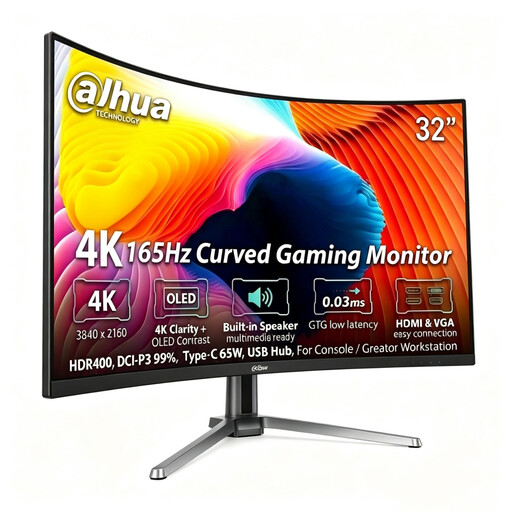
Dahua 32-inch 4K 165Hz curved OLED monitor
This is a larger single-screen option to consider for documents and multiple windows; measure your desk and intended viewing distance first. The product name states 3840 × 2160 resolution and USB-C 65W, but check the laptop’s video connection and charging requirement before relying on USB-C for your desk setup.
View on Joybuy
 No image available
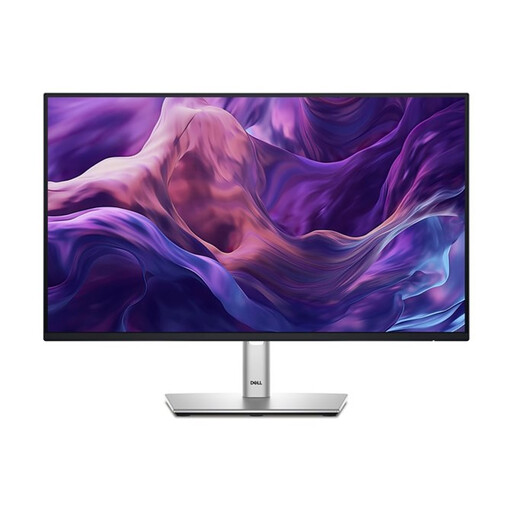
Dell P2425H 23.8-inch Full HD IPS monitor
This model suits consideration when one directly connected document screen is enough. Dell UK specifies HDMI, DisplayPort and height, tilt, swivel and pivot adjustment for the P2425H. Check the exact port configuration if you require USB-C: the Joybuy product name mentions it, but Dell UK’s cited model specification identifies HDMI and DisplayPort.
View on Joybuy
 No image available
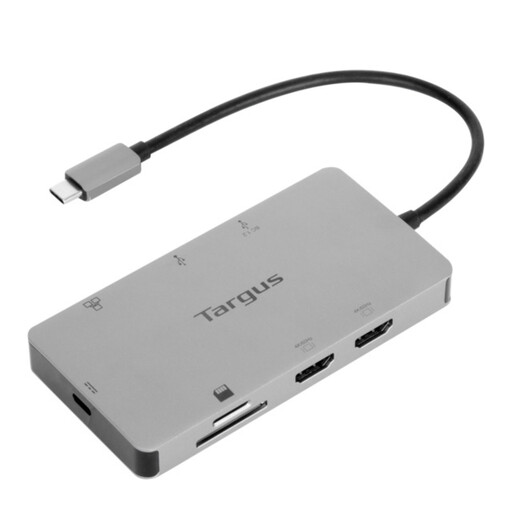
Targus USB-C Universal Dual HDMI 4K dock, 100W Power Delivery pass-through
Consider a dock when your desk needs more connections than a direct monitor offers. This model’s name identifies two HDMI outputs and 100W Power Delivery pass-through; two outputs alone do not establish support for two independent extended desktops. Check the laptop’s display and power requirements, and seek IT approval if it is a managed work device.
View on Joybuy
 No image available
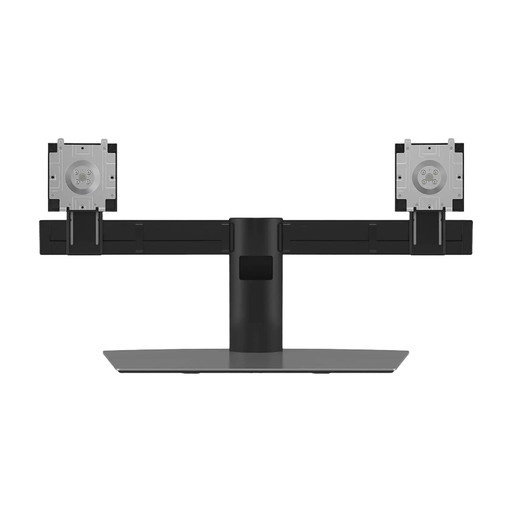
Dell Pro Dual Monitor Stand MDS19
This is a stand to consider for positioning two monitors, not a source of additional screens or display outputs. Check each monitor’s mounting pattern and weight against the stand’s instructions, then confirm that the complete arrangement fits and is stable on your desk.
View on Joybuy
Frequently asked questions
When should I start with a monitor rather than a dock?
Start with a directly connected monitor when one extra screen meets your document needs and your laptop has a confirmed video output for it. Consider a dock if you also need peripheral connections or independently extended displays, after checking the laptop’s supported connections and display count.
Will a splitter give me two separate extended desktops?
No. Microsoft Support says a display splitter duplicates the same signal rather than creating two independent desktops. For two extended external displays, check the laptop’s graphics support and use a connection arrangement documented for that configuration.
Does USB-C guarantee video and laptop charging through one cable?
No. Check the laptop’s supported video output, the cable’s functions and the monitor or dock’s connection and Power Delivery specifications. A USB-C connector alone does not establish that the complete setup will provide both functions.
Could work-laptop controls affect my choice of dock?
Yes. Microsoft Learn says administrators can control device installation on managed Windows computers, and some USB graphics solutions have software deployment requirements. Ask employer IT whether the exact dock and any required driver or updater are permitted.
What screen position should I plan for at a home desk?
The UK Health and Safety Executive advises placing the top of the screen around eye level and the screen about an arm’s length away, with the screen and keyboard central and the mouse in line with the elbow. Check that your chosen screen and stand can be positioned that way on the desk you use.


