Choose a fixed desktop monitor if you usually work at one desk and want a screen you can position separately from your laptop. A USB-C charging monitor can simplify that setup, but only if the laptop, cable and monitor support the intended video connection and charging output. Choose a portable second screen when moving between workspaces matters more; consider an arm or stand separately after checking the monitor and desk will accommodate it.
Who needs which setup?
Fixed-desk laptop workers
If documents, spreadsheets and meetings keep you at one home desk, a separately positioned display gives you a way to raise the screen while keeping the keyboard and mouse within reach. The Health and Safety Executive recommends separate input devices for prolonged laptop use with an elevated screen.
Hybrid workers seeking a one-cable desk setup
A USB-C or Thunderbolt monitor may carry video and charge a compatible laptop through one connection. Check the exact laptop port, cable and monitor power delivery before relying on that arrangement; Microsoft Support notes that USB-C connections can have limited display functionality or slow charging.
Mobile dual-screen workers
A portable display can provide a second screen across different workspaces without committing desk space to a permanent monitor. Connection requirements vary: ASUS notes that some portable-monitor USB Type-A connections require a DisplayLink driver, while direct USB-C video depends on compatible display modes.
What should you check before buying?
Start with where you work most often, then check the screen, laptop connection and physical space as parts of the same setup.
| Priority | What to check | Your needs |
|---|
| Screen space |
Compare screen size and resolution with the windows you use together. Dell UK and LG UK list 27-inch 4K desk displays; BenQ UK lists a 27-inch QHD model, while ASUS lists a 15.6-inch Full HD portable display. Check text size at your preferred viewing distance. |
I need room for documents and meeting tools at one desk, or a smaller supplementary screen I can take elsewhere. |
| Laptop connection |
Confirm the laptop’s video output, the monitor’s input and the cable or adapter required. Microsoft Support describes limited USB-C display connections; Apple Support says supported display counts depend on the Mac model, resolution and refresh rate. |
A second screen needs to work with my actual laptop, especially if I plan to connect more than one external display. |
| Charging |
If the monitor is meant to charge the laptop, compare its stated USB-C power delivery with the laptop’s charging requirement. Check that the chosen cable and ports support the intended functions as well as video. |
I would like fewer cables at my regular desk, but still need the laptop to charge appropriately during work. |
| Screen position |
Check desk depth, stand adjustment and space for a separate keyboard and mouse. The Health and Safety Executive advises placing the top of the screen around eye level and the screen about an arm’s length away. |
For longer laptop sessions, I want to position the display without having to type on a raised laptop keyboard. |
| Mounting and mobility |
For an arm, check the exact monitor mounting interface and weight against the arm’s load range, then check desk-clamp or grommet fit. For a screen you will carry, confirm its weight, connection requirements and included positioning accessories. |
My desk may need an arm, or I may need to move a second screen between locations; either choice has to fit the space and equipment I use. |
What can complicate the setup?
-
Assuming every USB-C port handles video and charging
USB-C ports and cables do not all provide the same functions. Microsoft Support identifies limited display functionality and slow or absent charging as possible connection problems; Apple’s external-display limits also vary by Mac model.
Check the laptop’s exact port and display specifications, the monitor’s input and power delivery, and the cable needed for the intended setup.
An incompatible arrangement may require a suitable cable or adapter, or continued use of the laptop’s separate charger.
-
Choosing a screen before measuring the desk
A screen that cannot be positioned comfortably may not solve a laptop-workstation problem. The Health and Safety Executive advises an approximately arm’s-length viewing distance and a separate keyboard and mouse when elevating a laptop screen for prolonged use.
Measure usable desk depth and width, then check whether the supplied stand gives you the height and placement you need.
A different stand, laptop riser or separate input devices may be needed to complete the arrangement.
-
Treating a portable screen as the same choice as a desk display
The ASUS ZenScreen MB16ACE illustrates the distinction: ASUS lists it as a 15.6-inch portable Full HD display, with a driver required for its USB Type-A hybrid-signal connection. Its size and connection route call for different checks from a fixed 27-inch desk monitor.
Choose the screen around where you will use it most: compare portable models for carrying and secondary windows, or separately positionable desktop models for regular work at one desk.
-
Assuming a VESA label guarantees arm compatibility
VESA describes a mounting-interface standard, not a guarantee that a particular arm will support a particular monitor or attach to your desk.
Compare the exact monitor mounting pattern and weight with the arm’s supported pattern and load range. Check the desk’s thickness, construction and clearance before selecting a clamp or grommet mount.
Relevant brand references
These model examples show different monitor approaches; a brand’s inclusion does not mean every model has the same connections or desk features.
Dell
Dell UK presents the UltraSharp U2725QE as a 27-inch 4K Thunderbolt hub monitor for a fixed desk.
- Its listed hub-oriented connection and power-delivery options are relevant to a compatible laptop desk setup.
- Check the exact power-delivery configuration and the laptop’s video and charging requirements; the monitor’s connection type alone does not establish compatibility.
BenQ
BenQ UK lists the GW2790QT as a 27-inch QHD USB-C monitor with an ergonomic focus.
- BenQ states that the GW2790QT provides 65W USB-C charging, a useful specification to compare with a laptop’s requirements.
- The stated 65W output may not suit every laptop or workload; confirm the computer’s charging requirement before planning a one-cable setup.
LG
LG UK lists distinct fixed-desk options: the 27U730A-B for a 27-inch 4K IPS display and the 27BA850-B for integrated meeting hardware.
- LG states that the 27U730A-B has USB-C 90W power delivery; its 27BA850-B listing includes a Full HD webcam, microphone, speakers, RJ45 and USB-C PD 90W.
- Choose between the models by the screen and meeting features you need. A built-in webcam does not, by itself, settle a resolution or text-size preference.
ASUS
ASUS lists the ZenScreen MB16ACE as a 15.6-inch Full HD portable second display weighing 0.71 kg.
- ASUS lists USB-C and USB Type-A connection routes for this specific portable model.
- ASUS says the USB Type-A hybrid-signal route requires a DisplayLink driver. For a USB-C connection, check video support on the laptop and display.
Joybuy monitor options
These options cover monitors for a regular laptop desk and a more flexible second-screen arrangement. Compare each model’s stated connections with your laptop before deciding how it will fit your workspace.
 No image available
BenQ MA270UP 27-inch 4K USB-C monitor
For a fixed laptop desk where screen positioning and a USB-C connection matter. The product name specifies a Nano Glossy IPS display and a height-adjustable stand. Check the laptop’s USB-C video support and charging requirement against the monitor’s exact connection specifications.
View on Joybuy
 No image available
MSI MD272UPSW 27-inch 4K USB-C smart monitor
For a fixed desk where a 4K display and the model’s Google TV features are both of interest. The product name specifies IPS, Dolby Audio and USB-C 65W. Check whether 65W meets your laptop’s charging requirement and confirm the monitor’s actual weight before choosing a mount.
View on Joybuy
 No image available
LG 27UP650K 27-inch 4K IPS monitor
For a regular desk setup using a wired display connection. The product name lists HDMI, DisplayPort and built-in speakers. Match an available video output on your laptop to those inputs, and confirm the mounting interface before buying an arm.
View on Joybuy
 No image available
ASUS ProArt PA278CV IPS WQHD monitor
For a fixed desk where WQHD is the resolution you want to assess alongside screen positioning. Confirm the exact input and USB-C video functions for your laptop, and check charging output before relying on the monitor as a laptop charger.
View on Joybuy
 No image available
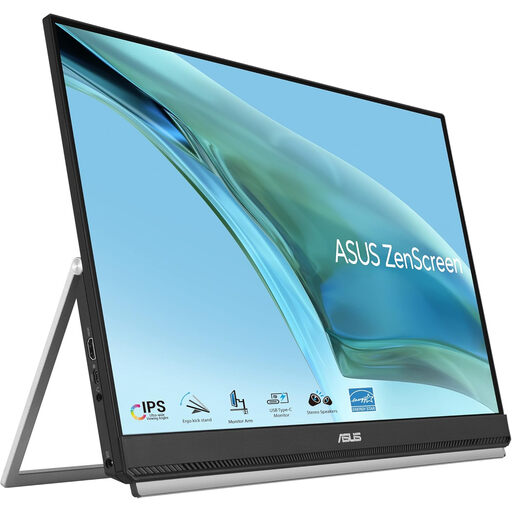
ASUS ZenScreen MB249C IPS USB-C monitor
For a flexible second-screen setup rather than a permanently positioned desk display. Check its actual weight and included stand or mounting accessories before planning to carry or position it. Confirm USB-C video compatibility and charging output against your laptop.
View on Joybuy
Frequently asked questions
Will any USB-C monitor display video and charge my laptop through one cable?
No. Check that the laptop port supports the monitor’s video mode, the cable supports the intended connection and the monitor’s stated power delivery suits the laptop. Microsoft Support identifies limited display functionality and slow or absent charging as possible USB-C connection problems.
Can every Mac laptop use the same external-monitor arrangement?
No. Apple Support says the number of displays a Mac can use at once depends on its model and each display’s resolution and refresh rate. Check the specifications for your exact Mac before planning a second external screen.
When does a separate monitor help with laptop desk work?
A separately positionable monitor is worth considering for prolonged work at one desk when you need to raise the screen without raising the keyboard. The Health and Safety Executive advises an elevated screen with a separate keyboard and mouse for prolonged laptop use; make sure the desk has room for the arrangement.
Will any VESA monitor arm fit my screen and desk?
No. A VESA mounting-interface label does not establish the arm’s load capacity or its fit with your desk. Check the monitor’s exact mounting pattern and weight, the arm’s supported pattern and load range, and the requirements of its desk attachment.


