What should you check before buying?
Start with the connections your laptop can actually use, then choose the screen and desk arrangement that fit your daily work.
Conventional external monitor
Choose it when: You need another screen for work windows and have a compatible HDMI or DisplayPort output.
Bear in mind: Laptop charging, USB devices and wired networking may need separate connections.
USB-C or Thunderbolt docking monitor
Choose it when: A compatible laptop can use the monitor connection for the video, charging and peripherals you need at the desk.
Bear in mind: A USB-C connector alone does not establish those capabilities; Thunderbolt functions and additional displays need their own compatibility checks.
| Priority |
What to check |
Your needs |
| Work area |
Consider screen size and native resolution together. Check how your preferred text size and scaling affect the space available for windows. |
I want documents, messages and call material visible without relying solely on my laptop screen. |
| Laptop connection |
Match the monitor input to the laptop’s documented output. For USB-C video, confirm the specific port’s supported display mode and the intended resolution, refresh rate and number of displays. |
When I connect my laptop, the display needs to work in the configuration I plan to use—not merely accept the same connector shape. |
| Charging and peripherals |
Compare a docking monitor’s stated Power Delivery with the laptop maker’s charging requirements. Check for the USB, Ethernet or additional-display connections you actually use. |
Fewer connections matter to me when I regularly move my laptop between desks or attach several devices at one workstation. |
| Screen position |
Check the exact stand’s adjustments. If using an arm, confirm the monitor mount, arm load and screen-size limits, and desk mounting method. |
I need the screen to sit sensibly on my desk, including when the desk or display is shared. |
Relevant monitor ranges
These manufacturer examples illustrate different connection choices; check the exact model rather than applying its specifications to an entire brand.
Dell
Dell UK describes the Pro 24 Plus P2425HE as an FHD USB-C hub monitor with up to 90W Power Delivery.
- Consider this model when a hub connection and an FHD screen suit the planned desk setup.
- Confirm that the laptop supports the required USB-C video function and can use the monitor’s stated charging output.
LG
LG UK lists the 27U730A-B with a 27-inch 3840 × 2160 IPS panel and USB-C Power Delivery up to 90W.
- Its listed resolution is relevant when you want to assess a 4K screen for document work.
- Check laptop charging and video compatibility; the cited specifications do not establish an Ethernet or full docking setup.
Lenovo ThinkVision
Lenovo UK describes the ThinkVision P27u-20 with Thunderbolt 4 connections, Ethernet and USB hub functions.
- This model is relevant to a desk that needs network and peripheral connections alongside a display.
- Verify the laptop’s Thunderbolt support and intended external-display configuration before planning around those functions.
Joybuy monitor options
These monitors offer screen-space options for laptop-based work, including USB-C models and a display with HDMI and DisplayPort inputs. Compare each with your laptop and desk requirements rather than treating the list as a single connection route.
 No image available
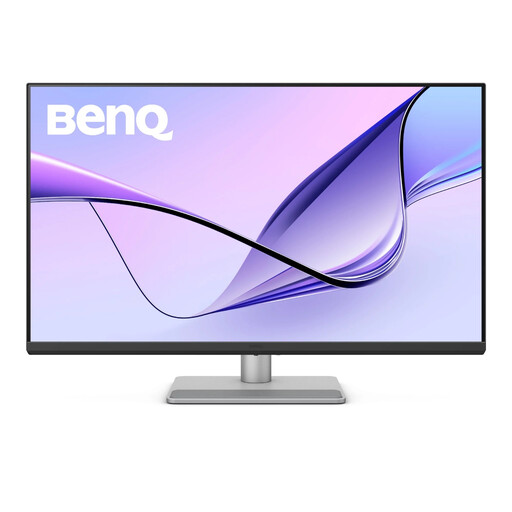
BenQ MA320UP 32-inch 4K USB-C monitor
Consider its larger screen for a fixed desk with several work windows. The listed model has a Nano Glossy IPS display and height-adjustable stand; check desk space and your laptop’s USB-C video and charging compatibility, particularly if using a non-Mac laptop.
View on Joybuy
 No image available
BenQ MA270UP 27-inch 4K USB-C monitor
Its 27-inch screen is another option for keeping work windows on an external display. The listed model has a Nano Glossy IPS display and height-adjustable stand; confirm the preferred screen size and your laptop’s USB-C video and charging support, especially outside a Mac setup.
View on Joybuy
 No image available
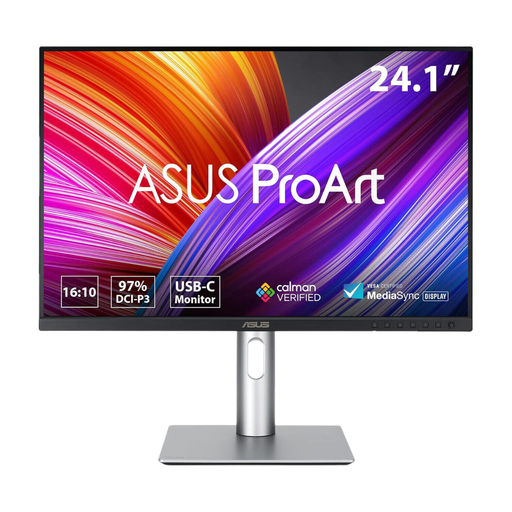
ASUS ProArt PA248CRV IPS WUXGA
Consider this WUXGA display if your document workflow calls for a different screen format from the 4K models above. Before planning a USB-C desk connection, check the laptop’s video and charging requirements and the USB hub configuration supplied with this listing.
View on Joybuy
 No image available
ASUS ProArt PA278CV IPS WQHD
Its WQHD format is an option to assess for a document-heavy desk. If you want to connect and charge through USB-C, confirm the monitor’s Power Delivery wattage against the laptop’s requirements and check that the laptop port supports video.
View on Joybuy
 No image available
LG 27UP650K 27-inch 4K IPS monitor
This is an external-screen option for a laptop desk using HDMI or DisplayPort. The listed model has a 60Hz display; check that your laptop supports the display mode you intend to use, and plan laptop charging separately if needed.
View on Joybuy
Frequently asked questions
When does an external monitor make sense instead of a laptop screen alone?
Consider one when you need a fixed desk workspace for documents, messages and calls at the same time. Check the laptop connection and screen position as well as the display itself; the Health and Safety Executive’s workstation guidance considers the whole work setup.
Will any USB-C laptop port run and charge a USB-C monitor?
No. USB-C describes the connector, not a guaranteed set of video and charging functions. Check the exact laptop port’s supported video mode, external-display configuration and charging requirements against the monitor and cable specifications.
Is 90W USB-C Power Delivery enough for every work laptop?
Not necessarily. Dell UK and LG UK list up to 90W Power Delivery for the P2425HE and 27U730A-B respectively, but suitability depends on the laptop’s charging requirements and supported connection. Compare the exact specifications before relying on one-cable charging.
When should I consider a Thunderbolt docking monitor?
Consider one when a Thunderbolt-capable laptop needs desk connections such as Ethernet, USB peripherals or additional displays. Lenovo UK describes these functions for the ThinkVision P27u-20; confirm your laptop’s Thunderbolt and external-display support rather than assuming a generic USB-C port provides them.
Does workstation guidance include people working from home?
Yes. The Health and Safety Executive includes home workers, mobile workers and hot-desk users in its display screen equipment guidance. It states that employers must carry out a workstation assessment where workers use display screen equipment daily as part of their normal work for continuous periods of an hour or more; choosing a particular monitor is not a substitute for that assessment.


