A second monitor is worth considering if keeping documents and meetings visible at the same time would make laptop work easier, provided the screen fits your desk and connects to your laptop. Choose the size and stand position around your workspace, then confirm the laptop’s video output before deciding between a USB-C display and an HDMI or DisplayPort connection; a USB-C-shaped port alone does not establish video or charging support.
Who is a second monitor for?
The case for another screen depends on the work you need to keep in view, the space available and how your laptop connects.
Laptop workers managing documents and calls
If meetings, email and documents compete for space on your laptop display, a separate screen gives you another place to arrange those windows. Which? includes people considering a second screen in its monitor buying guidance.
People working at a compact or shared desk
Extra screen space is useful only if the monitor, its stand and the laptop can be positioned together. Check the available width and depth as well as adjustment options. The Health and Safety Executive advises home display-screen workers to aim for a comfortable, sustainable posture.
Laptop users considering a single cable
A USB-C monitor may combine display connection and laptop charging, but both functions depend on the particular laptop, monitor and cable. Check the laptop’s display-output and charging specifications before planning around one connection.
What should you check before buying?
Start with the desk and the work you want visible, then match the monitor connection and positioning options to your laptop setup.
| Priority | What to check | Your needs |
|---|
| Screen fit |
Measure usable desk width and depth, including room for the stand and laptop. Compare the screen size with your usual viewing position; Which? distinguishes smaller displays for limited spaces from larger home-office screens. |
I want documents and a meeting window in view without a monitor taking over a shared or shallow desk. |
| Work detail |
Compare the stated resolution with the documents or detailed material you use. Check that your laptop and connection support the resolution you intend to use rather than choosing QHD or 4K by default. |
Several text windows matter to me, or I work with detailed images and need to decide whether a higher-resolution screen serves that work. |
| Video connection |
Identify the exact laptop’s video-output capabilities, the monitor input and the required cable or adapter. Apple Support specifies DisplayPort Alt Mode or Thunderbolt compliance for the USB-C or Thunderbolt display adapters it describes. |
I need the second screen to connect at the intended resolution, not just a plug that fits the socket. |
| Screen position |
Check the stand’s stated height and angle adjustments against your desk setup. If considering an arm, confirm the monitor mount, weight, arm capacity and desk attachment first. |
I need to position the screen comfortably beside my laptop, particularly when I work at the desk for long periods. |
| Laptop charging |
For a USB-C monitor, compare its stated power delivery with the laptop’s charging requirements. Confirm that the laptop port and cable also support the intended display connection. |
One cable would simplify my desk, but I still need a charging arrangement that suits my laptop. |
What can go wrong with the setup?
-
Assuming every USB-C port carries display video
A matching connector does not establish that the laptop, cable and monitor can carry the intended video signal or charge the laptop. Apple Support sets specific requirements for the USB-C and Thunderbolt display adapters it describes; Microsoft Support likewise says the adapter and cable depend on the display’s video port.
Check the exact laptop model’s external-display capabilities, then match its output to the monitor input and cable or adapter before ordering.
A mismatched connection may require a different cable or adapter.
-
Choosing screen size before measuring the desk
A display and its stand need room alongside the laptop. Which? distinguishes screens for limited spaces from larger home-office displays, while RTINGS notes that larger screens can occupy too much space in a dual-display setup.
Measure the usable desk area, allow for the stand and laptop, and check where the screen will sit before deciding on its diagonal size.
-
Assuming any monitor arm will fit
A mounting standard does not establish that a particular monitor, arm and desk work together. VESA’s flat-display mounting standard describes mounting interfaces, not the compatibility of every combination.
Confirm the monitor’s mount pattern and weight, the arm’s supported range and the desk’s clamp or grommet requirements.
-
Treating a power-delivery rating as guaranteed laptop charging
Manufacturer ratings apply to specific monitors: BenQ states 65W power delivery for the GW2790QT, while Dell states up to 90W for the P2425HE. Neither figure establishes what a different laptop needs.
Compare the monitor rating with your laptop maker’s charging requirements and check that the intended USB-C connection supports both charging and display output.
Relevant monitor brands and models
These manufacturer specifications illustrate different screen and connection choices; check the exact model rather than assuming the same features across a brand’s range.
Dell
Dell’s UK specifications describe two 23.8-inch options with different resolutions and stand features.
- The P2425DE is specified as QHD at 2560 × 1440, with height and pivot adjustment.
- The P2425HE is specified as Full HD, with up to 90W USB-C power delivery and height, tilt, swivel and pivot adjustment.
- Check which model’s resolution, connection and charging arrangement matches your laptop and work.
BenQ
BenQ describes the GW2790QT as a 27-inch QHD USB-C monitor for a desk with room for a larger display.
- BenQ states 65W USB-C power delivery and height, tilt, pivot and swivel adjustment for the GW2790QT.
- Confirm the laptop, cable and intended multi-display arrangement support the functions you plan to use.
LG
LG specifies the 27UP850K-W as a 27-inch 4K IPS model for buyers considering a higher-resolution external screen.
- LG states that its USB-C connection can carry display, data and up to 90W charging, and specifies an adjustable stand.
- A 4K panel is not automatically necessary for routine documents and calls; check desk fit and the laptop’s intended video output.
Joybuy monitor options
These external monitors offer different screen sizes, resolutions and connection options for adding a display to a laptop workspace. Check each model against your desk and laptop; the selection is not a comparison of monitor arms or adapters.
 Image unavailable
BenQ MA270UP 27-inch 4K USB-C monitor
A 27-inch option if you have room for a second screen and want to assess a USB-C laptop setup. Its name identifies a Nano Glossy IPS panel and height-adjustable stand; confirm video and charging compatibility with your exact laptop, as well as desk fit.
View on Joybuy
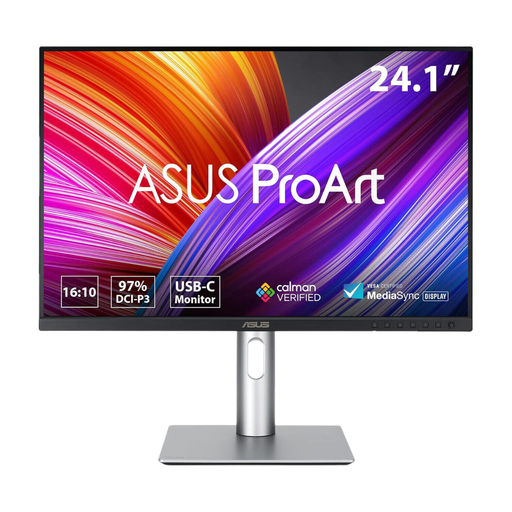 Image unavailable
ASUS ProArt PA248CRV IPS WUXGA monitor
Consider this WUXGA model when planning a second workspace for documents. Before choosing a cable, check the available inputs and your laptop’s video output; confirm USB-C video and charging requirements if you intend to use that connection.
View on Joybuy
 Image unavailable
ASUS ProArt PA278CV IPS WQHD monitor
A WQHD external-screen option for arranging documents and other windows beside a laptop display. Check the space available for the monitor, match its intended video connection to the laptop and confirm the USB-C power-delivery rating if laptop charging matters.
View on Joybuy
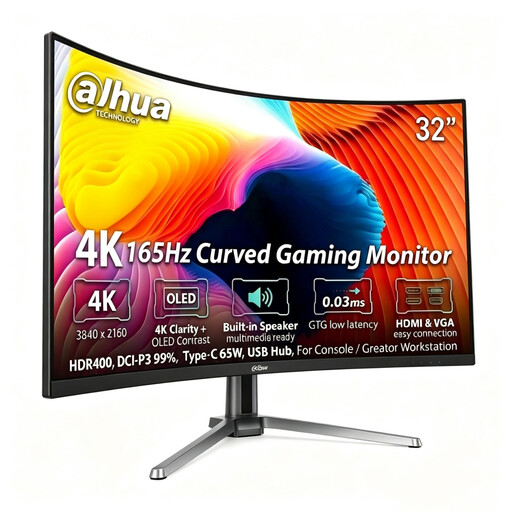 Image unavailable
Dahua 32-inch curved 4K 165Hz OLED monitor
This larger-screen option calls for careful desk and viewing-distance checks before use beside a laptop. The product name states 3840 × 2160 resolution and Type-C 65W; confirm that the laptop supports the chosen video route and that its charging requirements suit the connection.
View on Joybuy
 Image unavailable
LG 27UP650K 27-inch 4K IPS monitor
Consider this 27-inch model if an HDMI or DisplayPort connection suits your laptop setup. Its name specifies 4K IPS, but check the precise inputs, included cable and desk fit before ordering; do not plan on USB-C video or laptop charging without confirming those functions.
View on Joybuy
Frequently asked questions
Will any USB-C cable connect my laptop to a USB-C monitor?
No: check the laptop’s display-output support and the cable or adapter specification. Apple Support requires the USB-C or Thunderbolt display adapters it describes to comply with DisplayPort Alt Mode, Thunderbolt 3 or Thunderbolt 4; Microsoft Support says the required cable and adapter also depend on the display’s video port.
When should I consider a monitor arm?
Consider an arm if the supplied stand cannot put the screen where you need it or you want to free desk surface. Check the monitor’s mount interface and weight against the arm’s capacity, then confirm the desk can take its attachment; VESA’s mounting standard alone does not establish that a particular combination fits.
Can I work with the laptop lid closed?
Some laptop setups allow it, but check the exact model and connected accessories before arranging the desk around closed-lid use. Apple Support says supported MacBook Pro models can continue using an external display with the lid closed and connected accessories in place.


