What matters when choosing?
Start with the task your laptop setup interrupts most often: seeing work, reconnecting devices, taking calls or using desk input comfortably.
| Concern | What to check | Who this matters to |
|---|
| Screen space |
Check the laptop’s supported display count and video output, then match the monitor input and cable to the resolution and refresh rate you want. |
If I keep several documents or applications in view, the laptop screen may be my main constraint. About 36% of consumers put usable screen space first. |
| Desk connectivity |
Match the laptop’s port and video protocol to the dock’s display limits; check charging requirements and what comes in the box. |
Moving my laptop regularly makes reconnecting a screen and desk devices the priority. For about 29% of consumers, that is the primary need. |
| Video calls |
Check the camera or headset connection and whether its position or cable arrangement suits your desk. |
When calls occupy much of my workday, I want a camera or audio arrangement that fits how I use the desk. Clearer control of the call setup comes first for about 21% of consumers. |
| Basic desk input |
Check keyboard and mouse connection types; for a stand, keep required ports and ventilation clear. |
I may need separate input devices or a repeatable place for the laptop without adding a dock or display. About 14% of consumers chiefly need that simpler desk arrangement. |
Joybuy products for different needs
These options address distinct parts of a laptop-based home desk: docking, an external display, calls and separate keyboard-and-mouse input. Choose the type that matches your main need before comparing individual connections.
 No image available
Targus USB-C Universal Dual HDMI 4K Docking Station, 100W Power Delivery Pass-Thru
Consider this dock if repeatedly connecting a laptop to two HDMI displays is your main desk task. Its title specifies USB-C, dual HDMI 4K and 100W Power Delivery pass-through; confirm the laptop’s supported display arrangement and charging requirements before buying.
The listed setup requires an external 100W+ adapter. Check whether it is included in the retail package.
Joybuy
 No image available
ASUS ProArt PA278CV IPS WQHD Monitor
Consider a separate monitor when your main aim is more room for documents and applications. This is the PA278CV IPS WQHD model; confirm that your laptop supports your intended video connection and display arrangement.
If you also want the monitor to charge your laptop, check the USB-C Power Delivery rating against the laptop’s requirement.
Joybuy
 No image available
EMEET All-in-One 4K Webcam with Sony Sensor
Consider a separate camera if its position and audio arrangement matter more to your calls than extra screen space. The product title specifies fixed focus, a four-microphone array, two speakers and an adjustable 98° field of view.
Check the USB connector, included cable and compatibility with the computer and calling software you use.
Joybuy
 No image available
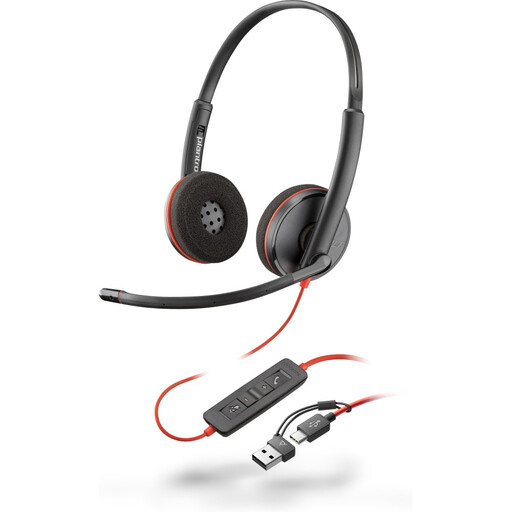
Poly Blackwire 3220 Stereo USB-C Headset with USB-C-to-USB-A Adapter
Consider a wired headset when separate listening and microphone equipment suits your regular calls. This Blackwire 3220 variant is stereo, connects by USB-C and includes a USB-C-to-USB-A adapter.
Check that the wired arrangement reaches your working position. Avoid prolonged listening at high volume.
Joybuy
 No image available
Philips 3000 Series SPT6318B/05 Wireless Keyboard and Mouse, UK English, Black
Consider this set if separate desk input matters more than adding a display or dock. It is a wireless keyboard-and-mouse combination in the UK English SPT6318B/05 variant.
Check how it connects to your computer and confirm the battery requirements if those affect your choice.
Joybuy
Frequently asked questions
Can any USB-C laptop run an external monitor?
No: a USB-C connector alone does not establish video output or how many displays the laptop supports. Check the exact laptop specification, then match its video capability to the monitor, dock and cable; Microsoft Support also notes that USB4 devices can have limited functionality with an unsupported PC or cable.
What should I check before connecting two monitors through a dock?
Confirm the laptop’s supported external-display count and host-port protocol, then compare your intended resolution and refresh rate with the exact dock’s outputs. Anker publishes different dual-monitor limits for its 565 hub depending on whether the laptop supports DisplayPort 1.4 or DisplayPort 1.2; it also says that hub’s charger and cable are not included.
Do I need a separate webcam and headset to work from home?
Not necessarily. Add them if camera placement or a separate listening and microphone arrangement addresses a problem in your regular calls; they will not solve limited screen space or an incompatible display connection.
What should I check on mains-powered desk equipment?
Check the seller and the product’s markings, instructions, warnings and manufacturer details before use. UK government consumer guidance specifically advises looking for appropriate marking and the manufacturer’s name and address; also make sure the supplied plug suits the socket you intend to use.


