Hybrid workers with a regular home desk
If you move a laptop between home and work, decide which connections need to stay at your desk. Check the laptop’s video and charging support before choosing a monitor or hub intended for one-cable use.


Start with the laptop’s supported displays, video connection, charging requirements and your employer’s equipment rules. For a regular desk, a USB-C monitor may cover screen space and connections if the laptop supports its video and charging features; consider a dock when you need several peripherals or display connections, and a separate webcam or headset when calls are the main concern. Check multi-display behaviour against the exact laptop and operating system before buying: two video ports do not necessarily mean two independent external screens.
If you move a laptop between home and work, decide which connections need to stay at your desk. Check the laptop’s video and charging support before choosing a monitor or hub intended for one-cable use.
Extra screen space or a separately positioned laptop screen may matter more to you than additional ports. The Health and Safety Executive advises a comfortable, sustainable working posture for home workers using display screen equipment.
Choose around the part of a call that needs attention, such as the camera or microphone. Check the connector, operating system and meeting-platform requirements, as well as your employer’s rules for personal accessories.
Identify the task you want to improve, then check the laptop and workplace requirements before comparing accessories.
| Priority | What to check | Your needs |
|---|---|---|
| Screen position | Consider where the screen and input devices sit during sustained work. If raising a laptop, check whether a separate keyboard and mouse would make the position usable; the Health and Safety Executive recommends an assessment-led approach. | I spend long periods reading or writing at one desk and want to position the screen without having to type on a raised laptop. |
| Video connection | Check the exact laptop port for DisplayPort Alt Mode, Thunderbolt or USB4 support, then match it to the monitor or dock. The Video Electronics Standards Association explains that DisplayPort video over USB-C uses an alternate mode; the connector shape alone does not establish video support. | I want another screen, but need to know whether my laptop can actually send it a picture. |
| Multiple displays | Match the laptop’s external-display limit and operating system to the exact hub or dock, including the intended resolution and refresh rate. Anker says its A210B hub extends different content across external monitors on Windows but mirrors content on macOS. | Two independent external screens would help me compare documents; mirrored screens would not meet that need. |
| Desk connections | List the peripherals, display outputs and wired-network connection you will use. If you want charging through a monitor or dock, check that the laptop accepts USB-C Power Delivery and that the accessory’s stated output suits its charging requirement. | At a fixed desk, I would rather connect the devices I use regularly without repeatedly moving individual cables. |
| Meetings and approval | Check the webcam or headset’s connector, operating-system support and relevant meeting-platform requirements. Ask your employer or IT team about personal devices, companion software and storage functions before connecting them to work systems; the Information Commissioner’s Office identifies security risks with personally owned devices. | Calls are my main difficulty, and any accessory I use must also be acceptable for work. |
A connector can fit even when the expected display or charging function is unavailable. The Video Electronics Standards Association distinguishes DisplayPort Alt Mode from the USB-C connector itself.
Check the exact laptop model’s port specifications and charging requirement against the accessory’s stated connections.
Two outputs do not establish two independent displays for every host. Anker specifies different Windows and macOS display behaviour for its A210B hub, while CalDigit says original M1 Macs support only one external monitor through its TS4 Thunderbolt port.
Confirm the complete combination of laptop, operating system, dock and monitors before choosing a dual-display setup.
A higher screen changes the position of the built-in keyboard and trackpad too. The Health and Safety Executive advises assessing the whole workstation for a comfortable, sustainable posture.
If a stand is appropriate for your desk, consider where a separate keyboard and mouse would sit while you work.
Accessories with storage functions or companion software may affect how work data is handled. The Information Commissioner’s Office highlights security risks associated with personally owned devices.
Ask your employer or IT team what is approved before connecting an accessory or using it to store work information.
These examples illustrate model-specific features and limits; a brand name alone does not establish compatibility with your laptop.
Dell’s P2725QE monitor and WD25TB4 dock illustrate different ways to connect a laptop at a fixed desk.
The Anker A210B is a compact USB-C hub example for a laptop desk.
The TS4 is a Thunderbolt dock example for a desk with several connections.
Logitech’s Brio 305 webcam and Zone Vibe Wireless headset are model-specific references for meeting accessories.
These options cover fixed-desk and portable screens, a dock for desk connections, and headphones for calls. Choose the route that addresses your own setup, then check the exact laptop and workplace requirements.
 No image available
A fixed-desk screen option for document work. If you plan to connect and charge a laptop over USB-C, confirm its video support, charging requirements and the monitor’s Power Delivery specification first.
 No image available
A dock to consider for a desk where several connections are needed. Check whether your laptop can drive the intended independent displays; 100W pass-through capacity does not by itself establish the power delivered to the laptop. Confirm the required external adapter.
 No image available
A portable-screen option for moving between work locations. Confirm that the intended laptop’s USB-C port supports the required DisplayPort Alt Mode connection; this is not an HDMI-connected option.
 No image available
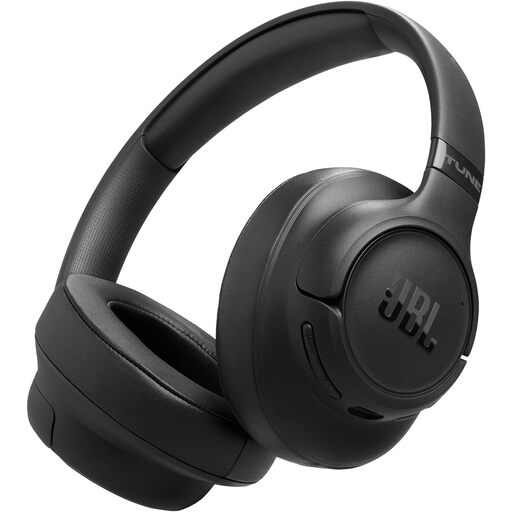
An audio option when calls are the priority rather than extra screen connections. Check compatibility with your computer, meeting platform and employer’s device rules before relying on it for work calls.
 No image available
A fixed-desk screen option for working with detailed documents. Do not assume its USB-C connection carries laptop video or charging: confirm those functions, any Power Delivery output and the laptop’s supported connections.
Check the laptop maker’s specifications for external-display limits, video support on the intended port and USB-C charging requirements, then compare them with the exact accessory. The Video Electronics Standards Association explains that DisplayPort video over USB-C uses an alternate mode, so a matching connector is not enough.
No. The laptop, operating system and hub all affect display behaviour. For example, Anker says its A210B hub extends different content on Windows but mirrors content across external monitors on macOS; check your precise combination before buying.
A USB-C monitor is worth considering when one external screen and its connections meet your desk needs, provided the laptop supports the intended video and charging functions. Consider a dock when you need more peripheral or display connections, but verify its host-specific display behaviour and charging output.
The Health and Safety Executive’s guidance calls for an assessment-led approach, not the same product for every person. Its display screen equipment guidance can apply to permanent, long-term and hybrid home workers; a suitable setup depends on the work and the individual workstation.
Ask your employer or IT team before connecting it to work systems. The Information Commissioner’s Office identifies risks associated with personally owned devices; approval may depend on the accessory’s functions and your organisation’s security arrangements.