Workers with USB-C or Thunderbolt video output
If you want two independent screens and desk peripherals through a dock, check the exact laptop port’s video support and the dock’s simultaneous two-monitor limits before choosing one.


Check your laptop’s documented external-display limit and the video capability of its ports before choosing a dock. A USB-C or Thunderbolt video dock is an option when the laptop supports the required connection; if suitable USB-C video output is absent, a compatible USB-A DisplayLink dock or adapter offers another route, provided its software is permitted on your work laptop. In either case, check the dock’s simultaneous two-screen modes against both monitors and the cables you plan to use.
If you want two independent screens and desk peripherals through a dock, check the exact laptop port’s video support and the dock’s simultaneous two-monitor limits before choosing one.
If USB-A is the usable connection and USB-C video output is absent, a compatible DisplayLink dock or adapter may provide a route to two screens. Check its software requirements and your employer’s installation policy first.
Existing HDMI, DisplayPort or USB-C monitor inputs shape the connection plan. Match each input to a supported dock or laptop output, then check the cable and adapter needed for each screen.
Choose when: The laptop’s port is documented for the relevant video connection and you want a dock for a fixed desk.
Watch for: A USB-C-shaped port alone does not establish video support, and the laptop and dock must both support the intended two-screen setup.
Choose when: The laptop lacks suitable USB-C video output but has a compatible USB connection for a DisplayLink device.
Watch for: DisplayLink needs compatible host software; a managed work laptop may restrict its installation.
Choose when: The laptop already supports two external screens through the display connections you intend to use.
Watch for: Separate screen cables do not necessarily consolidate your USB peripherals into one laptop connection.
Once you have a feasible connection route, check both displays together—not just a port label or a single-screen specification.
| Priority | What to check | Your needs |
|---|---|---|
| Laptop display support | Find the exact model’s external-display limit and supported modes. Check the video capability of the port you will use; Dell notes that connection options depend on ports and graphics capability. | I need two independent external desktops, not merely two sockets that accept cables. |
| Two-screen modes | Compare each monitor’s required resolution and refresh rate with the dock’s stated limits when both outputs are active. DisplayLink notes that available modes also depend on what the monitor reports. | Both screens need to offer the display settings I plan to use at the same time. |
| USB-A display route | Check the exact DisplayLink device’s USB and operating-system requirements, and whether its required software may be installed on the work laptop. | Without suitable USB-C video output, I need a connection route that works through an available USB port. |
| Desk connections | List the peripherals you intend to connect, then check the dock’s ports and any power connection it requires. | I want to connect my screens and desk accessories without repeatedly reconnecting each item. |
| Monitor connection chain | Match each monitor input to a supported output. Check the cables and any adapters in both paths against the modes you want to use. | My existing monitors and cables should fit the connection plan before I buy a dock. |
A conventional USB-C video dock may not drive a monitor if the laptop port lacks the video capability it requires.
Check the exact laptop specification for DisplayPort Alt Mode or Thunderbolt support before selecting a native-video dock. Dell’s USB-C guidance identifies DisplayPort support as a port-specific feature.
The modes available with both outputs active can differ from a device’s one-screen specification.
Use the exact dock or adapter’s simultaneous-display specifications and check the required resolution and refresh rate for each monitor.
Two video connectors do not, by themselves, establish that the laptop and connection method will extend the desktop across two external screens.
Confirm the laptop’s supported external-display configuration. Once connected in Windows, select Extend if you want separate desktop space on each screen.
A DisplayLink-dependent setup needs compatible host software, which may be restricted on a managed device.
Ask your IT team whether the required software and dock are permitted before buying. If installation is not allowed, check which native display connections the laptop supports.
Dell’s port and docking guidance is useful when checking whether a laptop connection can carry native video.
Synaptics lists a Plugable USB-C-to-dual-HDMI adapter among its DisplayLink products.
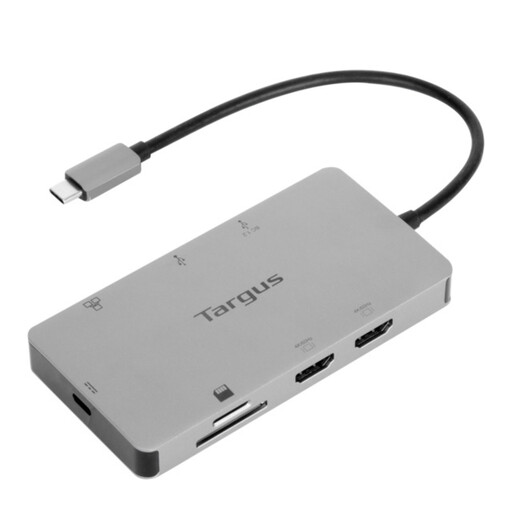
This USB-C dock is an option to assess if your work laptop has suitable USB-C video output; confirm its two-screen compatibility before choosing it over a DisplayLink or direct-cable route.
 No image available
For a desk with two HDMI monitors, check this dock against your laptop’s USB-C video support and its documented two-display limit. The product name specifies 4K and 100W Power Delivery pass-through; confirm the simultaneous modes you need and whether a suitable external power adapter is included.
Check the exact model’s supported number of external displays, their resolution and refresh-rate limits, and the video capability of the port you intend to use. For a native-video USB-C dock, confirm documented DisplayPort Alt Mode or Thunderbolt support, then compare the dock’s two-screen limits with your monitors.
It is a route to consider when suitable USB-C video output is absent but the laptop has a compatible USB port. Check the exact dock’s display limits and software requirements; DisplayLink’s Windows guidance recommends at least 4 GB of RAM for two or more DisplayLink displays.
A dual-output device may offer different modes when both screens are connected. DisplayLink notes that available modes depend on the device and those reported by the monitors, so check the exact adapter’s simultaneous-display specification alongside each monitor’s requirements.
Yes, if your work laptop is managed and the dock needs DisplayLink software. Confirm that the required installation and peripheral are permitted before buying; that permission is specific to your employer’s device policy.
After confirming that the hardware supports both connections, open Windows display settings and choose Extend rather than a mirrored display mode. Microsoft Support also explains how to adjust the settings for each connected external display.