What matters when choosing a drive?
Start with the ports and any direct-scan requirements, then decide how to handle personal information and how much space your scan settings call for.
| Concern |
What to check |
Who this matters to |
| Device and scanner compatibility |
Check whether each device uses USB-A or USB-C. For direct scanning, check the exact scanner’s accepted file systems, capacities and restrictions on security-enabled drives. |
If I scan at school but open the files at home, I need a connection and format both devices can use; around 42% of consumers put compatibility first. |
| Protection of personal information |
Check the school’s policy and whether a suitable protection method will work on every device that must open the receipts. |
When receipts contain personal details, I want to limit access if the drive is lost without locking myself out of the files; roughly 33% of consumers make protection their primary concern. |
| Capacity and everyday handling |
Consider the number of scans, file type and resolution before choosing capacity; check the drive’s physical design if you will carry it regularly. |
I want room for revised scans and a drive I can carry between school and home; about 25% of consumers place capacity and handling first. |
Joybuy drives for receipt files
These drives offer stated storage capacities for project files, with options listed for USB-A or dual USB-A/USB-C use. Match the connector and any direct-scan requirements to your equipment before choosing; security features described in a product name do not establish that a scanner or school workflow will accept them.
 No image available
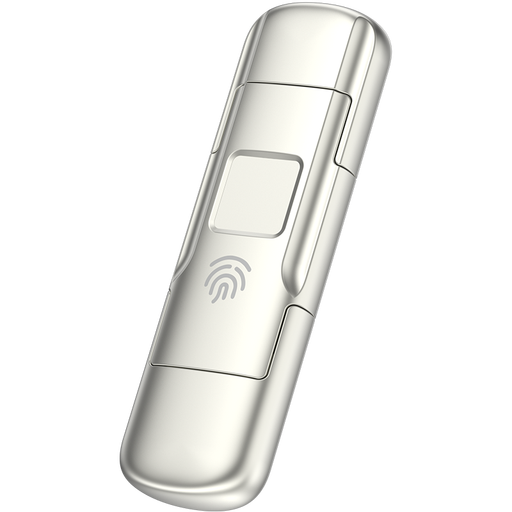
MOVESPEED YSUYC-256GSN 256GB dual-connector USB drive, silver
Consider this model if receipt files need to move between USB-A and USB-C devices. Its name lists a USB 3.2 Gen 1 interface and fingerprint access; check how that access works on every required device and whether the scanner accepts the drive before scanning directly to it.
View on Joybuy
 No image available
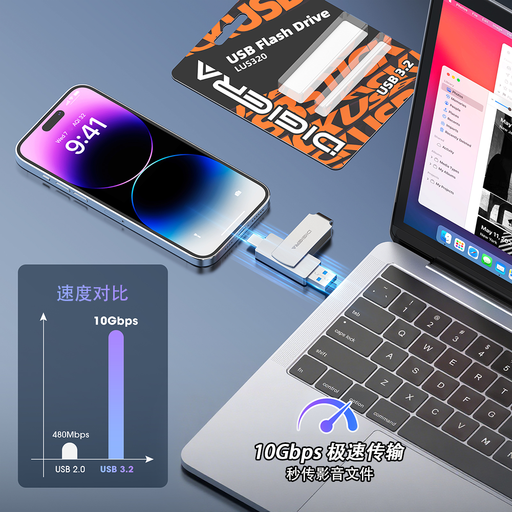
DigiEra LUS320 128GB USB-A and USB-C drive
Consider this model when you need to move receipt files between USB-A and USB-C ports. Its name lists a USB 3.2 interface and a 360° swivel design; for direct scanning, check the scanner’s accepted capacity and file system before use.
View on Joybuy
 No image available
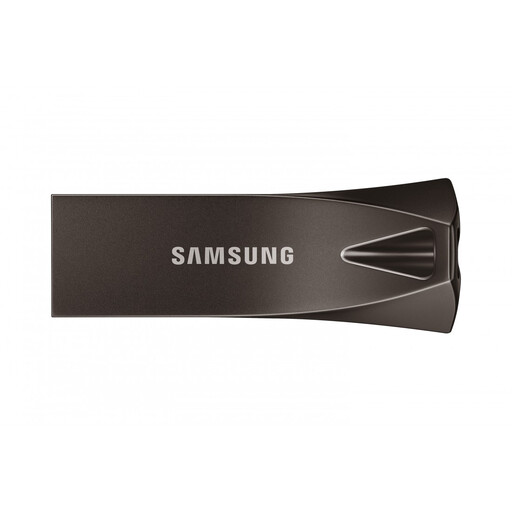
Samsung MUF-256BE4 256GB USB Type-A drive, grey
Consider this model for equipment with a USB-A port. Its name specifies USB 3.2 Gen 1; if you will save scans directly to a scanner, check its accepted capacity and format rather than relying on the connector alone. If you need protected storage for personal information, confirm the available method against school policy and the devices that must open the files.
View on Joybuy
 No image available
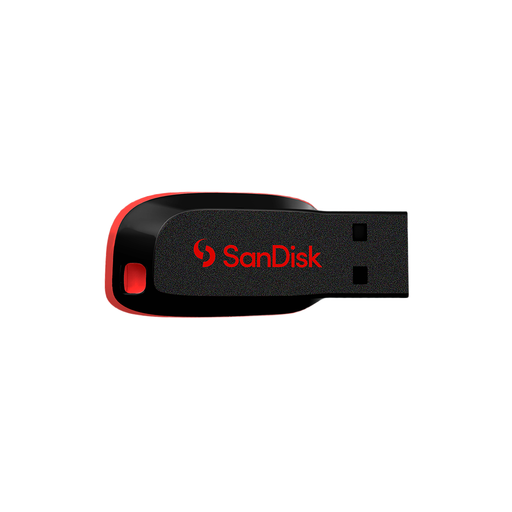
SanDisk Cruzer Blade 64GB USB drive
Consider the stated 64GB capacity if it suits your receipt files and other project work. Check the connector on the drive and the scanner’s accepted capacity and file system before planning to scan directly to it; keep a separate copy of the files.
View on Joybuy
Questions about storing receipt scans
How much USB storage do scanned receipts need?
Choose capacity after checking your scan settings and any scanner limit, rather than assuming a particular drive size is necessary. Brother’s scanning guidance includes file type, resolution and file-size options, all of which can affect how much space the saved files use; allow room for revised scans too.
Can any USB drive be plugged into a school scanner?
No: direct scan-to-USB compatibility depends on the exact scanner model. A Canon manual, for example, specifies FAT16 up to 2GB or FAT32 up to 32GB and warns against drives with built-in security functions. Check your scanner’s manual rather than applying those model-specific limits to every machine.
When can I remove the drive after scanning?
Remove it only after the scan has finished saving. Brother instructs users not to remove a USB drive while its machine is scanning; if your device provides a normal eject or safe-removal procedure, follow it before unplugging the drive.
Do school receipts require an encrypted USB drive?
Not every school receipt project calls for an encrypted drive; consider what personal information the files contain and follow the school’s policy. The Information Commissioner’s Office says encryption can protect personal information stored on USB media against unauthorised access, particularly if the media is lost. Check that the protection method still lets you open the files on the required devices.
Will a USB 3.2 drive make receipt scanning faster?
A USB 3.2 label alone does not establish the time a scanner will take to save receipt files. Samsung’s published BAR Plus figures are maximum sequential read speeds under specified conditions, not guaranteed write or scan speeds; check the scanner’s capabilities and the type of speed being quoted before using it to compare drives.


