Choose a flash drive that plugs directly into the computers you use: USB-A for USB-A ports, USB-C for USB-C ports, or a dual-connector drive when you regularly use both. For frequent large-file transfers, consider a portable SSD, but check the computer port and cable before relying on its advertised speed. Across different devices, check the file format as well as the connector.
Who is each option for?
Students and office users moving everyday files
For documents, presentations and photos carried between home, study and work computers, start with the ports on those machines. Then choose enough capacity for the files you carry and check write performance if you often copy files onto the drive.
Households and teams using both USB-A and USB-C
A dual-connector flash drive avoids swapping adapters when files move between USB-A and USB-C devices. If a tablet is part of the hand-off, also check its external-storage and file-format requirements.
People repeatedly moving large folders
For video, photo collections or project folders transferred often, consider a portable SSD alongside the required capacity. Its advertised transfer rate depends on the computer port and connection cable, so check those before choosing for speed.
What should you check before choosing?
Start with the devices at both ends of the transfer, then match the drive’s capacity, connection and file format to the files you move.
| Priority |
What to check |
Your needs |
| Connector and device |
Check each computer’s USB-A or USB-C data ports. A dual-connector drive fits both port shapes, but confirm that any tablet supports external storage. |
I regularly move files between older USB-A computers and newer USB-C devices, so I would rather not carry an adapter. |
| Transfer workload |
Compare capacity with the folders you carry and how often you transfer them. For repeated large transfers, consider a portable SSD; check the host port and cable against its stated interface. |
Large media or project folders are part of my regular workflow, and transfer time matters more than having the smallest drive. |
| Write performance |
Look for write-speed information for the exact model and capacity, not just a maximum read speed. SanDisk Support notes that actual speed varies with the connection, operating system and files being moved. |
Most of my waiting happens while copying files onto the drive, so a read-speed headline alone will not answer my question. |
| Carrying and durability |
Check the connector cover and stated construction. If heat, drops or water exposure matter, look for evidence about those conditions rather than assuming a metal casing establishes protection. |
The drive will travel in a bag or pocket, and I want to know how its connector is protected during everyday carrying. |
| File format |
Check which formats every required device can read and write. Apple says iPad external storage needs a supported format and a single data partition; Apple also identifies ExFAT as Windows-compatible. |
One drive needs to work across my Windows PC, Mac or iPad, not merely plug into each device. |
| Personal information |
If the drive will carry personal or work information, check the required encrypted workflow. The UK Information Commissioner’s Office identifies encryption as protection for personal information stored on removable media. |
I may carry sensitive files, so I need to follow my organisation’s rules before putting them on a portable drive. |
What can cause trouble after purchase?
-
Assuming every USB-C connection is equally fast
USB-C identifies the plug shape, not a guaranteed transfer rate. An SSD’s advertised speed may be limited by the computer port or cable; Samsung UK specifies a USB 3.2 Gen 2 host, compatible cable and UASP for the T7’s maximum speeds.
Check the drive interface, host port and cable together before choosing an SSD for its stated speed.
-
Using a read-speed claim to judge copying onto the drive
Read and write speeds describe different directions of transfer. SanDisk Support also notes that file count, file type and folder structure affect actual speed.
If incoming copies matter, look for a write-speed figure or independent test for the exact model and capacity.
-
Checking the connector but not the file format
A drive that plugs into a device may still need a different format or partition layout for that device to access its files. Apple specifies a single data partition and a supported format for iPad external storage.
Check every device that must read or write the drive, then test a small transfer before relying on it.
Reformatting erases files already on the drive, so copy them elsewhere first.
-
Treating portability as protection for sensitive files
A small drive can be misplaced. The UK Information Commissioner’s Office identifies encryption as a safeguard for personal information stored on removable media.
Use your organisation’s approved encrypted workflow when carrying work or personal information that requires protection.
Relevant brand references
These model lines illustrate different connector and storage routes; the details below are brand specifications, not a comparison of every product each brand makes.
Kingston
Kingston’s DataTraveler lines include USB-A, USB-C and dual-connector flash drives for different port arrangements.
- Kingston specifies a USB-A interface for DataTraveler Kyson, USB-C for DataTraveler 70, and both USB-A and USB-C connectors for microDuo 3C.
- A connector match does not establish write speed or compatibility with every tablet; check the exact model and receiving device.
Samsung
Samsung’s portable T7 SSD line is relevant when large files are moved frequently.
- Samsung UK specifies USB 3.2 Gen 2 for the T7 and supplies USB-C-to-C and USB-C-to-A cables with the cited model.
- Samsung says its maximum stated speeds require a USB 3.2 Gen 2 host, a suitable cable and UASP; they are not speeds to assume on every computer.
SanDisk
SanDisk’s Ultra Luxe flash-drive lines provide separate USB-C and USB-A options.
- SanDisk specifies up to 400MB/s read performance for 128GB–2TB Ultra Luxe USB-C versions.
- That figure is a brand-stated read maximum with a capacity condition; check the chosen capacity and its write performance separately.
Joybuy options for file transfers
These options include a dual-connector flash drive for USB-A and USB-C hand-offs and portable SSDs for larger transfers. Check the ports and file format needed for your own devices.
 No image available
Samsung Portable SSD T7 2 TB Blue
Consider this portable SSD for moving larger file collections. This Blue 2 TB variant is identified as USB 3.2 Gen 2; check the computer port, cable and file format for your intended devices.
View on Joybuy
 No image available
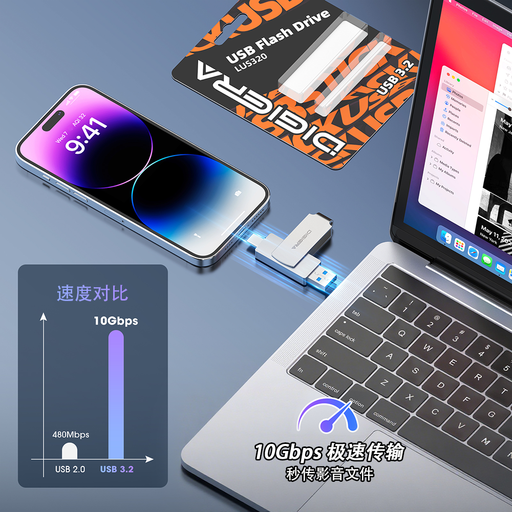
DigiEra LUS320 128GB dual USB-A and USB-C flash drive
The two connector types suit file hand-offs between USB-A and USB-C computers. The title specifies USB 3.2, a swivelling metal design and a claimed read speed of up to 500MB/s; check tablet storage support and file-format requirements separately.
View on Joybuy
 No image available
Samsung T7 Shield Portable SSD 1 TB Blue
Consider this 1 TB portable SSD for larger or repeated transfers. The Blue variant is identified as USB 3.2 Gen 2; check the host connection and required file format before using it across devices.
View on Joybuy
 No image available
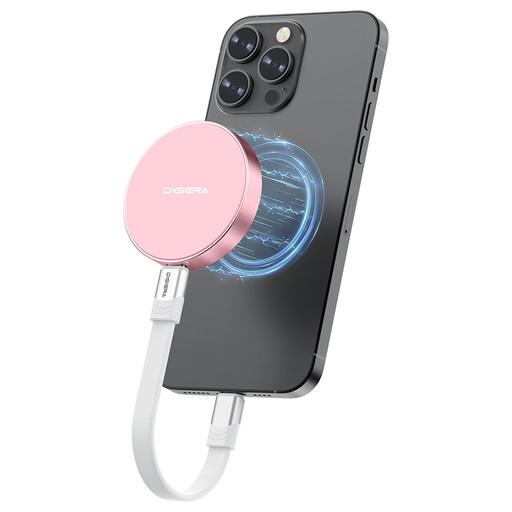
DigiEra LPS2000M-3 1TB magnetic portable SSD Pink
This USB-C portable SSD is an option for larger transfers on compatible devices. Its title specifies USB 3.2 Gen 2×2 and claims transfer speeds up to 2,000MB/s; check host support for Gen 2×2 and the required file format before relying on either compatibility or speed.
View on Joybuy
 No image available
Samsung Portable SSD T7 2 TB Grey
Consider this Grey 2 TB portable SSD when the files you move need that capacity. It is identified as USB 3.2 Gen 2; check the computer port, cable and file format for the devices in your workflow.
View on Joybuy
Common questions
When is a portable SSD worth considering instead of a flash drive?
Consider a portable SSD when you repeatedly move large media or project folders and transfer time matters. A flash drive can still suit routine documents and occasional hand-offs if its connector and capacity fit; check the SSD’s host-port and cable requirements before choosing it for speed.
Does USB-C automatically transfer files faster than USB-A?
No. USB-C describes the connector, not a guaranteed data rate. The USB Implementers Forum identifies 5Gbps, 10Gbps and 20Gbps rates within USB 3.2, so check the drive, computer port and cable rather than judging speed by plug shape.
What matters when sharing a drive between Windows, a Mac and an iPad?
Check the connector, file format and partition layout for every device that must access the drive. Apple identifies ExFAT as Windows-compatible and says iPad external storage must use a supported format with a single data partition; test the intended read-and-write workflow before loading important files.
Should personal or work files be encrypted on a USB drive?
Follow your organisation’s data-handling requirements when carrying work or personal information. The UK Information Commissioner’s Office identifies encryption as a way to protect personal information stored on removable media, including if a device is lost or stolen.


