USB-A venue organisers
You regularly copy PDFs, slides or printable documents for laptops, desktop computers or printers with USB-A ports. A drive that connects directly to that equipment matters more than an extra connector you will not use.


Choose a flash drive that fits the computers and printers used to prepare and share the handouts: USB-A suits a confirmed USB-A setup, while a dual USB-A/USB-C drive makes sense if files must also move to USB-C-only devices. Size the drive against your handout folder rather than a headline capacity, and do not treat advertised read speed as the time it will take to copy files onto the drive. If the files include personal information, plan how to protect and control access to it.
You regularly copy PDFs, slides or printable documents for laptops, desktop computers or printers with USB-A ports. A drive that connects directly to that equipment matters more than an extra connector you will not use.
You move the same handouts between older USB-A equipment and newer USB-C devices. Having both plugs on one drive may be more useful than carrying an adapter.
Your working folder might contain attendee names, contact details or sign-in sheets as well as public handouts. You need to decide what belongs on a portable drive and who can access it if the drive is misplaced.
Check the ports at each stage of the workshop workflow, then compare the size of your handout folder with the capacity you are considering. Treat protection of attendee information as a separate decision from choosing storage space or transfer speed.
| Concern | What to check | Who this matters to |
|---|---|---|
| Connector fit | Inspect the ports on the computer, workshop device and any printer that must read the drive. USB 3.x describes an interface, not whether the plug is USB-A or USB-C. | If I prepare handouts on one computer and use them on another device, I need the drive to plug into both without disrupting the session. Around 44% of consumers put connector fit first. |
| Repeated copying and carrying | Check the size of the current handout folder and leave room for revisions. Consider how you will carry the drive; an advertised maximum read speed does not establish copy-to-drive time. | When I update handouts between sessions, I want enough space for revised files and a drive I can keep track of while travelling. For around 33% of consumers, convenient repeated copying is the primary need. |
| Personal information | Keep public handouts separate from attendee records where possible. If personal information must go on the drive, check the encryption process, software compatibility and who will have access. | If attendance details travel with the workshop files, I need to reduce the risk of someone else accessing them if the drive is lost. Protecting personal information comes first for around 23% of consumers. |
A USB-A drive will not plug directly into a USB-C-only port, regardless of its USB interface generation.
Inspect the equipment used to create, print and present handouts. Choose a USB-A-only drive for a confirmed USB-A workflow, or check a dual-connector model if both port types are needed.
A connector mismatch may mean carrying an adapter or obtaining another drive.
Samsung and SanDisk publish maximum sequential read figures for the cited drive ranges. Those figures do not tell you how long your computer will take to write a folder of handouts.
If copying time could affect the session, try the exact drive with a representative folder on the computer you will use.
A portable drive containing names or contact details creates an access risk if it is lost. The Information Commissioner’s Office describes encryption of personal information on USB media as protection against unauthorised or unlawful processing.
Keep attendee records off the distribution drive where possible. If they must travel on removable storage, arrange suitable encryption, password management and access for authorised people.
Apple Support warns that erasing and reformatting a storage device deletes everything on it, including earlier workshop materials.
Keep a master copy elsewhere before changing the format, then test the drive on the equipment intended for the session.
These ranges illustrate different connector and specification choices; check the exact model and capacity rather than assuming every drive from a brand has the same features.
Kingston Technology lists USB-A DataTraveler Exodia drives and a DataTraveler Duo range with both USB-A and USB-C connectors.
SanDisk’s UK Ultra USB 3.0 range is a USB-A option for sharing files, with capacities listed up to 256GB.
Samsung’s UK BAR Plus range provides a metal-bodied USB-A option, with listed capacities from 64GB to 512GB.
These drives cover USB-A handout workflows and one dual USB-A/USB-C choice. Match the connector to your equipment and the capacity to your files before choosing between them.
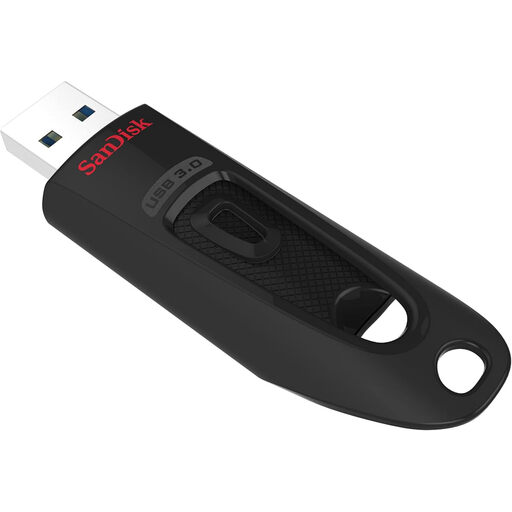 No image available
Consider this for a handout folder used with USB-A equipment; confirm the ports on every device that must read it.
Capacity: 128GB. USB 3.0.
If you intend to carry personal information, check that the protection software described for this drive works with your computer and handling process.
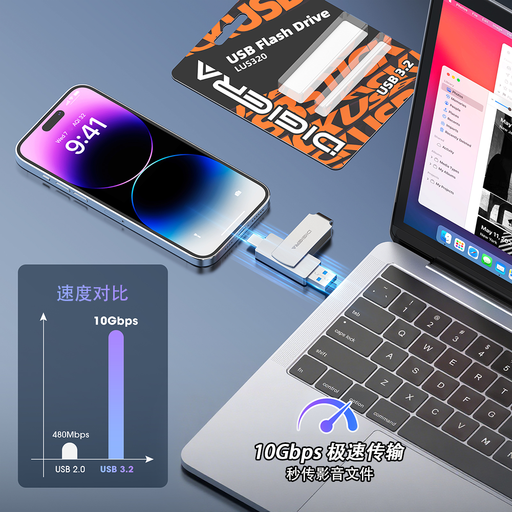 No image available
Consider this when handouts must move between USB-A and USB-C devices. Check that both plugs have room to fit beside any device case.
Capacity: 128GB. USB 3.2 dual interface; 360° swivel design and metal body.
The title advertises 500MB/s read speed, which does not establish how quickly your computer will write the handout folder. Arrange suitable protection separately if the files contain personal information.
No image available
Consider this for a USB-A handout workflow if your current files and planned revisions call for this capacity; confirm the equipment ports first.
Capacity: 256GB. USB 3.0.
If you plan to store attendee information, check whether the protection software described for this drive supports your computer and access arrangements.
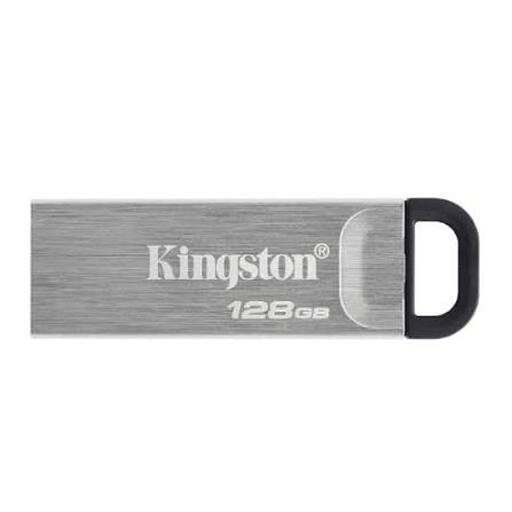 No image available
Consider this for repeated handout copying where the computers have matching USB-A ports. Check the size of your folder before selecting the capacity.
Capacity: 128GB.
If personal information must travel with the files, arrange and check an appropriate protection process.
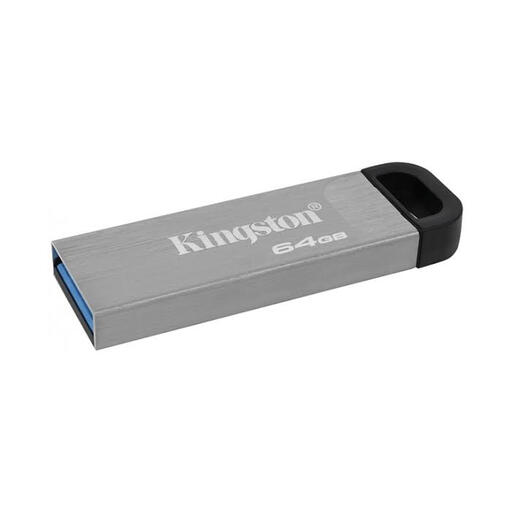 No image available
Consider this for a USB-A handout workflow if the folder and anticipated revisions fit the stated capacity; confirm the ports at the venue.
Capacity: 64GB.
Keep attendee records separate from public handouts where possible, or arrange suitable protection before storing them on a drive.
Choose the connector that fits the devices used to create, print and share the handouts. A USB-A drive fits full-size USB-A ports; if the same files must also go directly to USB-C devices, check a dual USB-A/USB-C model. A USB 3.x label alone does not tell you the plug shape.
Samsung says its BAR Plus USB 3.2 Gen 1 range is backward compatible with USB 2.0 ports. That is a model-specific compatibility statement, not a promise of the same transfer speed on an older computer; check the particular drive and host you intend to use.
Public handouts and files containing personal information call for different handling decisions. Keep attendee names and contact records separate where possible; if personal information must be stored on a USB drive, the Information Commissioner’s Office describes encryption of that information as protection against unauthorised or unlawful processing. Check how authorised organisers will manage access.
Apple Support identifies MS-DOS (FAT) and ExFAT in Disk Utility as file systems compatible with Windows. Check the requirements of the computers and other devices that will read the drive. If changing its format is necessary, copy existing files elsewhere first: Apple warns that reformatting erases the drive.