Choose a shared-desk dock around the laptops and the rest of the workstation, not the headset alone: a wired USB headset needs a free, accessible data port that matches its plug. A USB-C or Thunderbolt dock can suit a known compatible laptop fleet; where desks serve both USB-A and USB-C laptops, a dock with both host-connection options may be more useful, provided IT can support any required DisplayLink software. Check each laptop’s host connection, display support and charging needs before choosing.
Who is this for?
Hot-desk USB-headset users
People who need to plug in a wired headset at a shared desk while also connecting everyday peripherals such as a keyboard and mouse. An accessible, matching USB data port matters more here than a long list of unused outputs.
Mixed-laptop office teams
Teams sharing desks across laptops with different host ports or operating systems. They need to check whether each laptop can connect to the dock and whether IT can deploy software needed for the intended displays.
Managed multi-display desk users
People whose workstation must also accommodate external monitors, wired networking and laptop charging. Their choice depends on the particular laptop’s display and power requirements as well as headset connectivity.
What matters when choosing a dock?
Start with the headset plug and the laptops that will use the desk. Then check the monitor, charging and IT requirements; an audio jack or a dock’s maximum display rating cannot settle those questions on its own.
| Concern | What to check | Who this matters to |
|---|
| Headset access |
Match the headset’s USB-A or USB-C plug to a free data port, and check whether that port is easy to reach. |
If I move between desks, I want to plug in my USB headset without disconnecting other peripherals. Around 36% of consumers put headset access first. |
| Laptop compatibility |
Check each laptop’s host port and operating system, plus permissions for any required DisplayLink software. |
When colleagues bring different laptops to the same desk, I need the dock connection to work with each one. For around 29% of consumers, that compatibility is the primary concern. |
| Displays and charging |
Compare the laptop’s charging requirement and supported external displays with the dock’s host-specific capabilities. |
I also need the desk’s monitors and laptop charging to work, rather than connecting my headset successfully but rebuilding the rest of the setup. Those needs come first for around 21% of consumers. |
| Managed desk setup |
Confirm IT requirements for drivers, firmware and networking, and whether the dock can be mounted or secured. |
If I equip desks for repeated use, I need a setup that staff and IT can maintain consistently. Around 14% of consumers prioritise managed deployment and the physical desk setup. |
Mistakes to avoid
-
Choosing an audio jack instead of a USB port
A 3.5 mm combination jack serves a compatible analogue headset; it does not connect a headset with a USB plug.
Identify the headset connector and make sure the dock has a spare, matching USB data port after other desk peripherals are connected.
-
Assuming every USB-C laptop supports the same displays
CalDigit gives different TS4 display limits by host platform, while Apple says a Mac’s external-display support depends on that device’s technical specifications.
Check the exact laptop model and host-port capability against the intended monitors and the dock’s compatibility information.
-
Installing DisplayLink docks without a software plan
Kensington describes the SD4780P as not driverless, and StarTech.com says the DK30CHHPDUK needs drivers for its DisplayLink display function on Windows and macOS.
Test the intended display setup on representative managed laptops and agree who will deploy and maintain the software before fitting multiple desks.
Software deployment and ongoing troubleshooting can add work for the IT team.
-
Treating a dock as the whole hot-desk setup
A repeatable connection does not address monitor position, seating or other individual workstation needs. The Health and Safety Executive’s display screen equipment guidance also covers hot-desking.
Include the dock in the employer’s workstation setup and assessment process rather than using it as a substitute for that process.
Relevant brands to consider
Dell
The Dell Pro Dock WD25Z is a USB-C option for offices using compatible, managed laptops.
- Dell lists four USB-A ports, two USB-C ports and management features including firmware updates, MAC-address pass-through, PXE boot and Wake-on-LAN.
- Dell specifies up to 130 W delivery for Dell systems and up to 96 W for non-Dell systems; check each laptop’s USB-C charging support and requirements.
Kensington
The SD4780P is an option where shared desks must accommodate both USB-C and USB-A laptop connections.
- Kensington lists USB-C or USB-A host connection through DisplayLink, six USB ports and a front 3.5 mm combination microphone/headphone jack.
- Kensington says the SD4780P is not driverless. Plan its software deployment before relying on its display functions.
StarTech.com
StarTech.com describes the DK30CHHPDUK for settings including shared workspaces and hoteling.
- The model combines USB peripheral connections with Ethernet, 3.5 mm audio, mounting holes, a security slot and a 1 m USB-C cable.
- Its DisplayLink display function requires driver installation on Windows and macOS; check the host laptop and IT policy before deployment.
CalDigit
The Thunderbolt TS4 is an option for an assigned desk with compatible laptops and substantial peripheral or display requirements.
- CalDigit lists 18 ports and up to 98 W power delivery for the TS4.
- CalDigit’s stated display support varies by host platform. Its additional connectivity is not needed simply to attach a USB headset.
Targus
The DOCK570EUZ is a multi-display dock option for workstations needing several peripheral connections.
- Targus lists four USB 3.0 ports, Gigabit Ethernet and a 3.5 mm combination audio connection for this model.
- Check its display configuration against the laptops at the desk; a USB-headset-only setup does not itself call for multi-display capability.
Joybuy products for USB-C desks
These choices are relevant to desks using a compatible USB-C or Thunderbolt laptop connection. Match the headset to a free USB data port, and check the host connection, monitors and charging separately for each laptop.
 No image available
Targus USB-C Universal Dual HDMI 4K Docking Station, 100W PD Pass-Thru
Consider this for a USB-C desk that also needs two HDMI connections. Its title specifies dual HDMI 4K and 100W Power Delivery pass-through; check the laptop’s supported displays and the power it would actually receive.
View on Joybuy
 No image available
USB-C multiport dock, 2 HDMI, DP, 2 USB 3.0, 2 USB 2.0, RJ45, PD, SD/TF and audio
This port layout may suit a desk with a USB-A headset and several other connections. Check that the laptop supports the USB-C host connection and intended displays, and confirm the charging arrangement it needs.
View on Joybuy
 No image available
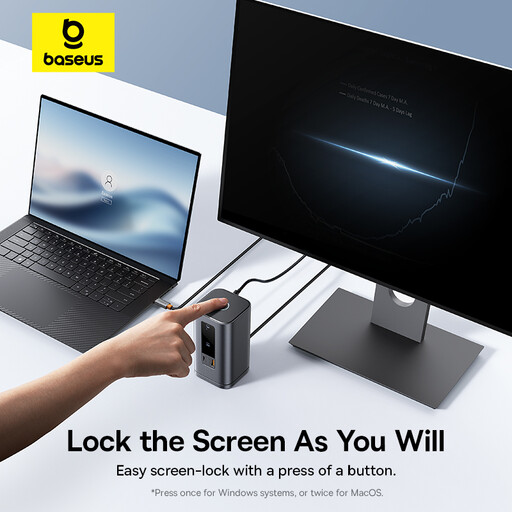
Baseus Wisdom Series 11-in-1 (WIN) Workstation, Space Gray
For a shared workstation, establish which port the USB headset will use before choosing this 11-in-1 model. Check each laptop’s connection, monitor support and charging needs against the intended desk setup.
View on Joybuy
 No image available
MOVESPEED DK5A1 USB-C 10-in-1 Docking Station
Its title lists USB-A connections for a matching headset, alongside 4K 60Hz HDMI, USB-C, SD/TF and 3.5 mm audio. The audio socket is not a USB-headset connection; check laptop video compatibility and charging requirements separately.
View on Joybuy
 No image available
Mokin 2USBC to TB+ dock, 2 × USB-A 3.0, USB-C 3.0, SD/TF and HDMI 4K 60Hz
The named USB-A ports may serve a matching headset at a desk with an HDMI monitor. Confirm the exact laptop-facing connector before ordering, then check whether the monitor and any charging requirement are supported.
View on Joybuy
Frequently asked questions
Will a dock with a headset jack connect my USB headset?
Not through the jack: a USB headset needs a free data port matching its USB-A or USB-C plug. A 3.5 mm combination microphone/headphone jack is for a compatible analogue headset, so check the plug before choosing the dock.
When does a DisplayLink dock make sense at a shared desk?
Consider one when the desk must serve different laptop host connections and IT can manage the required software. Kensington lists USB-C and USB-A host options for the SD4780P but says it is not driverless; StarTech.com also specifies driver installation for the DK30CHHPDUK’s DisplayLink display function on Windows and macOS.
Will the dock’s stated power and display limits apply to every laptop?
No; check them against the particular host. Dell specifies up to 130 W for Dell systems and up to 96 W for non-Dell systems on the WD25Z, while CalDigit describes different TS4 display limits by platform. Apple also advises checking an individual Mac’s technical specifications for external-display support.
What should a UK employer consider when fitting shared desks?
Include the dock in a usable workstation setup, not as a replacement for an assessment. The Health and Safety Executive says workers who change desks regularly should carry out a basic risk assessment, and that employers must assess workstations where staff use display screen equipment daily as part of normal work, continuously for an hour or more.


