What should you check before buying?
Start with where your voice needs to go: into the presentation computer, through the classroom loudspeakers, or both. That determines which audio connections to confirm before you choose a headset.
| Concern |
What to check |
Who this matters to |
| Clear voice capture |
Look for a positionable boom microphone; make a short recording in the presentation software with normal classroom background noise. |
If I am recording my summary or speaking to remote listeners, I want my words captured without nearby chatter dominating. Around 36% of consumers put clear voice capture first. |
| Computer and room connections |
Match USB-A or USB-C to the laptop, and ask how the room microphone and loudspeakers are connected. |
I need the plug to fit my presentation laptop, but I also need to know whether classmates will hear me through the room system. For around 29% of consumers, those connections are the primary concern. |
| Comfort and room awareness |
Consider mono if you need to hear questions; check the fit and test mute controls in your presentation application. |
While I present, I want to hear cues from classmates and manage my microphone without interrupting my talk. Around 21% of consumers make delivery comfort and control their main priority. |
| Shared-use maintenance |
Check for replaceable cushions, cleaning guidance and suitable connections before ordering a set. |
If several learners will use the same equipment, I need a practical way to maintain the parts they touch. Shared-use durability and hygiene come first for around 14% of consumers. |
Joybuy headset choices
These wired USB headsets are choices for capturing a computer-based classroom presentation. Check the room audio route separately if your voice also needs to reach the classroom loudspeakers.
 No image available
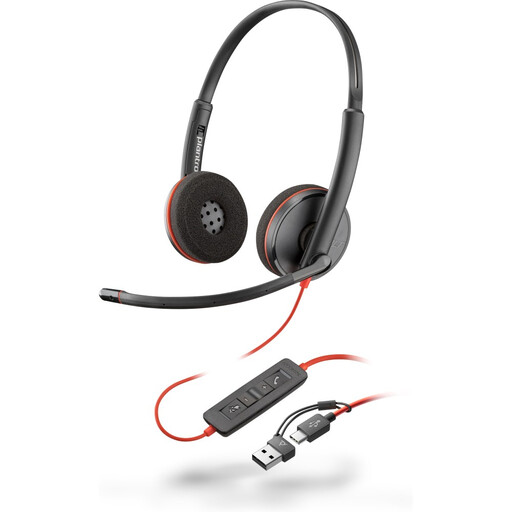
Poly Blackwire 3220 Stereo USB-C Headset + USB-C/A Adapter
Consider this wired headset if you are presenting through a computer and need to check both USB-C and USB-A connection options.
The product name specifies stereo earcups, USB-C and a USB-C/A adapter. If hearing questions from classmates matters, consider whether stereo suits your presentation.
View on Joybuy
 No image available
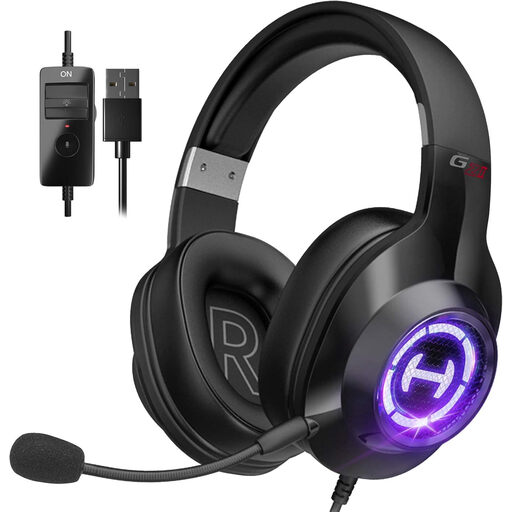
Edifier G2II USB Wired Gaming Headset, Black
Consider this model for a computer-based presentation if a wired USB gaming-style headset suits how you will listen and speak.
The product name lists a microphone, 50 mm drivers and PC and Mac compatibility. If boom positioning or a readily accessible mute control is important to you, confirm those features before buying.
View on Joybuy
Frequently asked questions
Will a USB headset make me louder to classmates in the room?
Not on its own: connecting a headset to your computer does not establish that its microphone feeds the classroom loudspeakers. The University of Edinburgh advises presenters to use the available room microphone. Ask the room’s AV contact which microphone reaches the speakers before relying on a headset for in-room speech.
Should I choose USB-A or USB-C?
Choose the connector that fits the laptop you will use for your presentation. Logitech specifies USB-A for the H390, while Jabra offers Evolve 20 variants with USB-A, USB-C or USB-C/A connections. If you plan to use an adapter or dock, test the headset’s input and output in your presentation application.
Is a mono or stereo headset more suitable for a classroom presentation?
Choose mono if hearing classmates’ questions and cues is your priority; consider stereo if you need to concentrate on computer audio or remote participants. CALL Scotland notes that a single earpiece leaves the wearer more aware of what is happening nearby.
How should I check the microphone before presenting?
Select the headset as the computer’s microphone, make a test recording or call in the application you will use, and check both physical and software mute settings. Poly’s Blackwire guidance advises positioning the microphone boom near your mouth.


