Existing USB card-reader users
If you already own an external reader, start with its connector. A hub needs a matching downstream data port, with enough ports left for anything else you use at the desk.


If you already have a USB card reader, choose a hub with a downstream port that fits its connector and leaves room for your other devices. If you want to insert SD or microSD cards directly, look instead for integrated slots that support your cards. A bus-powered hub can suit a simpler setup; consider a self-powered hub when several connected devices need more power, and check the whole connection rather than assuming a USB-C socket guarantees a particular speed.
If you already own an external reader, start with its connector. A hub needs a matching downstream data port, with enough ports left for anything else you use at the desk.
If you want to insert cards without a separate reader, check the hub’s slots, supported card formats and reader class. A list of USB ports alone will not answer those questions.
If the reader will share a hub with a keyboard, mouse or external storage, plan the port layout and power supply around the devices you will use together.
Decide whether you are connecting a reader or inserting a card before comparing ports. Then check the computer connection, the devices sharing the hub and their power needs.
Choose when: Your USB-A card reader still meets your needs, but your USB-C computer needs more data ports.
Trade-off: You keep using the reader, but its connector and transfer capability remain part of the connection.
Choose when: You want to insert compatible cards into the hub instead of connecting a separate reader.
Trade-off: Reader class and supported media differ between models; a built-in slot is not a substitute for every external reader.
Choose when: A permanent desk setup has several simultaneous devices whose power needs call for an independent supply.
Trade-off: The power supply adds a mains adapter and cable to the desk.
| Concern | What to check | Who this matters to |
|---|---|---|
| Connecting an existing reader | Match the reader’s plug to a downstream data port, then count the ports left for other devices. | If I want to keep using my USB card reader, I need it to plug in without displacing another everyday device. Around 42% of consumers put that connection need first. |
| Reading cards directly | Check for the required SD or microSD slot and confirm the supported card format and reader class. | When I regularly move files from a memory card, I would rather insert it into the hub than keep a separate reader on the desk. Direct card access is the primary need for around 33% of consumers. |
| Power for shared devices | List the devices used together and check whether the hub draws power from the computer or has its own supply. | If my reader shares a fixed desk hub with storage and other peripherals, I need to account for their combined power requirements. For around 25% of consumers, that multi-device need comes first. |
SD and microSD slots take memory cards; they do not provide the USB-A socket an existing USB-A reader needs.
Identify what you intend to plug in or insert, then match it to the hub’s downstream ports or card slots.
A connector mismatch can mean using an additional adapter or changing readers.
The USB Implementers Forum identifies 5Gbps, 10Gbps and 20Gbps rates under USB 3.2. The computer, hub, cable and reader can each limit the usable connection.
Compare the stated capabilities of the components you will use together rather than choosing by connector shape alone.
Pass-through charging describes a hub function, not its package contents. Anker states that the charger for its 341 USB-C Hub is not included.
If you plan to charge a laptop through a hub, check its package contents, pass-through rating and the laptop’s USB-C charging requirements.
RS explains that a bus-powered hub draws power from the computer, whereas a self-powered hub has an independent supply. More ports alone do not establish that your setup needs mains power.
Check which devices must run together and their power requirements before choosing the supply arrangement.
A self-powered arrangement also brings a mains adapter and another desk cable.
The HB31C3ASDMB combines USB-A expansion and an integrated card reader for a setup that may use either an external reader or compatible cards.
The 341 USB-C Hub (7-in-1) brings USB data ports and separate card slots into one compact laptop connection.
The examined 6-in-1 USB-C Hub is a route for inserting SD or TF/microSD cards while connecting other USB devices.
The examined 7-in-1 multiport hub combines card reading with USB, display and audio connections.
These USB-C hubs and adapters cover two practical approaches: inserting cards into a hub with suitable slots, or connecting an existing reader through a matching USB data port. Check each model’s connectors and card requirements against what you already own; extra display and charging connections need not drive the choice for a card-reader task.
 No image available
Consider this layout if you want a card slot and USB-A connections at the same desk. The listed configuration includes SD/TF, one 10Gbps USB-A port and two 480Mbps USB-A ports.
Check your exact card format and computer connection; the stated port rates do not establish the speed of a card transfer.
 No image available
This is a direct-card-access option if its SD/TF slots fit your media and you also need USB data connections. Its listed configuration states SD/TF at 160MB/s and includes USB-C 10Gbps and USB-A 10Gbps/5Gbps connections.
Treat the card rate as a stated specification, not a guaranteed transfer result; confirm card-format and host compatibility.
 No image available
Choose this type of adapter if you already have a USB-A card reader and need downstream ports rather than built-in card slots. This model lists two USB 3.0 ports, alongside HDMI, VGA, Gigabit Ethernet and 100W Power Delivery.
Check that your reader’s connector fits and that the computer’s USB-C port supports any additional functions you intend to use.
 No image available
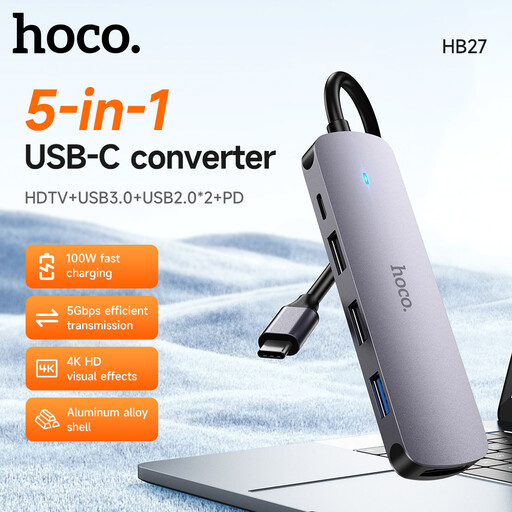
If the HB27 appeals as a USB-C hub for your study, check its downstream connectors against your external reader, or its card slots against the media you intend to insert.
Confirm the relevant port count and card-reader specifications before relying on it for simultaneous peripherals or a particular card workflow.
 No image available
This layout is worth checking if you want direct card access alongside USB peripherals. The listed configuration includes SD and TF slots, USB 3.0 and USB 2.0 connections, and Power Delivery.
Match the card slots to your exact media and check the reader specification if transfer speed matters to your choice.
Not necessarily: a bus-powered hub can suit a simpler card-reader connection because it draws power from the computer. If several devices will run from the same hub, assess their combined power needs; RS distinguishes self-powered hubs by their independent supply.
No. The USB Implementers Forum identifies several transfer rates under USB 3.2, so connector shape alone is not a speed rating. Check the computer port, hub, cable and reader together, as well as the card-reader specification.
Some hubs offer access to both, but the slot arrangement and supported media need checking model by model. Anker lists separate SD and microSD slots for its 341 hub; StarTech.com specifies an SD/microSD reader for the HB31C3ASDMB and states that a microSD adapter is not included.
Contact the seller about the fault and keep your order confirmation and a description of the problem. The Consumer Rights Act 2015 covers faulty consumer goods; a retailer’s voluntary returns policy should not be confused with rights relating to faulty goods.
Look for an electrical reuse or recycling option rather than treating it as ordinary household waste. Recycle Your Electricals says items with a plug, battery or cable can be reused or recycled and offers a way to find collection points.