USB microphone users adding a few peripherals
If your microphone connects by USB, start with the computer’s connector and a matching spare data port. Extra display connections are relevant only if you also plan to use them.


A USB microphone needs a hub with a matching downstream USB data port; a 3.5 mm analogue microphone needs a USB audio adapter or interface with an explicit microphone input instead. A compact bus-powered hub may suffice for a microphone and a few accessories, while a setup with several USB-powered devices warrants a closer look at shared power and external-power options. Check the computer’s connector before choosing either route.
If your microphone connects by USB, start with the computer’s connector and a matching spare data port. Extra display connections are relevant only if you also plan to use them.
If a microphone shares a hub with other USB-powered devices, check how the hub is powered. StarTech.com explains that a bus-powered hub shares the power available from its computer connection across its ports.
More USB sockets will not create an analogue microphone input. Look instead for a USB audio adapter or interface that explicitly supports your microphone connection; StarTech.com lists adapters designed to add microphone connectors through USB.
Identify the microphone plug first, then check the computer connection and the power needs of everything that will share the device.
| Concern | What to check | Who this matters to |
|---|---|---|
| Connection and compatibility | Match the computer’s USB connector and the microphone’s plug to downstream data ports. For a 3.5 mm plug, check for an explicit microphone input on an audio adapter. | If my microphone has a 3.5 mm plug, I need an audio input rather than another ordinary USB socket. Around 33% of consumers put connection and compatibility first. |
| Shared-power stability | Check whether the hub is bus-powered or supports external power, and whether a stated output is shared across ports. Do not treat host Power Delivery as power promised to each peripheral. | When my microphone runs beside other USB-powered devices, I want to know whether their shared power arrangement suits the setup. For around 45% of consumers, that is the primary concern. |
| Simple port expansion | Count the data ports left after connecting the microphone; add display, network or charging connections only if your setup needs them. | If I carry a laptop and mainly need a microphone plus another accessory, I would rather choose the relevant ports than an elaborate dock. That is the leading need for around 22% of consumers. |
A USB-C socket reserved for Power Delivery input is not necessarily a downstream data port. Anker’s port guidance for its 565 hub distinguishes its charging input from its data ports.
Read the exact port map and connect a USB microphone to a matching downstream data port.
USB expansion alone does not provide an analogue microphone input.
Check the microphone plug and choose a USB audio adapter or interface that explicitly supports its microphone connection.
A hub’s Power Delivery connection may charge the laptop while power available to connected devices remains shared or separately limited.
Check the individual model’s downstream power arrangement and whether a compatible external supply is included or required.
A connection problem can also involve the microphone or the computer’s input settings. Microsoft Support advises checking microphone access in Windows.
Test the microphone directly on the computer first, then check microphone permissions and input selection before changing the hub.
USB-C multiport hubs for laptops that need data ports alongside other connections.
USB-C hubs for laptop users who also need host charging or display connections.
USB-C multiport hubs combining USB-A expansion with laptop charging and display connections.
USB expansion hubs and separate USB audio adapters for different microphone plug types.
These choices include USB-C expansion devices for microphones with matching USB plugs and an audio adapter to investigate for a 3.5 mm microphone. Match the host and microphone connections before choosing; extra display and network ports are useful only when your setup calls for them.
 No image available
Consider this for a USB-C computer when a microphone will share the dock with other connections. The title lists USB-C and USB-A data ports, 4K 60Hz HDMI, SD/TF readers and 3.5 mm audio. If you intend to use an analogue microphone, confirm that the audio connection accepts its plug and wiring; also check the power arrangement for your other devices.
 No image available
This is an option for a USB-C computer needing a USB microphone data port alongside other connections. Its title lists USB-A and USB-C 10 Gbps ports, two USB-A 480 Mbps ports, dual HDMI outputs, RJ45, SD/TF and a USB-C Power Delivery input. Connect the microphone to a matching data port, not the Power Delivery input, and check the power arrangement if several peripherals will run together.
 No image available
Consider this dock for a USB-C desk setup that also needs laptop charging and display connections, provided its downstream ports match the microphone. Check computer compatibility and confirm the required external power supply and package contents before buying.
 No image available
For a USB-C computer, this adapter offers two USB 3.0 ports to check against a USB microphone’s plug. Its title also lists 4K HDMI, VGA, Gigabit Ethernet and 100W Power Delivery. If several devices will share it, confirm how downstream power is provided.
 No image available
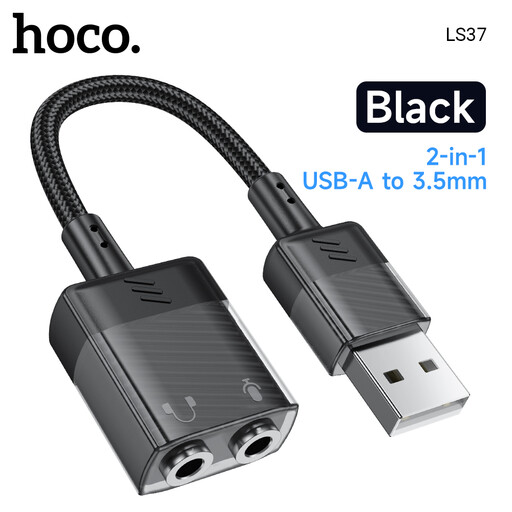
Investigate this audio adapter rather than a port-expansion hub if your microphone has a 3.5 mm plug. Before buying, confirm that its USB connector fits your computer and that its 3.5 mm connection explicitly supports your microphone’s plug and wiring. It is not a substitute for additional USB data ports.
No: the hub needs a downstream data port matching the microphone, and its host connector must fit the computer. Check the exact port labels, because a USB-C Power Delivery input may be reserved for charging; if the connection is correct but recording still fails in Windows, check microphone permissions and input selection as Microsoft Support advises.
Not necessarily: a bus-powered hub may suit one USB microphone, subject to the power available from the computer and any other attached devices. StarTech.com explains that this power is shared across hub ports, so check external-power options if you plan to attach several USB-powered peripherals or encounter disconnections.
An ordinary USB hub cannot create an analogue microphone input. Choose a USB audio adapter or interface that explicitly supports the microphone’s 3.5 mm plug and wiring; a hub is useful separately only if you also need more USB ports.
Test the microphone directly on the computer before replacing the hub. Then check the hub’s power and try another suitable data port; Microsoft Support also advises checking Windows microphone access, the selected input and audio drivers when detection problems persist.