USB-A headset users with limited laptop ports
If your headset, mouse and keyboard use USB-A, the immediate question is whether one free laptop port can accommodate the devices you want connected at your desk.


Start with the plug on your headset and the free port on your laptop: the hub must connect to one and provide a suitable port for the other. For a headset and a few USB-A peripherals, straightforward port expansion may be enough. Consider a USB-C multiport hub with Power Delivery only if your laptop supports the functions you need and charging or other desk connections are part of the plan.
If your headset, mouse and keyboard use USB-A, the immediate question is whether one free laptop port can accommodate the devices you want connected at your desk.
A USB-C laptop may still need a USB-A port for an existing headset alongside ports for USB-C accessories. Check the hub’s peripheral ports separately from its laptop-side connector.
If the headset is only one part of a setup that also uses laptop charging, storage cards or a monitor, those functions need their own compatibility checks.
Choose the laptop-to-headset connection first. Then decide whether the hub must also accommodate other peripherals, reach a particular spot on the desk or handle charging.
Choose when: Your laptop has a free USB-A port and you need ports for a USB-A headset and other USB-A peripherals. UGREEN UK describes a four-port model with a 60 cm cable.
Trade-off: A USB-A host connection will not plug directly into a USB-C-only laptop, and this route does not add laptop charging or a display connection.
Choose when: Your laptop connects over USB-C but your desk has both USB-A and USB-C peripherals. Belkin UK lists two ports of each type on its F4U090.
Trade-off: Belkin says the F4U090 does not provide pass-through charging or monitor video output; its USB-C peripheral ports do not add those functions.
Choose when: You also need compatible laptop charging, display output or card access. Anker UK lists those connections alongside USB data ports on the Anker 341.
Trade-off: Charging depends on a compatible laptop and separate charger. Anker specifies up to 100W input, with 15W reserved for hub operation.
| Concern | What to check | Who this matters to |
|---|---|---|
| Connector compatibility | Match the hub’s laptop-side plug to a free laptop port and its peripheral port to the headset plug. Check charging or video support separately if needed. | If my headset uses USB-A but my laptop offers USB-C, I need a connection for both before extra features matter. Roughly 42% of consumers would make connector and function matching their primary concern. |
| Ports and cable reach | Count devices you want connected at once, then check whether the host cable reaches the hub’s intended position. | At a small desk, I want the headset and other peripherals within reach without a cable pulling against the laptop port. For around 33% of consumers, usable desk expansion would be the main priority. |
| Charging and desk functions | For pass-through charging, check the laptop, charger and hub requirements. Check display and card-reader connections only if you will use them. | When my headset shares a desk setup with charging or a monitor, I need those connections to work together. About 25% of consumers would put charging or wider desk functions first. |
Four peripheral ports are of little use if the hub cannot connect to your free laptop port. A USB-C hub also needs the right peripheral port for an existing USB-A headset.
Note your laptop’s free port and the headset plug, then count the other devices that need to stay connected.
Belkin UK states that its F4U090 has neither pass-through charging nor monitor video output, although it has USB-C peripheral ports.
If you need those functions, check the hub’s stated Power Delivery and display outputs as well as the laptop’s USB-C capabilities.
A connected headset may not be selected as the computer’s audio output. Microsoft Support also identifies mute settings, audio enhancements and drivers as possible causes of no sound in Windows.
Select the headset as the output device and check volume and mute settings before following the operating system’s audio troubleshooting steps.
Display outputs and card readers serve other desk equipment; they do not, by themselves, improve the headset connection. Choose them when that equipment is part of your setup.
For pass-through charging, confirm the hub, laptop and charger requirements together rather than relying on the presence of a USB-C port.
The Anker 341 charging route requires a separate compatible charger.
UGREEN UK’s four-port USB-A hub illustrates straightforward expansion for a USB-A laptop and headset.
Belkin UK’s F4U090 illustrates a portable way to connect mixed USB-A and USB-C peripherals to a USB-C laptop.
Anker UK’s 341 USB-C Hub illustrates a broader desk connection when the headset is used alongside charging, a display or storage cards.
These choices cover simple headset-port expansion and USB-C desk connections with additional functions. Match each hub’s laptop-side connection and headset-facing port before deciding whether its other connections are useful to you.
 No image available
Consider this for a compatible USB-C laptop if you also want desk connections beyond a USB-A headset.
The named configuration includes USB-A ports specified at 10 Gbps and 5 Gbps, a 10 Gbps USB-C connection, 4K 60Hz HDMI, SD/TF card access and 3.5 mm audio. Check which dock functions your laptop’s USB-C port supports.
 No image available
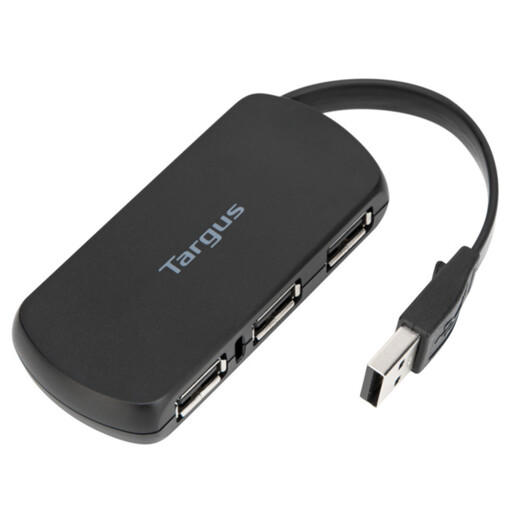
A four-port hub is worth considering when you want to connect a headset and other peripherals without adding display or charging functions.
Before buying, confirm the type of each peripheral port and which end of the hub’s cable connects to your laptop.
 No image available
This is a wider desk option for a compatible USB-C laptop when headset access sits alongside charging, wired networking or display connections.
The named configuration includes dual USB 3.0 ports, 100W Power Delivery, HDMI, VGA and Gigabit Ethernet. Check laptop and charger compatibility for pass-through charging; video output requires a compatible USB-C video mode.
 No image available
Consider this for a USB-C laptop when a headset shares the desk with equipment that needs network, display or card connections.
The named configuration has one 10 Gbps USB-A port, two 480 Mbps USB-A ports, a 10 Gbps USB-C data port, two HDMI connections, RJ45, SD/TF access and a USB-C Power Delivery connection. Confirm the laptop’s USB-C display capability and the charging equipment you intend to use.
 No image available
This broad desk-connection option is relevant when the headset is one of several devices you plan to attach to a compatible USB-C laptop.
The product name also specifies USB 3.0 and USB 2.0 connections, RJ45, Power Delivery, SD/TF access and audio. Confirm that your laptop supports the dock functions you need, and check the charger requirements if you plan to use pass-through charging.
No: the hub needs a connection for your laptop and a suitable port for your headset. If a connected headset produces no sound in Windows, Microsoft Support advises checking the selected audio output; volume, mute settings, audio enhancements and drivers are also worth checking before replacing the hub.
Not necessarily: a straightforward hub can suit a headset and other low-power peripherals when its connections meet your needs. Laptop charging is a separate requirement, so check Power Delivery support across the laptop, hub and charger if you need it.
Only when the hub and laptop support the particular function. Belkin UK states that the F4U090’s USB-C peripheral ports do not provide pass-through charging or monitor video output; Anker UK lists a Power Delivery input and HDMI on the Anker 341, with a separate compatible charger needed for charging.
Use an appropriate local electrical-recycling route where one is available. UK government guidance on waste electrical and electronic equipment encourages recovery, reuse and recycling rather than sending electrical products to general waste.