USB-microphone users with a free USB-C port
If your microphone cable ends in USB-A, look for a USB-C hub with a USB-A data port. A USB-C charging socket on the hub is not necessarily a microphone connection.


A USB hub can add a connection for a USB microphone if its computer connector fits your available port and it has a matching, data-capable port for the microphone. An analogue XLR microphone instead needs an audio interface or active XLR-to-USB converter, as Shure explains; an ordinary hub cannot convert its signal. If other devices will share the hub, check its stated power limits as well as its port count.
If your microphone cable ends in USB-A, look for a USB-C hub with a USB-A data port. A USB-C charging socket on the hub is not necessarily a microphone connection.
If the microphone will run alongside a keyboard, mouse, storage drive or webcam, count the data ports each device needs and check the hub’s stated shared-power limits.
Start with an audio interface or active XLR-to-USB converter rather than an ordinary hub. Shure explains that an analogue microphone signal must be converted into USB-compatible digital audio; a hub can add computer ports later if needed.
Identify the microphone connection first. If it is USB, match both ends of the hub to your equipment, then consider the other devices that will use it at the same time.
| Concern | What to check | Who this matters to |
|---|---|---|
| Connection route | Check whether the microphone is USB or XLR. For USB, match the computer’s available port and the microphone cable to the hub’s host connector and downstream data port. | If I cannot tell whether my microphone needs a hub or an interface, getting the connection route right comes before choosing extra sockets; around 36% of consumers put that decision first. |
| Shared power | Check the hub’s stated total and per-device power limits, and whether it uses a dedicated power supply. | With a microphone, storage and a camera attached together, I need to know whether the hub’s stated power provision covers them; around 29% of consumers prioritise shared-device power. |
| Simple expansion | Count the data ports you will use and check the computer connector; do not count a charging-only input as a microphone port. | For occasional calls, I want enough connections without carrying display or charging equipment I will not use; around 14% of consumers put compact expansion first. |
| Desk connections | Check the laptop’s USB-C capabilities, the hub’s data ports and any required charging or display connections. | At a desk, I may need the microphone connected while using a monitor and charging the laptop; around 21% of consumers prioritise wider workstation connections. |
An ordinary USB hub does not convert analogue XLR audio into USB audio, so adding sockets alone will not make the microphone connect to the computer.
Check the microphone’s connector specification first. For an analogue XLR microphone, choose an audio interface or active XLR-to-USB converter before considering a hub for extra computer ports.
Ports with the same connector shape can have different functions. UGREEN lists the Power Delivery port on its 5-in-1 hub for charging and lists its USB-A data ports separately.
Match the microphone cable to a downstream port explicitly specified for data, rather than relying on the socket shape.
Devices attached at once may share a stated power limit. StarTech.com specifies up to 15 W shared across downstream devices on its bus-powered HB31C3A1CB, while its ST4300USB3GB has a stated maximum of 2,000 mA total.
List the devices that will stay connected and compare their requirements with the particular hub’s total and per-port limits.
HDMI and laptop-charging connections serve different needs from a microphone data port. They need not determine the choice if you only need extra USB connections.
Choose a hub with the host connector and data ports you need; consider a broader multiport model when its additional desk connections have a use.
Its USB-A and USB-C expansion hubs are worth comparing when port types and stated power limits matter more than display connections.
Its compact multiport hubs may suit a laptop user who needs USB-A microphone data alongside charging or HDMI.
Its Anker 553 USB-C Hub is an option to assess when microphone expansion is part of a wider display-and-charging desk setup.
Its RØDE Hub is a specialist option to assess for several USB microphones or other devices on one desktop hub.
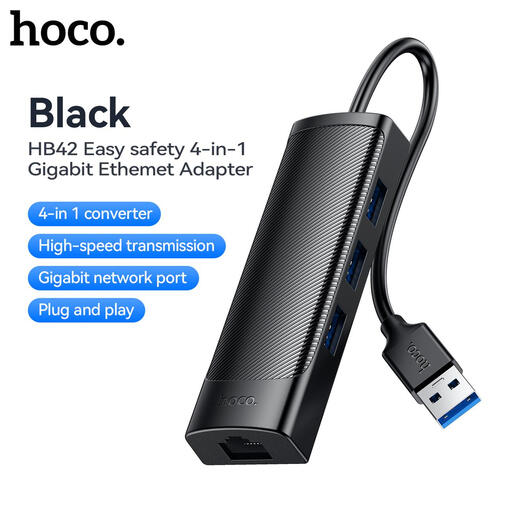
These hubs offer USB data-port expansion for a USB microphone: the HOCO model connects through USB-A, while the Baseus and Mokin models add broader desk connections. Match the host connection and microphone cable before choosing; an XLR microphone still needs audio conversion.
 No image available
Consider this USB-C-connected hub if a USB microphone needs a matching data port alongside other desk connections.
Its product name specifies one USB-A and one USB-C data port at 10 Gbps, two further USB-A ports at 480 Mbps, two HDMI connections, RJ45, SD/TF and a USB-C Power Delivery connection. Check the microphone cable against a data port and the hub’s downstream power provision if several active devices will share it.
 No image available
Consider this model when the computer has an available USB-A port and the USB microphone cable also ends in USB-A.
The product name specifies three USB 3.0 ports, an RJ45 LAN connection and a 0.2M cable. Check its power provision for other attached devices; the listing does not recommend it for charging high-power devices.
 No image available
Consider this multiport model if you need microphone data connectivity alongside display or card-reader connections, provided its required computer connection fits your device.
Its product name lists two USB-A 3.0 ports, a USB-C 3.0 port, SD/TF and HDMI 4K60Hz. Confirm the upstream connection and the hub’s power provision before using it with several active peripherals.
No: an ordinary hub adds USB connections but does not convert analogue XLR audio. Shure explains that an analogue microphone needs an audio interface or another active device that converts its signal into USB-compatible digital audio.
Only if that specific port is also specified for downstream data; do not assume it is. UGREEN describes the USB-C Power Delivery port on its 5-in-1 hub for laptop charging and lists its USB-A data ports separately, so check the exact model’s port functions.
Open Teams settings, go to Devices and select the connected microphone under Audio devices before joining a call. Microsoft Support describes this selection step; the name shown will depend on your device.