Check your printer maker’s USB instructions before buying a hub: HP advises connecting its printers directly to the computer for setup and troubleshooting, rather than through a hub or dock. If your printer supports a hub, choose one whose host connector fits the computer and whose downstream port fits the printer cable; check shared power when other devices will be attached.
Who needs which connection?
Printer reliability-first buyers
If you are setting up a printer or investigating why it is not detected, start with a direct computer connection. HP Support advises against using a hub or dock for its USB printer setup and recommends connecting directly when troubleshooting.
Laptop users needing a USB-A printer port
If your laptop has USB-C or too few USB-A ports, a hub with a suitable host connector and a USB-A downstream port may accommodate the printer cable. Check the exact printer’s hub guidance before relying on that arrangement.
Desk users connecting several peripherals
If a printer will share a hub with a keyboard, mouse or storage device, consider both the port count and how the hub is powered. StarTech.com specifies shared bus power on some models and an auxiliary-power option on its 5G4AB USB-A hub.
What matters when choosing a hub?
Decide whether the printer should connect directly before comparing hub connectors and power arrangements.
| Concern |
What to check |
Who this matters to |
| Printer setup and detection |
Read the exact printer model’s USB instructions. HP advises a direct computer connection for its printer setup and USB troubleshooting. |
If I need the printer detected reliably during setup, I would settle its connection requirements before adding a hub; around 50% of consumers put printer setup and detection first. |
| Connector fit |
Match the hub’s host plug to the computer port and its downstream data port to the printer cable’s computer-side plug. |
With too few suitable laptop ports, I need a place to connect the printer cable; connector fit is the primary concern for around 25% of consumers. |
| Shared-device power |
Check whether the hub shares computer-supplied power or accepts auxiliary power, and whether a required power accessory is included. |
If I also connect storage or other peripherals at my desk, I need to account for their combined power requirements; around 25% of consumers put shared-device power first. |
Common buying mistakes
-
Assuming every printer works through a hub
Hub support depends on the printer. HP Support instructs users to connect directly for its USB printer setup and troubleshooting.
Check the manual or support instructions for your exact model. If its hub compatibility is unclear, set up and test it directly first.
-
Choosing the wrong connectors
A hub must fit the computer at one end and provide a data port that fits the printer cable at the other.
Identify the computer’s available USB port and the cable’s computer-side plug before choosing a USB-A or USB-C host hub.
-
Using data speed as a compatibility test
A hub’s 5Gbps rating does not establish that a printer will be detected through it. Printer instructions, cabling and driver setup still matter.
Confirm the printer’s connection requirements before comparing hub speed ratings.
-
Overlooking power shared with other devices
Bus-powered hubs draw from the computer, so devices attached to the same hub share the available power. StarTech.com specifies a shared 4.5 W bus-power budget for its 5G4AB model.
Check the hub’s power specification and whether an auxiliary supply is supported and included if other attached devices need more power.
Relevant brands to consider
UGREEN
USB-A expansion hubs, including compact four-port designs.
- UGREEN describes a four-port USB-A hub with a 60 cm host cable and lists printers among the peripherals it can connect.
- That product description does not establish compatibility with every printer; follow the instructions for your exact model.
Belkin
USB-C host hubs with mixed peripheral-port layouts.
- Belkin specifies two USB-A and two USB-C peripheral ports on its F4U090 hub for USB-C host devices.
- Belkin says the F4U090 shares host-provided power and does not offer pass-through charging.
StarTech.com
USB-A and USB-C hubs with model-specific connector and power specifications.
- StarTech.com specifies four downstream USB-A ports and an optional auxiliary-power input on its 5G4AB USB-A hub.
- Power and connector specifications vary by model and do not guarantee compatibility with a particular printer.
Joybuy hub choices
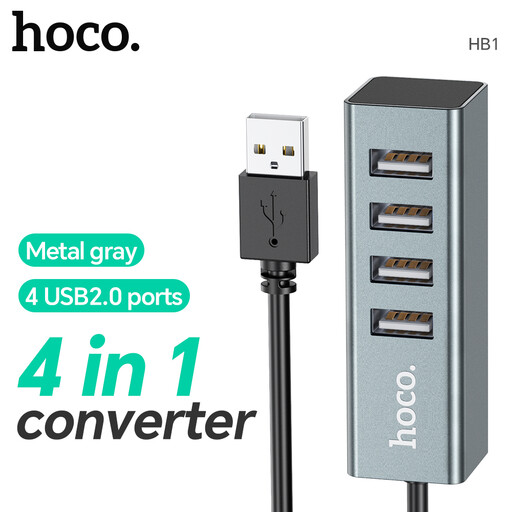
This four-port hub is a choice to consider for adding connections only if your printer supports hub use and its connectors fit your computer and cable.
 No image available
HOCO HB1 four-port USB 2.0 hub, Metal Grey
Consider this hub for extra ports if your printer supports a hub connection.
Four USB 2.0 ports. Before buying, confirm that its host and downstream connectors fit your computer and printer cable, and check power requirements if other devices will share it.
View on Joybuy
Questions about printer hubs
Can I connect a USB printer through a hub?
Only if the connection is appropriate for your printer. HP Support advises connecting its USB printers directly to a computer for setup and troubleshooting, so check the instructions for your exact model before relying on a hub.
Should I set up the printer directly first?
A direct connection is the sensible starting point when hub support is unclear or the printer is not detected. Follow the printer maker’s setup instructions, then try a hub only if those instructions permit it; for Windows printer issues, Microsoft Support also advises checking the printer driver.
Do I need a 5Gbps hub for a USB printer?
A 5Gbps rating alone does not establish printer compatibility. HP’s cited USB troubleshooting guidance specifies a USB 2.0-or-higher computer port; check your own printer’s requirements and consider hub speed separately if you will also connect other devices.
Which hub ports fit my printer cable?
Choose a host connector that fits the computer and a downstream data port that fits the cable’s computer-side plug. If that plug is USB-A, look for a USB-A downstream port, then check the printer’s instructions on hub use.


