For one USB printer and a few accessories, choose a compact hub only after checking that its computer-side connector and printer-facing data port fit your equipment. A mains-powered hub is worth considering when several peripherals will stay connected, while a multiport USB-C hub makes more sense if you also need laptop charging or other desk connections. An ordinary USB hub adds ports to one computer; it does not, by itself, share a printer between computers.
Who needs which setup?
One computer and a cramped desk
If the printer shares a computer with a mouse, keyboard or flash drive, a compact hub can add connections without a separate hub power adapter. StarTech.com's H5C4A-USB-HUB illustrates the USB-C-to-USB-A format; it suits this connection plan only if your computer and printer cable have the corresponding connectors.
Several permanently connected peripherals
If you would rather leave the printer and other accessories plugged in, consider the port count and power arrangement together. TP-Link's UH700 illustrates a mains-powered desktop option, though its body, adapter and cables need space.
A USB-C laptop with a wider desk setup
If you need printer connectivity alongside laptop charging, a display or card readers, a multiport hub may serve those separate needs. Anker lists these functions for its 555 USB-C Hub; check the laptop's capabilities and charger requirements before choosing that route.
What should you check?
Start with the connection from computer to hub and from hub to printer. Then decide whether the other devices call for an independent power supply or additional laptop functions.
| Concern |
What to check |
Who this matters to |
| Connector fit and desk space |
Match the hub's computer-side plug to your computer, and check that a data port accepts the printer cable. Check the cable path on the desk. |
If I mainly need the printer and a few accessories connected without crowding the desk, the plugs must fit before extra ports matter; around 42% of consumers put connector fit and compactness first. |
| Ports and independent power |
Count devices used together and check whether the hub has its own power supply and whether an adapter is included. |
Keeping several peripherals connected makes available ports and power arrangement my main concern; roughly 33% of consumers prioritise that combined need. |
| Broader laptop connections |
Check whether you need charging or display and card-reader functions, and whether your laptop and charger support the functions you plan to use. |
If the printer is only part of a USB-C laptop desk, I may also need the hub for charging or other connections; about 25% of consumers put that wider expansion first. |
Mistakes to avoid
-
Buying a hub to share a printer between computers
An ordinary USB hub expands ports for one host computer. Sharing a printer across computers calls for a different arrangement, such as a network-capable printer or compatible print-server hardware.
Decide how many computers need access before buying. For network sharing, check the printer or router's supported features and the setup required on each computer.
-
Assuming every USB-C hub offers the same functions
A USB-C connector alone does not establish whether a laptop can use a hub's charging or display functions. Anker specifies pass-through charging for its 555 hub, but that model also needs a suitable charger, which is not included.
For printing alone, focus on the host connection and printer-facing data port. Check laptop and charger compatibility before choosing additional functions.
-
Choosing bus power without considering the other devices
As RS explains, a bus-powered hub draws power from its host, whereas a self-powered hub uses its own supply. The distinction matters more when several peripherals need to operate together.
Count the devices that will stay connected and check their power needs. If you choose a powered model, allow room for its adapter and a mains socket.
-
Overlooking the hub's footprint and cable direction
TP-Link lists the UH700 hub body at 165 × 65.5 × 17.5 mm, before allowing space for cables and its adapter. StarTech.com specifies a 13 cm attached host cable for the compact H5C4A-USB-HUB; that length still needs to reach your computer's port.
Measure the available desk area and check where the computer port sits before choosing a hub and cable layout.
Brands and relevant models
StarTech.com
Its H5C4A-USB-HUB represents compact USB-C-to-USB-A expansion; its ST7320USBC represents a powered desktop hub with mixed port types.
- StarTech.com specifies four USB-A ports, bus power and a 13 cm attached cable for the H5C4A-USB-HUB. It lists a 20W power adapter for the ST7320USBC.
- Check the particular model: those connector and power arrangements are not interchangeable.
TP-Link
The UH700 is a fixed-desk option for keeping several USB devices connected.
- TP-Link specifies seven USB 3.0 ports, compatibility with USB 2.0 and 1.1 devices, and an included 12V/2A adapter for the UH700.
- Its stated 165 × 65.5 × 17.5 mm body, adapter and cables need space on or around a small desk.
Anker
The 555 USB-C Hub is relevant when a laptop desk needs more than a printer connection.
- Anker lists HDMI, SD and microSD functions, plus up to 100W pass-through charging minus 15W for hub operation, for the 555.
- A wall charger is not included. Check laptop compatibility and charging requirements rather than choosing these features for printing alone.
Joybuy USB hubs to consider
These hubs offer different amounts of port expansion for a small desk. Check each model's computer connection and printer-cable fit; choose additional hub functions only if your setup needs them.
 No image available
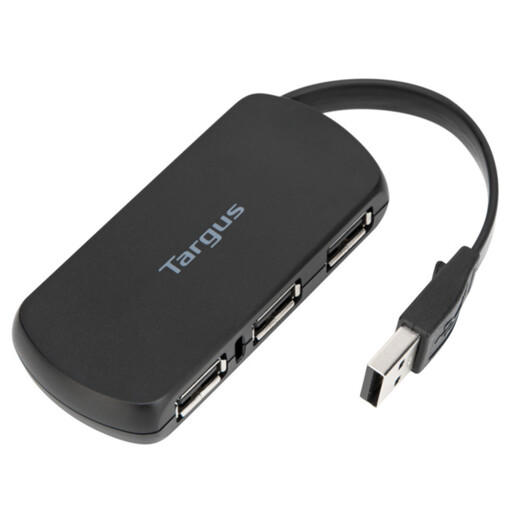
Targus 4-Port USB Hub
Consider this for a printer and a few accessories connected to one computer. Before buying, confirm which plug connects to the computer and whether the printer cable fits a data port; check the hub's dimensions against your desk space.
View on Joybuy
 No image available
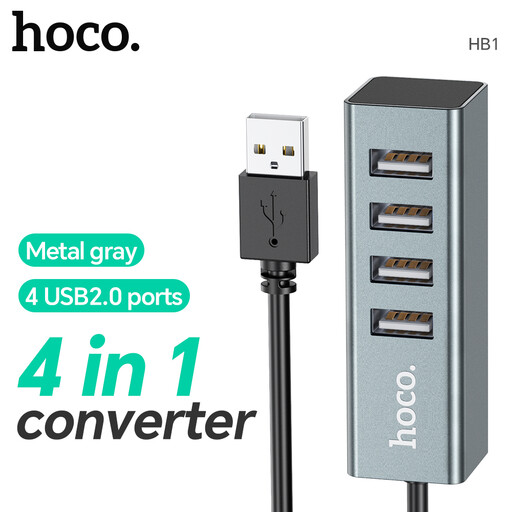
HOCO HB1 4-Port USB 2.0 Hub, Metal Grey
This four-port USB 2.0 model is an option when you need connections for the printer and other ordinary USB accessories. Confirm the computer-side connector, the printer-facing port type and the cable's reach before choosing it for a cramped desk.
View on Joybuy
 No image available
Baseus Metal Gleam Series USB-C 7-Port Hub, Grey
This USB-C model is worth considering if the printer is part of a wider laptop setup. Check that a data port fits your printer cable, that any additional functions work with your laptop, and that the hub and its cables fit your desk.
View on Joybuy
Frequently asked questions
Will any USB hub connect my printer?
No: the hub needs a host connector that fits your computer and a compatible data port for the printer cable. Check both ends of the connection before relying on the number of ports shown in a product title.
Do I need a powered hub for one printer?
Not necessarily; a bus-powered hub can suit one printer with a few low-power accessories. If several peripherals will run together or you need independent hub power, compare self-powered models and check whether the adapter is included.
Can one USB hub share a printer between two computers?
An ordinary USB hub does not provide multi-computer printer sharing. If both computers need access, check whether the printer has Wi-Fi or Ethernet, or whether you have a compatible print-server arrangement; TP-Link's print-server guidance also calls for compatible hardware and setup on each computer.


