One-computer shared-desk users
If different people use the same desk with one computer, an accessible hub can provide a repeatable place to plug in a wired mouse, with ports for other desk peripherals.


Choose a USB hub if one computer needs a more accessible connection for a wired mouse; match its computer-side plug and cable reach to the desk. If the same mouse must move between two computers, choose a USB peripheral-sharing switch instead, or a KVM switch if the monitor must switch too. Check the hub’s power arrangements if you also plan to connect more demanding peripherals.
If different people use the same desk with one computer, an accessible hub can provide a repeatable place to plug in a wired mouse, with ports for other desk peripherals.
If the computer has USB-C but the mouse has a USB-A plug, look for a hub with a USB-C computer-side connection and a suitable USB-A port for the mouse.
If one mouse needs to control either of two computers, look at USB peripheral-sharing or KM switches. Include KVM switches in the search when the monitor also needs to change computers.
Decide whether the mouse will connect to one computer or switch between two. For a one-computer setup, check the computer-side connector and the cable route before comparing extra ports.
| Concern | What to check | Who this matters to |
|---|---|---|
| Mouse connection within reach | Measure the cable path from the computer to a convenient position on the desk, including any route around a stand or under the desk. | If I keep one computer at the shared desk, I want to plug in the mouse without moving that computer or stretching its cable. Roughly 42% of consumers put reachable one-computer access first. |
| Computer-side connection and ports | Match the hub’s computer-side plug to the computer, then check that its available ports fit the mouse and other regular peripherals. | With a USB-A mouse and a USB-C laptop, I need the right connections before extra ports are useful. Around 33% of consumers prioritise connector fit and everyday expansion. |
| Sharing across computers | For two computers, check a USB-sharing or KM switch; if the monitor must switch as well, check the KVM’s display connections and supported resolution. | When I alternate between two computers, I want the same mouse to follow the one I am using. Approximately 25% of consumers place two-computer mouse sharing first. |
A standard hub adds ports to one computer; it does not select which of two computers receives the mouse.
Count the computers before comparing hubs. For two, choose a peripheral-sharing or KM switch, or a KVM if the display must switch too.
A hub with suitable ports for the mouse can still have the wrong connector for the computer.
Identify both plugs, then choose the hub’s computer-side connection before deciding how many additional ports you need.
Power available to a bus-powered hub is shared across its ports. StarTech.com specifies this arrangement for one of its four-port USB-A hubs and offers an optional auxiliary-power input for that model.
If you will add external storage or other devices with greater power requirements, check the exact hub’s port-power specifications and external-power options.
A speed label does not settle whether the hub reaches the mouse position, fits both plugs or can switch between computers.
Settle those requirements first. Compare transfer-speed specifications if you also plan to connect storage or other data-intensive devices.
Its hub and dock range includes a four-port USB-A hub relevant to placing connections within reach of one computer.
Its range includes USB-C data hubs as well as hubs with additional desk connections.
Its connectivity range includes one-computer USB hubs and separate KVM products for multi-computer desks.
Its switching products are relevant when the same peripherals must be used with two computers.
These hubs and adapters are choices for adding connections to one computer at a shared desk. Before choosing one, match the computer and mouse connectors and check whether its cable can reach the intended position; a hub will not switch the mouse between computers.
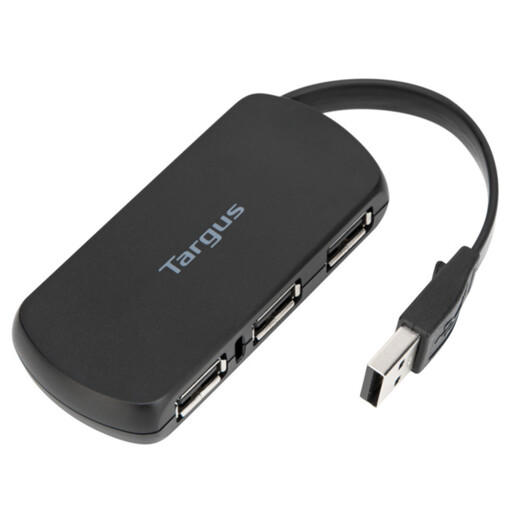 No image available
Consider this for adding connections to one computer where the mouse will be plugged in at the desk.
The product name identifies a four-port hub. Check the computer-side connector, the ports needed for your mouse and the cable route before buying.
 No image available
Consider this when one USB-C computer also needs mouse connections alongside display or network connections.
Its name specifies two USB 3.0 ports, 4K HDMI, VGA, Gigabit Ethernet and 100W Power Delivery. Check that the mouse plug fits and that the computer supports the display functions you intend to use; confirm the cable reach for the desk.
 No image available
Consider this for a one-computer USB-C desk setup that needs peripheral connections as well as other dock functions.
The product name identifies TF and SD card slots and display output. Confirm that a port fits the wired mouse and that the dock’s cable reaches the intended position.
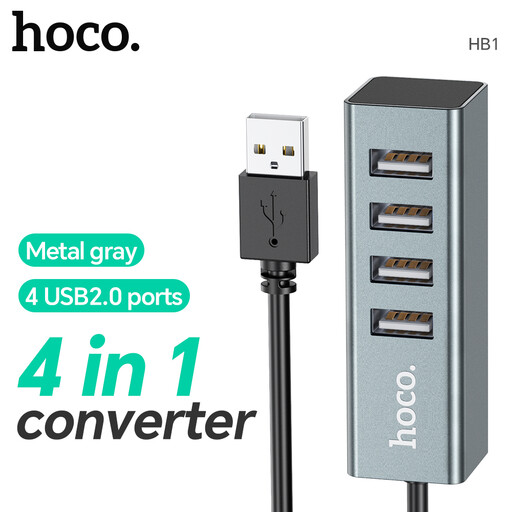 No image available
Consider this if you need more ports for a single-computer desk rather than a way to share the mouse between computers.
The product name specifies four USB 2.0 ports. Check the computer-side connector, the mouse plug and the cable length against your desk layout.
No. A normal hub expands the ports of one computer. To use the same mouse with two computers, choose a USB peripheral-sharing or KM switch; choose a KVM if the monitor must switch as well.
A mouse alone will not usually call for an externally powered hub, but the devices connected to a bus-powered hub share its available power. If you also plan to attach external storage or other more demanding devices, check the exact hub’s power specifications and auxiliary-power options.
Choose a cable that follows the actual route from the computer to the place where people will plug in the mouse. Measure around stands and under-desk obstacles rather than relying on a straight-line distance; even a 60 cm cable may be too short for some layouts.