Students connecting one printer
If the laptop has a suitable spare port, try the printer directly before adding another connection. Epson and HP recommend a direct connection when troubleshooting USB printer problems.


Test the printer with a direct laptop connection before buying a hub: Epson and HP both advise bypassing a hub when troubleshooting a USB printer connection. If you need more ports, match the hub’s laptop-side connector and USB data ports to your equipment; a compact hub suits basic peripherals, while a powered or multiport model is worth considering only when your other devices need its connections or power arrangement. Keep a direct printer connection available if detection becomes unreliable.
If the laptop has a suitable spare port, try the printer directly before adding another connection. Epson and HP recommend a direct connection when troubleshooting USB printer problems.
A compact hub can bring a printer, mouse and keyboard to one laptop port. Check that its data sockets fit the cables you use and that the hub can sit comfortably on a small desk.
If the same desk also needs laptop charging, a monitor, wired internet or card reading, consider those connections alongside the printer’s USB data port. Check each required function against the laptop before choosing a multiport hub.
Start with a working direct printer connection, then check connector fit. Desk space and extra devices determine whether a basic hub is enough.
| Concern | What to check | Who this matters to |
|---|---|---|
| Printer connection | Test the printer directly and keep that connection available if it fails through the hub. Inspect the printer cable too. | If my printer disappears when connected through a hub, I need a way to isolate the cause before changing my set-up. Around 36% of consumers put a reliable printer connection first. |
| Connector fit | Match the hub’s laptop-side connector to an available port and confirm it has a data socket for the computer-side plug of the printer cable. | With a USB-C laptop and a printer cable ending in USB-A, I need both ends of the connection to fit. Around 29% of consumers primarily care about port compatibility. |
| Desk space | Count the ports you will use and check whether the hub’s attached cable reaches its intended position. | I need to connect everyday peripherals without leaving a larger set-up spread across a small desk. For around 21% of consumers, compactness is the main concern. |
| Additional devices | Check data ports separately from charging or display connections; consider external hub power for several power-intensive USB accessories. | If I also connect a monitor, storage or other accessories, the printer is only one part of my desk connection. Around 14% of consumers prioritise expanded connectivity or power. |
A hub introduces another possible cause of a connection problem. Epson and HP advise connecting a USB printer directly to the computer during troubleshooting.
Check that the printer works with a direct cable connection first, and keep that option available if it becomes unreliable through a hub.
A charging connection does not necessarily provide a data socket for the printer cable. The total port count alone cannot tell you whether the cable fits.
Identify the laptop connector and the plug at the computer end of the printer cable, then check the hub’s data-port types.
StarTech.com explains that a bus-powered hub shares the host port’s available power across connected devices. That matters when several USB-powered accessories are attached.
If you plan to connect power-intensive accessories as well as the printer, check for suitable external hub power and use the specified adapter.
A cable problem can be mistaken for a hub problem. In its USB-printer troubleshooting guidance, HP advises replacing a damaged cable or one longer than 3 m.
Inspect the cable and try another computer port before replacing the hub; follow the cable guidance applicable to your printer.
Its USB hub range includes compact USB-C data hubs and externally powered options.
Its cited seven-port USB-C model is aimed at desks needing connections beyond USB peripherals.
Its cited four-port USB 3.0 model is a data hub for peripheral expansion.
These choices include compact hubs for basic peripheral connections and USB-C multiport models for desks needing more connections. For any of them, confirm the printer cable fits a data port and retain the option of connecting the printer directly.
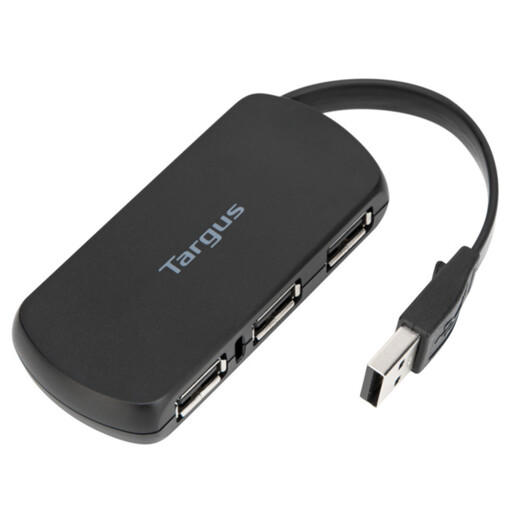 Image unavailable
Consider this compact hub when you need extra connections for the printer and everyday desk peripherals. Confirm that its laptop-side connection fits your computer and that its data ports fit the printer cable.
 Image unavailable
Consider this USB-C hub when your desk needs more connections than the printer alone. Check which of its seven ports carry USB data, whether they fit your printer cable, and which additional functions your laptop supports.
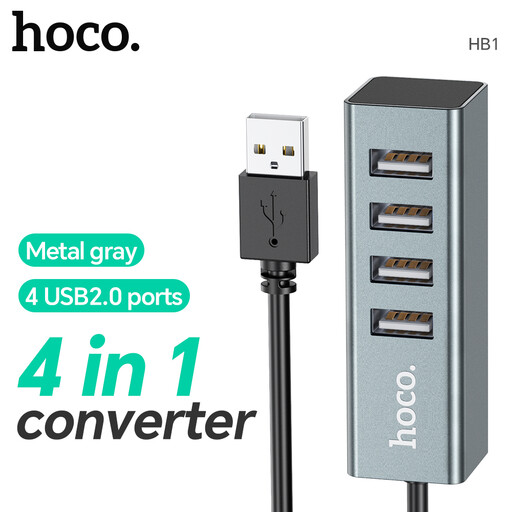 Image unavailable
Consider its four USB 2.0 ports for a basic printer-and-peripherals set-up. Check the laptop-side connector and the printer cable’s fit before buying, particularly if your laptop has only USB-C ports.
 Image unavailable
Consider this multiport model if the printer needs a USB-A connection and your desk also calls for the listed card-reader or display connection. Its name specifies two USB-A 3.0 ports; check your laptop’s USB-C docking and display compatibility before relying on the other functions.
 Image unavailable
Consider this connection set only if the printer shares a desk with other devices that need its listed ports. Confirm the USB data sockets fit the printer cable, and check laptop compatibility for the display and charging functions you intend to use.
A hub may provide the required USB data connection, but keep a direct connection available. Epson and HP advise bypassing a hub when troubleshooting a printer that is not detected or does not communicate reliably.
Not automatically; the other devices sharing the hub matter too. StarTech.com explains that a bus-powered hub divides the host port’s available power among connected devices, so check external power options if you also use power-intensive USB accessories.
Choose the hub for connector fit and a dependable data connection rather than speed alone. If you also connect USB storage, consider its transfer needs separately; a faster hub does not replace testing whether the printer is detected through it.
Connect the printer directly to the laptop to see whether the hub is involved. Then inspect the cable and try another computer port; HP’s troubleshooting guidance advises replacing a damaged cable or one longer than 3 m where that guidance applies.