Hot-desk webcam users
You move between shared desks and need a hub whose host connector, webcam port and cable reach work with the laptop in front of you.


Choose a hub that matches the computer’s host port and the webcam’s plug, then consider how many other devices will share its power and connection. A compact bus-powered hub can suit a standard webcam with low-power desk accessories; a powered arrangement is worth considering when several devices share the hub. For a 4K webcam or an unstable connection, test the camera directly on the computer: Logitech warns that some hubs and docks do not work well with 4K webcams.
You move between shared desks and need a hub whose host connector, webcam port and cable reach work with the laptop in front of you.
You leave a webcam and other peripherals connected at one desk. Shared power matters more than carrying the hub between workstations; Logitech recommends a powered hub for the business webcams covered by its support guidance.
You need to know whether your particular camera works reliably through a hub. Logitech cautions that some hubs and docks do not work well with 4K webcams, making a direct connection an important option to test.
Start with the computer and webcam connectors, then decide whether the webcam should share a bus-powered hub, use an arrangement with additional power or connect directly.
Consider it when: A standard webcam shares a movable desk setup with low-power accessories, and minimal cabling matters.
Trade-off: Connected devices share power supplied by the computer; a stated 5Gbps link rate does not guarantee power or performance for each device.
Consider it when: A webcam stays at a fixed desk alongside several peripherals, particularly ones with greater power demands.
Trade-off: It adds a power connection, and auxiliary power for peripherals does not necessarily charge the laptop. StarTech.com specifies that its 5G4AC-USB-A-HUB has a 15W auxiliary input but does not support laptop charging.
Consider it when: The camera is 4K or its video drops out through the intended hub. Logitech recommends direct connection for the 4K webcam covered by its guidance.
Trade-off: The camera occupies a computer port, so other desk accessories may need a separate connection.
| Concern | What to check | Who this matters to |
|---|---|---|
| Connection and shared power | Check whether power comes from the computer or an additional supply, and how power is shared among peripheral ports. Laptop charging is a separate specification. | I want the webcam to stay connected while other desk devices are in use. Around 45% of consumers put dependable shared power and connection first. |
| Connector and port layout | Match the hub’s host connector to the computer and its downstream ports to the webcam and other devices; check cable reach at the desk. | If I move between desks, I need plugs and ports that fit without rearranging every accessory. For around 33% of consumers, that physical compatibility is the primary concern. |
| 4K video through a hub | Check the camera maker’s hub guidance and test the intended computer, cable, hub and meeting application. Logitech cautions that some hubs and docks do not work well with 4K webcams. | I would rather reserve a computer port for a 4K camera than risk an unstable meeting connection. Around 22% of consumers prioritise that video-connection risk. |
The USB Implementers Forum identifies 5Gbps and 10Gbps as USB link capabilities, while Logitech warns that some hubs and docks do not work well with 4K webcams. A faster label alone does not settle whether your camera will work through a particular setup.
Check the relevant host and hub capabilities, then test the webcam through the intended connections before relying on them for meetings.
Power Delivery to a laptop and power shared among a hub’s peripheral ports serve different purposes. Belkin specifies up to 100W host Power Delivery but 12W shared output for the USB-C peripheral ports on its AVC021 hub.
Read the host-charging and downstream-power specifications separately, and check what power supply the setup requires.
A hub’s USB-C host plug will not fit a USB-A-only computer, and the webcam still needs a suitable downstream port. Cable reach can also affect where the hub sits.
List the computer’s available ports and each device plug, then check the hub’s host connector, peripheral ports and attached cable.
Microsoft Support identifies drivers, privacy settings and application access among possible causes of Windows camera problems.
Check the connections and try the webcam directly on the computer before replacing the hub; on Windows, check camera permissions and use the Camera troubleshooter where relevant.
Its specified four-port USB-A and USB-C-host hubs provide options for straightforward desk expansion.
The AVC021 is relevant to a USB-C desk where laptop charging or display expansion is needed alongside peripheral connections.
The A210B Nano 8-in-1 is relevant when a USB-C laptop desk also needs USB data ports, charging pass-through and display connections.
These choices cover USB-C desk expansion and a simpler four-port hub. Match the computer and webcam connectors before choosing, and test the intended camera setup rather than treating a hub’s port count as a compatibility guarantee.
 No image available
Consider this for a USB-C computer when the webcam and other desk accessories need multiple connections. Its name specifies seven ports; check which of those ports accept your device plugs and how power is shared before using it for a meeting setup.
 No image available
Consider this for a shared USB-C laptop desk that also needs display or wired-network connections. The named variant includes dual USB 3.0 ports, 4K HDMI, VGA, Gigabit Ethernet and 100W Power Delivery; the 4K label describes HDMI output, not webcam compatibility. Check the computer’s required connection mode and the power available to peripherals separately.
 No image available
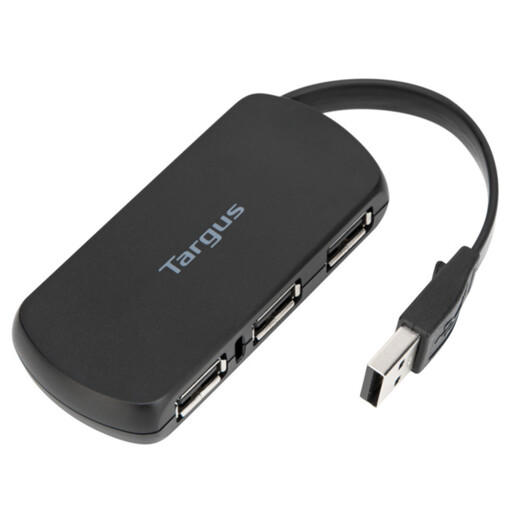
Consider this four-port option for a desk where a straightforward peripheral arrangement matters more than display or laptop-charging connections. Confirm the computer and webcam connectors, and check that the intended camera and other devices work together through the hub.
Not necessarily: a bus-powered hub may suit one standard webcam with low-power accessories if the complete setup works reliably. Where several devices share power, consider an additional-power arrangement; Logitech recommends a powered hub for the business webcams covered by its support guidance.
A higher stated link rate does not, by itself, establish better video from a particular webcam. Check the camera’s requirements and test the intended host, cable and hub; Logitech warns that some hubs and docks do not work well with 4K webcams.
Check the connections and try the webcam directly on the computer to help isolate the problem. Microsoft Support also advises checking relevant camera permissions and using the Windows Camera troubleshooter where applicable.