Single-keyboard port expanders
You need an accessible connection for one wired keyboard, without display, Ethernet or laptop-charging functions. Belkin and StarTech.com both describe basic hubs for keyboard connections.


For one wired keyboard, start with a hub whose connector fits the computer and whose data port fits the keyboard; a compact hub is usually sufficient for that task. Consider a separately powered desktop hub when several devices will share it, or a USB-C multiport hub when you also need workstation connections such as charging or a display, checking each function on the exact model.
You need an accessible connection for one wired keyboard, without display, Ethernet or laptop-charging functions. Belkin and StarTech.com both describe basic hubs for keyboard connections.
Your computer has an available USB-C port but your keyboard has a USB-A plug. Check the computer-side connector and keyboard-side data port separately; Belkin and StarTech.com offer models with this combination.
Your keyboard will share a hub with several other devices. Port count and whether the hub has its own power supply matter more to this setup than keeping the hub small, as RS explains in its guidance on hub power.
Check the connector at each end before comparing extra ports. Then decide whether the hub will serve just a few basic peripherals or a larger desk setup.
| Concern | What to check | Who this matters to |
|---|---|---|
| Connector fit | Match the hub’s host connector to the computer’s free USB-A or USB-C port, then match a downstream data port to the keyboard plug. | If my laptop has USB-C but my keyboard has USB-A, both ends must fit before extra features matter. Roughly 44% of consumers put connector fit first. |
| Simple expansion | Check how many data ports you need, whether the cable reaches your setup and whether the hub draws power from the computer. | When I only need a keyboard and perhaps a mouse, I would rather use a small hub than set up a desk accessory with its own supply. Around 33% of consumers prioritise simple expansion. |
| Shared-device power | Count devices used at the same time and check whether the hub has an independent power supply; RS distinguishes self-powered hubs from those drawing power from the computer. | With storage or other peripherals sharing my keyboard hub, I need enough connections and a suitable power arrangement. Approximately 23% of consumers put shared-desk capacity first. |
A hub with a USB-A port for the keyboard may still have a host connector that does not fit your computer.
Identify the computer’s free port first, then check the hub’s host connector and the keyboard-side data port.
A mismatch may mean using an additional adapter or choosing a different hub.
Belkin states that its F4U090 does not provide pass-through charging or USB-C video output. Anker lists a dedicated Power Delivery input on its 341.
If you need laptop charging or display output, check those functions against the exact hub’s port map.
Belkin and StarTech.com describe USB 2.0 hubs for keyboard use. Faster data connections become more relevant when the hub also serves devices such as storage.
For keyboard-focused use, settle the connector, port-count and power questions before comparing transfer-speed specifications.
RS explains that a bus-powered hub draws power from the computer, while a self-powered hub has an independent supply.
Count the devices you intend to connect simultaneously and compare their needs with the hub’s power arrangement.
Belkin offers compact hubs for basic peripherals and USB-C computers.
StarTech.com offers hubs for both USB-A and USB-C computer connections.
The UH700 is a desktop option for connecting several USB-A devices.
The Anker 341 combines keyboard-friendly USB-A data ports with other USB-C workstation connections.
These hubs cover basic keyboard expansion and USB-C multiport desk setups. Check the computer-side connection on the exact product, particularly where its name identifies the downstream ports but not the host connector.
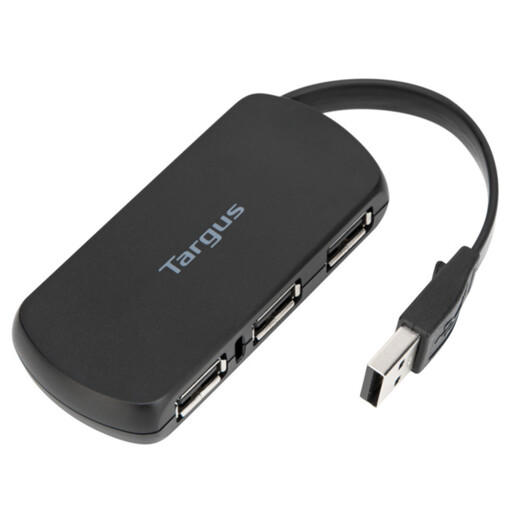 No image available
Consider this for a keyboard-focused setup if its connections fit your computer and keyboard. Confirm which end of its attached cable connects to the computer before buying.
 No image available
For a USB-C computer when the keyboard is one part of a wider desk setup. The named configuration includes three USB-A ports—one labelled 10Gbps and two labelled 480Mbps—plus USB-C data, HDMI, RJ45, SD/TF and USB-C Power Delivery connections. Check host compatibility and whether a charger is supplied if you need laptop charging.
 No image available
Consider its listed USB-A connections if your keyboard also shares a setup requiring the named card-reader or HDMI connections. Check that your computer supports the required USB-C docking functions and that the hub’s power arrangement suits your other devices.
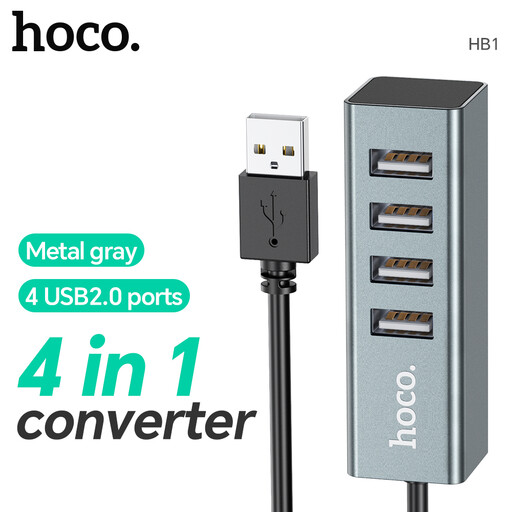 No image available
A basic four-port option to consider for a wired keyboard. Confirm both the computer-side connector and the keyboard-side port type against your devices before choosing it.
A USB 2.0 hub can serve a standard wired keyboard when its host connector fits the computer and its downstream port fits the keyboard. Belkin and StarTech.com both describe USB 2.0 hub models for keyboard connections; consider faster data ports if storage devices will share the hub.
A separate power supply is not normally needed just to add one keyboard through a suitable bus-powered hub. RS explains that bus-powered hubs draw from the computer; compare a self-powered model if several devices will share the connection.
Choose a hub with a USB-C host connector and at least one USB-A downstream data port. Belkin lists two USB-A ports on its F4U090, while StarTech.com lists three on its HB31C3A1CB.
It can only do so if the exact hub supports laptop-charging pass-through and the charger and cable are suitable. Anker specifies Power Delivery input on its 341 and says up to 15W is used for hub operation; Belkin states that its F4U090 does not support pass-through charging.