Choose a hub whose connector fits an available port on your computer and whose data ports fit your wired mouse. A compact hub is generally enough for a mouse and a few other peripherals; consider a powered desk hub for several connected devices, or a USB-C multiport hub when you also need its charging, display or card-reader functions. Check the exact port layout and power arrangement rather than choosing by port count alone.
Who needs which kind of hub?
Mouse-only port expanders
If your wired mouse competes with a keyboard or USB stick for a computer port, start with a compact hub that fits the computer and has the mouse’s required data port. TP-Link and Belkin both list four-port USB-A expansion models for this kind of setup.
USB-C laptop peripheral users
If the available computer port is USB-C but your mouse uses USB-A, look for a USB-C-host hub with a USB-A data port. Check the remaining port mix against any USB-C accessories you also use.
Fixed-desk multi-device users
If several peripherals share the hub at a fixed desk, distinguish data ports from charging ports and check how the hub is powered. A larger powered model is worth considering when those additional connections are needed.
What matters when choosing?
Check the computer-to-hub connection and the mouse-facing data port before deciding how many other devices the hub must accommodate.
| Concern |
What to check |
Who this matters to |
| Connector fit |
Match the hub’s upstream USB-A or USB-C connector to the computer’s available port; if the mouse has a USB-A plug, find a downstream USB-A data port. |
When my mouse cannot share the computer’s remaining port, I need both ends of the hub connection to fit. Around 42% of consumers would put connector fit first. |
| Enough useful ports |
Count the mouse and other peripherals that will stay connected; choose display, card-reader or charging functions only if you need them. |
If I only want room for a mouse and a few accessories, extra dock functions do not address my main need. For around 33% of consumers, straightforward port expansion comes first. |
| Power and desk capacity |
For several devices, check for an included power adapter and distinguish data ports from dedicated charging ports. |
At a busy fixed desk, I need to know how multiple peripherals will share the hub and which ports can carry data. Dedicated power and desk capacity would be the primary concern for around 25% of consumers. |
Common buying mistakes
-
Counting ports before checking the host connector
A USB-C-host hub will not plug directly into a USB-A-only computer port, regardless of how many mouse-facing ports it has.
Identify the available computer port, then check the hub’s upstream connector and the data port needed by your mouse.
-
Choosing dock functions for a mouse-only task
HDMI, card readers and Power Delivery can serve other needs, but they are not required simply to connect a wired mouse.
Start with the necessary mouse and peripheral ports; choose a multiport dock if its additional functions have a place in your setup.
-
Treating every port as interchangeable
A hub can have separate data and charging ports. Microsoft Support also advises checking hub power when troubleshooting a mouse or keyboard connected through one.
For a multi-device desk, confirm the data-port count, any dedicated charging ports and whether the hub has an external power adapter.
-
Assuming USB-C means laptop charging or video
Functions vary by model: Belkin lists no pass-through charging or USB-C video output for its F4U090, while the Anker 341 A8346 lists Power Delivery input and HDMI.
Check each function you intend to use on the exact hub model, as well as the requirements of your computer.
Brands and relevant models
TP-Link
TP-Link lists both compact USB-A expansion and larger powered desk hubs.
- The UH400 has a USB-A input and four USB-A data ports; TP-Link states support for Windows, macOS and Linux.
- The UH720’s seven data ports, two dedicated charging ports and included power adapter address a broader desk setup than a mouse-only connection.
Belkin
Belkin offers compact peripheral hubs for either a USB-A or a USB-C computer connection, depending on the model.
- The USB-A-host F4U042 is a four-port USB 2.0 travel hub; the USB-C-host F4U090 has two USB-A and two USB-C downstream ports.
- Belkin lists neither pass-through charging nor USB-C video output for the F4U090.
Anker
Anker’s USB-C multiport range is relevant when peripheral expansion must sit alongside other laptop connections.
- The Anker 341 A8346 lists USB-A and USB-C data ports, HDMI, SD and microSD slots, and Power Delivery input.
- Its pass-through charging requires a separate charger. Check whether those additional functions are useful before choosing it for a wired mouse.
USB hubs to consider on Joybuy
These choices cover straightforward USB expansion and hubs with additional connections. For each one, match its computer-facing connection and a mouse-facing data port to your own devices before considering the extras.
 No image available
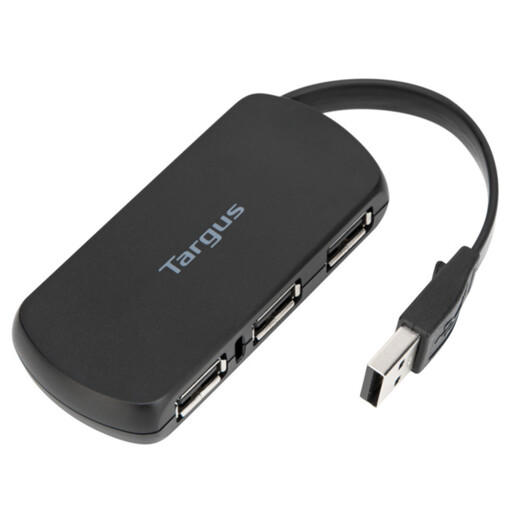
Targus 4-Port USB Hub
Consider this four-port hub if you mainly need space for a wired mouse and other peripherals. Before ordering, confirm that its computer-facing connector and a downstream data port match your computer and mouse.
View on Joybuy
 No image available
Baseus Metal Gleam Series II 10-in-1 USB Hub, Cosmic Black
Consider this USB-C-host hub if your USB-A mouse shares a laptop setup with devices needing other connections. Its listed ports include three USB-A ports, USB-C data, two HDMI outputs, RJ45, SD/TF and a USB-C Power Delivery port. If you intend to use HDMI, check that the host supports USB-C DisplayPort Alt Mode.
View on Joybuy
 No image available
MOVESPEED DK5A1 10-in-1 USB-C Docking Station
Consider this USB-C dock when a mouse connection is only part of a wider laptop setup. The listed connections include USB-A, USB-C, HDMI, SD/TF and 3.5 mm audio; the title lists HDMI at 4K 60Hz. Confirm your computer’s USB-C docking functionality if you plan to use the dock’s additional features.
View on Joybuy
 No image available
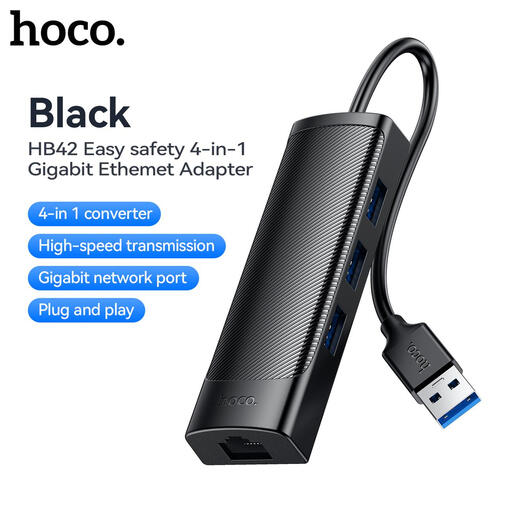
HOCO HB42 4-in-1 USB Gigabit Ethernet Adapter, 0.2 m, Black
Consider this adapter if you need mouse-facing USB ports and an Ethernet connection at the same desk. Its title specifies three USB 3.0 ports and an RJ45 LAN connection. Check that its computer-facing plug fits your available port; the product description does not recommend it for charging high-power devices.
View on Joybuy
Frequently asked questions
Will any USB hub connect my wired mouse?
No: the hub must fit an available computer port and provide a data port that fits the mouse. For a USB-A mouse, look for a downstream USB-A data port; a USB-C laptop can use one when the hub has a matching USB-C host connector.
Do I need a powered hub for one wired mouse?
Not solely because you are connecting one mouse; a powered hub is more relevant when several peripherals or USB-charged devices share a fixed desk setup. If a mouse fails through a hub, Microsoft Support advises checking hub power and testing the mouse directly in the computer.
Can I use either a USB 2.0 or USB 3.0 hub for a wired mouse?
Either can provide the required connection if the host connector and mouse-facing data port fit. Belkin lists its F4U042 travel hub as USB 2.0, while TP-Link lists USB 3.0 ports on the UH400; if other devices will share the hub, check their data requirements separately.
Does a USB-C hub with Power Delivery include a laptop charger?
Not necessarily. Anker states that its 341 A8346 supports Power Delivery pass-through but requires a separate charger, so check what is included and whether your charger and laptop meet the hub’s requirements.


