Mouse-only laptop users
If the wired mouse is your main reason for buying a hub, start with the computer port and mouse plug. A compact hub with a matching data socket may meet that need without additional workstation connections.


Choose a hub whose plug fits your computer and whose data socket fits your wired mouse. For a USB-A mouse, a compact hub can be enough when those connections are all you need; consider additional ports, charging or display functions only if they serve other devices in your setup.
If the wired mouse is your main reason for buying a hub, start with the computer port and mouse plug. A compact hub with a matching data socket may meet that need without additional workstation connections.
When your computer has USB-C but your mouse or other existing devices have USB-A plugs, look for a USB-C host connection and downstream USB-A data ports.
If the mouse will share a hub with several devices, count the data ports you need and check the hub’s power arrangement. Charging and display features call for separate compatibility checks.
Match the two connectors first, then decide whether the mouse will share the hub with other devices.
| Concern | What to check | Who this matters to |
|---|---|---|
| Connector match | Check the computer port, the hub’s host plug and the data socket for the mouse. A USB-A mouse needs a downstream USB-A port. | If my computer and mouse use different USB connectors, I need a hub that connects both. Around 36% of consumers put connector matching first. |
| Simple mouse connection | Look for an accessible mouse port and a hub cable that reaches the computer; choose spare ports you expect to use. | I mainly want to plug in my mouse without adding a larger workstation hub. Around 29% of consumers prioritise straightforward mouse expansion. |
| Shared ports and power | Count simultaneous data connections separately from dedicated charging sockets; check total and per-port power figures for the devices you plan to attach. | My mouse will share the hub with other peripherals, so I need enough usable ports and an appropriate power arrangement. Around 21% of consumers make that their primary concern. |
| Further expansion | If you plan to add storage, compare the stated data rates. Check charging and video support separately against the hub and computer specifications. | I may add storage or other functions later and want the relevant connections available. Around 14% of consumers put further expansion first. |
A USB-C hub can fit a USB-C laptop yet lack the USB-A data socket needed by a USB-A mouse.
Check the hub’s host plug and its downstream data ports against the connectors on both devices.
Belkin states that its F4U090 USB-C mini hub does not support pass-through charging. A USB-C host connection alone does not establish that charging is available.
If charging through the hub matters, check the exact model’s power-delivery input and your laptop’s requirements.
StarTech.com distinguishes the four data ports on its ST4300U3C3 from its three dedicated charging ports. A wired mouse needs a suitable data port.
Use the port diagram to count data-capable sockets separately from charging sockets.
Hubs within a brand’s range can have different port arrangements and functions, even when their names sound similar.
Compare the full model name and the ports you need before relying on another model’s specifications.
Its F4U021 and F4U090 illustrate different ways to add ports for existing USB peripherals.
Its Nano USB-C Hub A83C3 is an example of broader expansion alongside a USB-A mouse connection.
Its specified USB-A hubs illustrate the difference between a set of data ports and a setup that also includes dedicated charging ports.
These hubs offer USB-A ports for a wired mouse, with different host connections and additional functions. Check the computer-facing connection before choosing among them.
 No image available
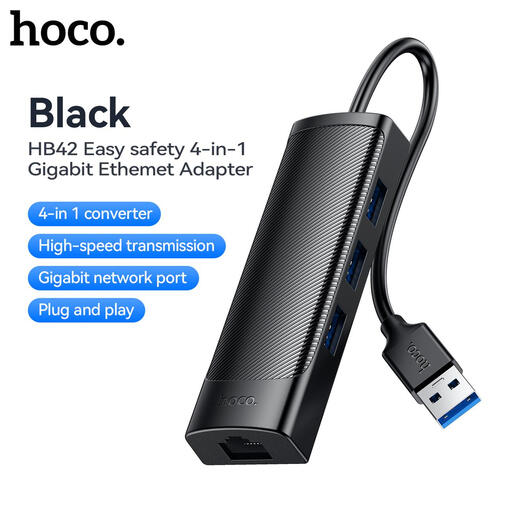
Consider this for a USB-A computer connection when the mouse needs a USB-A port and an Ethernet connection would also be useful.
The product name specifies three USB 3.0 ports, an RJ45 LAN connection and a 0.2 m cable. Check that its host plug fits your computer.
 No image available
This USB-C-input hub has USB-A data ports for a USB-A mouse and may suit a setup that also needs other connections.
The product name lists one 10 Gbps USB-A port, two 480 Mbps USB-A ports, two HDMI ports, RJ45, SD/TF and a USB-C PD connection. Check your computer’s requirements before relying on its video or charging functions.
 No image available
Its USB-C host connection and USB-A ports provide a route for connecting a USB-A mouse as part of a wider desk setup.
The product name lists USB-A connections specified at 10 Gbps and 5 Gbps, 4K 60 Hz HDMI, SD/TF and 3.5 mm audio. Check compatibility with your computer before relying on the additional functions.
 No image available
The listed USB-A ports make this worth checking if your wired mouse will be part of a setup using several connections.
The product name also lists USB-C, SD/TF and 4K 60 Hz HDMI connections. Confirm the hub’s computer-facing connector and protocol against your device before choosing it.
Choose a hub with a USB-C host connection and at least one downstream USB-A data port for the mouse. Check both connections in the exact model’s port list before ordering.
Not necessarily: Belkin presents its four-port USB 2.0 F4U021 as suitable for a mouse. Consider a higher stated data rate if storage or other data devices will share the hub, after checking that its connectors fit.
No; charging support depends on the model. Belkin says its F4U090 does not support pass-through charging, whereas Anker specifies a USB-C power-delivery input for its A83C3. Check the hub’s charging function and the laptop’s USB-C requirements together.
Use a data-capable port for the mouse, not a socket designated solely for charging. For example, StarTech.com lists data ports separately from dedicated charging ports on its ST4300U3C3; check the port diagram when counting available connections.